Microsoft Access Training

Working with Join Properties

Learn how query join choices determine which related and unmatched records appear, then create a query that identifies clients without trips.

Start here

Overview

This lesson begins with a standard related-table query, changes the join to include every client, and uses Is Null to isolate clients who do not have matching trip records.

What You Will Learn

  • Create a query using TblClients and TblTrips.
  • Recognize the results produced by the default join.
  • Open and interpret the Join Properties dialog box.
  • Change the join to include every client and matching trip records.
  • Use Is Null to identify unmatched records.
  • Hide a criteria field while retaining its filtering effect.
  • Save the completed unmatched-record query.

Before You Begin

  • Creating select queries
  • Table relationships
  • Primary and foreign keys
  • Query criteria

Why This Matters

The default join omits records without a match. Changing join properties allows a query to answer important questions such as which clients have never booked a trip.

Plan Your Study

  • Add the records shown in the lesson.
  • Create a query based on TblClients and TblTrips.
  • View the default join results.
  • Change the join to include all clients.
  • Apply Is Null to DestinationID.
  • Replace trip fields with client address fields.
  • Hide DestinationID and save QryClientsWithoutTrips.

Next step

Read the complete chapter.

The Learn tab contains the written lesson from Surviving Statistics.

Go to Learn

Written lesson

Learn Working with Join Properties

Learn how query join choices determine which related and unmatched records appear, then create a query that identifies clients without trips.

Advertisement

Working with Join Properties

Much of the power in an Access database comes when you intitally set it up. One of the essential elements of proper database design is understanding how to use Access' Join Properties. This lesson will step you through working the Join Properties.

Working with Join Properties

TWorking with related tables in queries

When you create queries based on related tables, even though you do not specify any criteria, you will only see the records that are related in each of the tables. For instance, with this database, if you created a query based on TblClients and TblTrips, you would only see the clients who had scheduled trips. If a client has taken more than one trip, that client would show up more than once in the result of the query because their ID number was associated with more than one record in TblTrips.

Currently, there are no records in the trips table. If you created a query based on both the trips and clients tables, there would be no records in the query. In the next steps, we will add some records, so we can see how queries and related tables work.

1. If it is not already open, open the No Fault Travel database. Open TblAgents in Datasheet View.

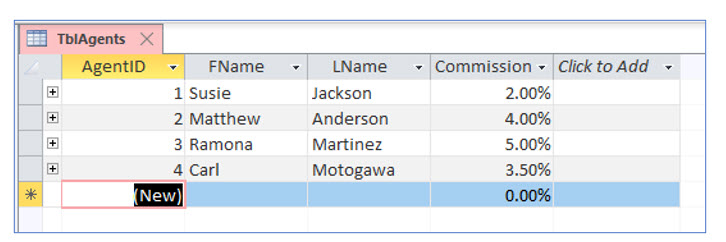
2. Enter the records shown below in the travel agents table.
Microsoft Access lesson screenshot 4thLesson1

3. Close TblAgents. Open TblTrips.

In the next step, you will enter trip information in the trips table. In Lesson 2, we created lookup fields in this table for the ClientID, AgentID, and DestinationID fields. For these fields, you will simply select the information from a dropdown list so data entry is easier!

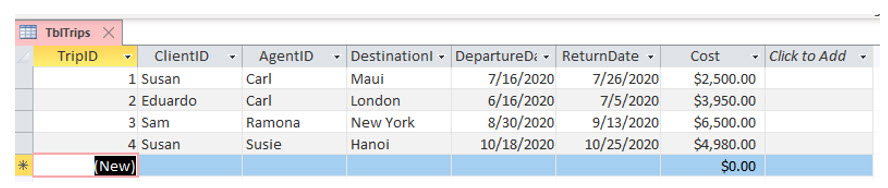
4. Enter the records in the trips table as shown below.
Microsoft Access lesson screenshot 4thLesson2

You will see a list of names in the ClientID and the AgentID fields. Please recall that we designed the lookup fields to show names in the dropdown lists, but the fields actually store the client and agent identification numbers.

5. Close the trips table. Create a new query using the Query Design tool.

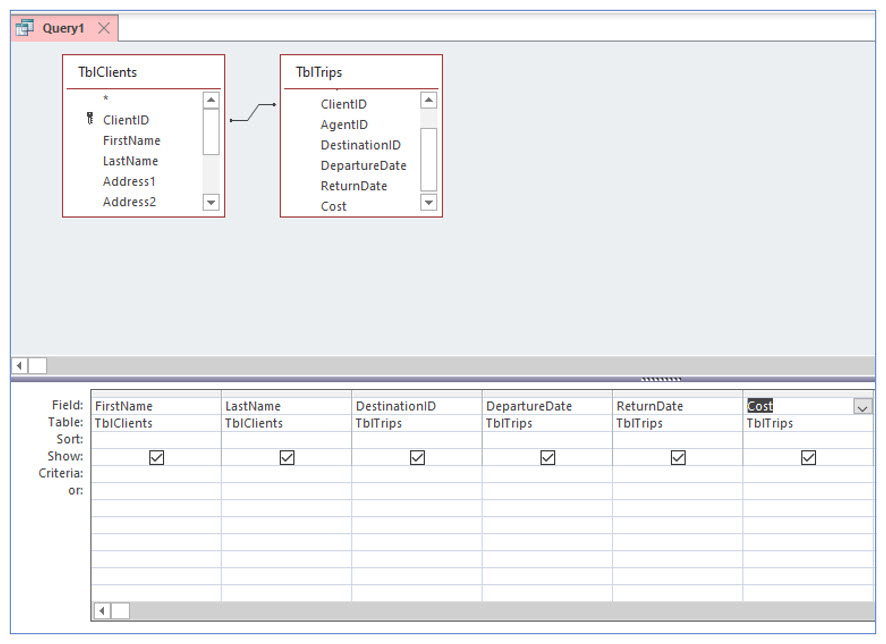
6. In this query, add TblClients and TblTrips. Add the fields: FirstName, LastName, DestinationID, DepartureDate, ReturnDate, and Cost.
Microsoft Access lesson screenshot 4thLesson3

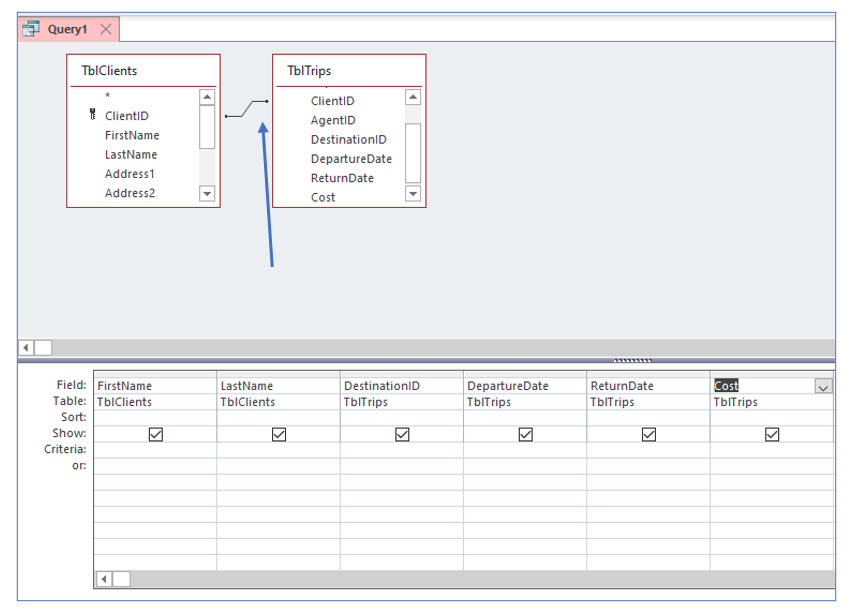
The join line between the two tables indicates that they are related or linked. This relationship was created when the lookup field in TblTrips was created in Lesson 2.

7. View the results of this query.
Microsoft Access lesson screenshot 4thLesson4

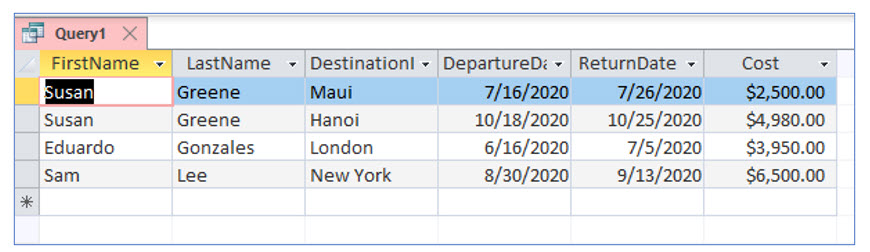
You can see that only three clients’ names appear in this query. There are eight clients (records) in TblClients but only the clients who have booked trips appear in the query results. Susan Greene appears twice -- once for each trip she has booked.

Changing the join properties

Assume that you work for the No Fault Travel agency and you want to increase the number of trips booked. After running this query, you realize that some “clients” have never booked a trip. These clients probably requested information from No Fault Travel, but have not booked a trip. From a marketing standpoint, these people are potential customers because they are interested in travel and you have their contact information.

You could simply manually compare the clients table with the query to determine which clients have not booked trips, but manual comparison is not practical for large data sets.

The best solution is to create a query which lists the clients who do not appear in the trips table. This query will have to be based on both tables, but you will have to change how records are chosen.

The 'join' properties tell Access which records to display in the query. By default, the join properties only show the records that occur in both tables. But you can change the join properties to have Access show you all the records from either table. Then you can set criteria so that the query show only the records of clients who have not scheduled a trip.

This is a long explanation and the good news is that actually changing the join properties is probably easier than understanding why you would want to change them.

1. Return to the Design View of the query.
Microsoft Access lesson screenshot 4thLesson5

2. Carefully double-click the join line between TblClients and TblTrips.

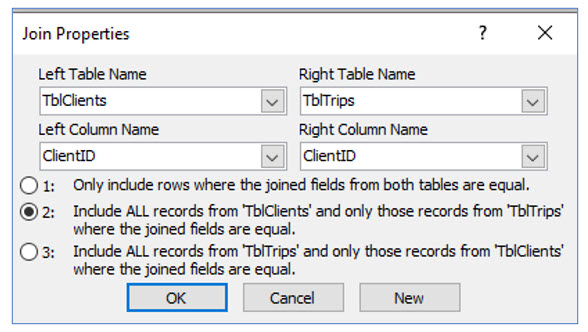
You should now see the Join Properties dialog box. Here you can change how the query treats related records.
Microsoft Access lesson screenshot 4thLesson6

3. In the Join Properties dialog box, choose the second option, “Include All records from TblClients…” and click OK.

This option tells Access to display all the records in the clients table, whether or not the trips table contains a record for that client.
Microsoft Access lesson screenshot 4thLesson7

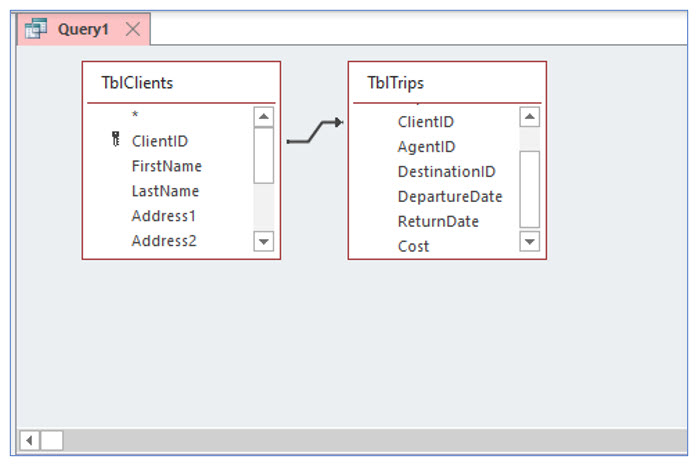
Notice that the join line between these two tables has changed in appearance. There is an arrow pointing to the trips table. When you see a query with an arrow in the join line, you should realize the join properties have been altered.

4. View the results of this query with the join properties changed.
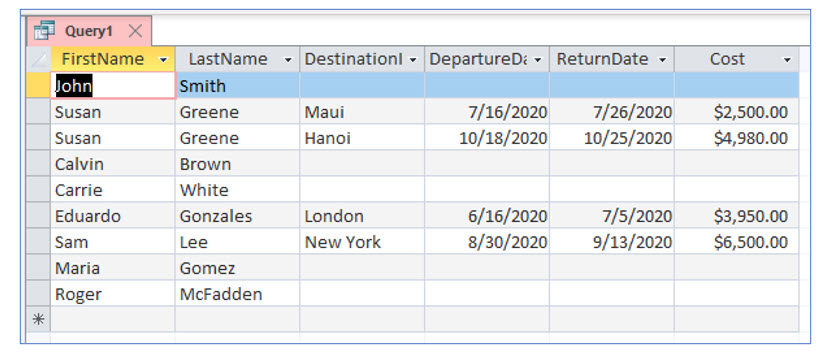
Microsoft Access lesson screenshot 4thLesson8

Notice that all clients are now displayed. The next step is to set criteria to show only those clients who have not booked a trip.

5. Return to the Design View of this query. In the Criteria row of the DestinationID field column, type is null.

You are telling Access to show only the clients who do not have a value in the DestinationID field, or in other words, those who have not booked a trip.

6. Delete the DepartureDate, ReturnDate, and Cost fields from the query. Add the Address1, Address2, City, State, and Zip fields from TblClients. Uncheck the Show checkbox for the DestinationID field.

You can remove fields from the query by selecting the column heading and pressing the (Delete) key.
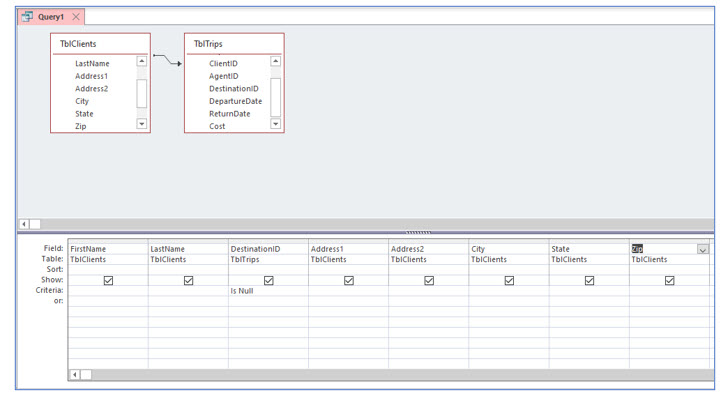
Microsoft Access lesson screenshot 4thLesson9

7. View the results of this query.

Microsoft Access lesson screenshot 4thLesson10

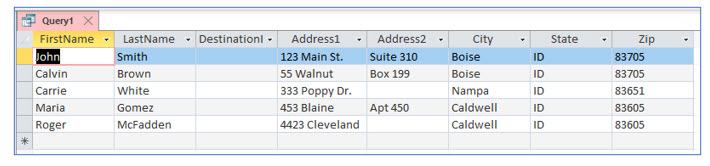
You now have the names and addresses of individuals in TblClients who have never booked a trip.

8. Save this query as QryClientsWithoutTrips and close it.

Advertisement

Next step

See the concepts demonstrated.

Continue to Watch for chapter videos and worked examples.

Go to Watch

See it explained

Watch

Choose the explanation or example that best supports your learning.

Instructional videos will be added later.

Next step

Apply what you have learned.

Use the guided questions and activities in Practice.

Go to Practice

Apply what you learned

Practice Working with Join Properties

Create a related-table query and modify its join so the result includes clients who have no matching trip.

Guided Practice

  • Create the query with TblClients and TblTrips.
  • Add FirstName, LastName, DestinationID, DepartureDate, ReturnDate, and Cost.
  • Run the query and review the default results.
  • Change the join to include all records from TblClients and only matching records from TblTrips.
  • Enter Is Null in the DestinationID criteria row.
  • Replace the trip-detail fields with client address fields.
  • Hide DestinationID and save the query as QryClientsWithoutTrips.

Challenge Yourself

  • Reverse the outer-join direction and predict the result.
  • Create a similar query that finds agents without assigned clients.
  • Explain why the unmatched side displays Null values.
  • Compare the unmatched query with Access's Find Unmatched Query Wizard.

Check Your Understanding

  • Can you explain which table contributes every record in the modified join?
  • Can you distinguish the default matching-only join from an outer join?
  • Can you explain why Is Null identifies clients without trips?
  • Can you explain why DestinationID can be hidden while still filtering the query?

Next step

Save the materials you may need later.

Open Resources for the study sheet, spreadsheets, and related learning materials.

Go to Resources

Keep learning

Resources

Study sheets, downloadable files, companion tools, and related lessons for this chapter.

For educators

Teaching this chapter?

The Instructor tab contains objectives, teaching ideas, assessments, and a printable guide.

Open Instructor Resources

LutherMaddy.com — Helping Humans Learn

Working with Join Properties: Instructor Resources

Teach this lesson

Instructor Resources

Classroom-ready objectives, teaching ideas, questions, and assessment materials for this chapter.

Learning Objectives

  • Create a query from related tables.
  • Interpret the default matching-record join.
  • Change join properties to include unmatched records.
  • Use Is Null to find records without matches.
  • Hide a criteria field from the result.
  • Save an unmatched-record query.

Prerequisite Knowledge

  • Select queries
  • Relationships
  • Query criteria
  • Primary and foreign keys

Teaching Outline

  • Create and run the initial related-table query.
  • Review the default join result.
  • Open Join Properties.
  • Choose the all-clients outer join.
  • Apply Is Null to DestinationID.
  • Replace trip fields with client address fields.
  • Hide the criteria field and save the query.

Key Concepts

  • The default join returns only matching records.
  • An outer join includes every record from one table.
  • Unmatched fields from the other table appear as Null.
  • Is Null isolates unmatched records.
  • A hidden field can still sort or filter a query.

Classroom Demonstration

  • Compare record counts before and after changing the join.
  • Remove Is Null to show all clients, both matched and unmatched.
  • Reverse the join direction and discuss the result.

Questions to Ask

  • Why are clients without trips omitted by the default join?
  • What business questions require unmatched-record queries?
  • Why hide DestinationID while retaining its criterion?

Teaching Notes

  • Use clear language about the all-records side of the join.
  • Have students predict which records will display.
  • Distinguish Null from zero and an empty string.

Assessment Ideas

  • Create the initial related-table query.
  • Change it to an outer join.
  • Find and display unmatched clients.
  • Explain the final result.

Grading Rubric

CriterionPoints
Initial query fields correct2
Join property changed correctly3
Is Null criterion correct2
Output fields and visibility correct2
Query saved and interpreted1
Total10

Exam and Discussion Questions

Basic

  • Explain the difference between an inner join and an outer join.

Applied

  • Create a query that finds customers without orders.

Conceptual

  • Explain why unmatched fields display Null values.

Keep Exploring

Continue Learning

Explore step-by-step lessons, interactive calculators, downloadable study sheets, and practical educational resources.