
Microsoft Access Training

Parameter and Action Queries

Learn to prompt users for criteria with parameter queries and modify records with carefully tested action queries.

Start here

Overview

This lesson converts a saved select query into a parameter query for birthday labels and creates an update query that increases commissions for selected destinations.

What You Will Learn

  • Create a parameter prompt in query criteria.
  • Run a query with different parameter values.
  • Use a parameter query as a report's record source.
  • Create and save an update query.
  • Set action-query criteria.
  • Create an Update To expression.
  • Run an action query and respond to warnings.
  • Verify the affected records after the update.

Before You Begin

  • Select queries and criteria
  • Reports and record sources
  • Calculated expressions
  • Related-table queries

Why This Matters

Parameter queries make saved queries reusable, while action queries can update many records efficiently. Both require clear prompts, accurate criteria, and careful testing.

Plan Your Study

  • Add a birth-month parameter to QryClientBirthMonth.
  • Create a copy of the birthday-label report.
  • Change the report's record source.
  • Run the report with several month values.
  • Create QryIncreaseCommissions as an update query.
  • Limit the update to Maui records.
  • Increase CommissionRate by .01.
  • Run the query and verify the table.

Next step

Read the complete chapter.

The Learn tab contains the written lesson from Surviving Statistics.

Go to Learn

Written lesson

Learn Parameter and Action Queries

Learn to prompt users for criteria with parameter queries and modify records with carefully tested action queries.

Advertisement

Parameter and Action Queries

Much of the power in an Access database comes when you intitally set it up. One of the essential elements of proper database design is understanding how to use Access' Queries. This lesson will step you through using Parameter and Action Queries.

Parameter and Action Queries

Using Parameter Queries

Parameter queries allow you to specify criteria based on parameters entered by the user when you run a query, or report based on that query. In a previous lesson, you created a query that computed each client’s birth month based on the client’s birthdate. In this lesson, you will create a parameter query, which asks you to enter the numeric month for clients with birthdays falling in that month. Imagine creating mailing labels based on this query. As you open the mailing labels report, Access would instantly ask which birth month you wanted to print labels for. If you wanted labels for all clients with a May birthday, you would enter a 5 when prompted.

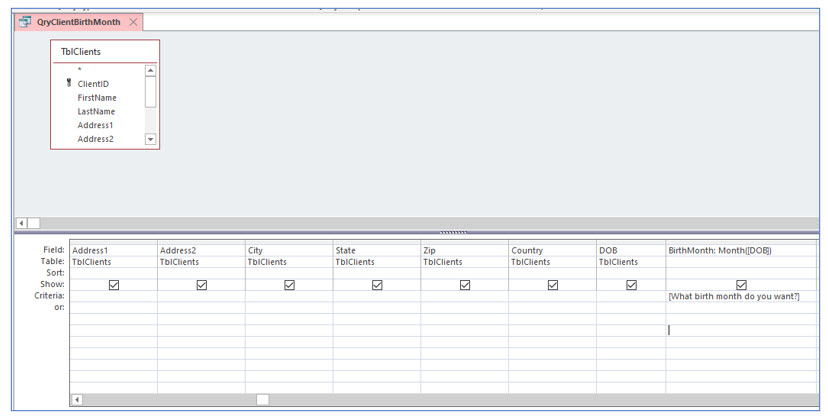
1. If it is not already open, open the No Fault Travel database. View the query named QryClientBirthMonth in Design View.
Microsoft Access lesson screenshot 9thLesson1

2. In the criteria of the BirthMonth field type [What birth month do you want?].

This is the parameter. When you run the query, an Enter Parameter Value dialog box will appear and ask what birth month you want.

3. Save and close this query.

You will now use this query to create mailing labels by saving the existing label report under another file name and changing the query that the “new” label report is based on.

4. In the navigation pane under Reports, double click on LabelsQryAARPClients and view in Design View.

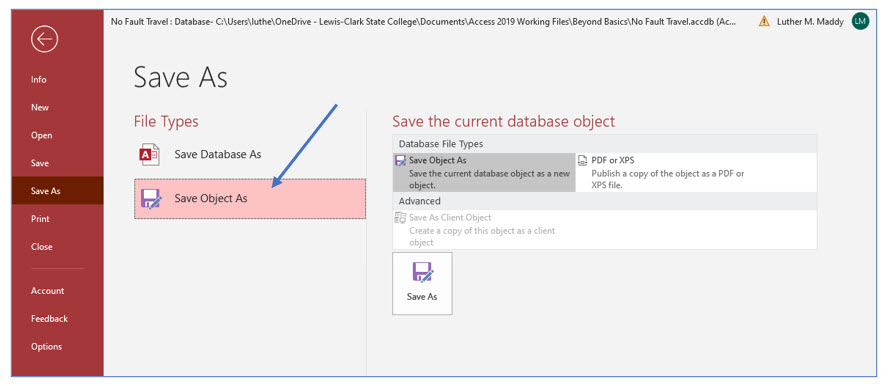
5. Click the File menu and choose the Save As option.
Microsoft Access lesson screenshot 9thLesson2

6. Under File Types, choose Save Object As. Under Save the current database object, choose Save Object As and then click the Save As button.

Choosing Save Object As informs Access you are intending only to save the active object (i.e., the query) and not the entire database.
Microsoft Access lesson screenshot 9thLesson3

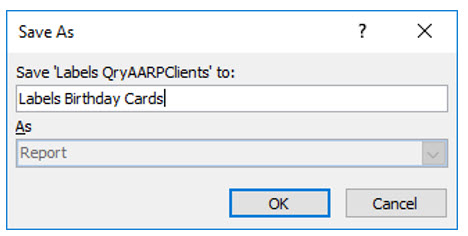
7. In the Save As dialog box, name the new file Labels Birthday Cards and click OK.

8. View Labels Birthday Cards in Design View. Click the Report selector, then choose Property Sheet in the Tools group on the Design tab.

Microsoft Access lesson screenshot 9thLesson4

Be sure you are viewing the property sheet for entire report and not just a section or a field. If Report is not listed after Selection type, you can use the dropdown list to select it.

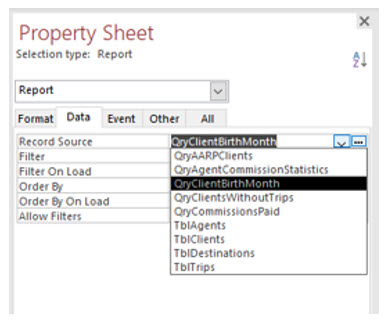
9. On the Property Sheet pane, select the Data tab. Click the dropdown list arrow in the Record Source property.
Microsoft Access lesson screenshot 9thLesson5

10. Change the Record Source to QryClientBirthMonth and then close the Properties dialog box.

11. Save and close the labels report.

Now, you will open the labels tied to the birth month query.

12. In the navigation pane under Reports, double click the Labels Birthday Cards report.

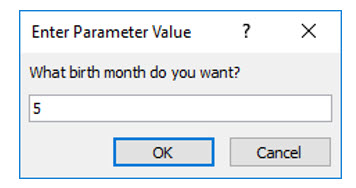
Because the label report is based on the parameter query, Access now asks you to specify which birth month you want.
Microsoft Access lesson screenshot 9thLesson6

13. In the Enter Parameter Value dialog box, type 5 and then click OK.

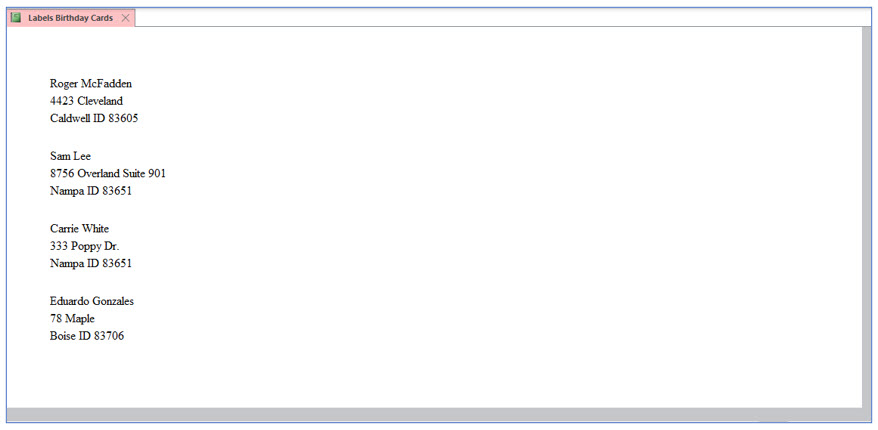
You should now be viewing labels for clients with a May birthday.
Microsoft Access lesson screenshot 9thLesson7

14. Close the label report.

15. Run the label report again, and enter 12 as the birth month.

Notice there are different labels.

16. Close the resulting label report.

Working with action queries

All the queries you have used in this course so far are variations of a Select query. Select queries allow you to view data and even compute values based on query fields. Select queries do not change the data in the tables. On the other hand, action queries can add, change, or delete the data in tables.

Access provides several types of action queries. The update query will change or update data, based on the criteria you enter. The delete query will delete records that meet the criteria you specify. Make table queries copy specified records from one table to a new table.

Creating an update query

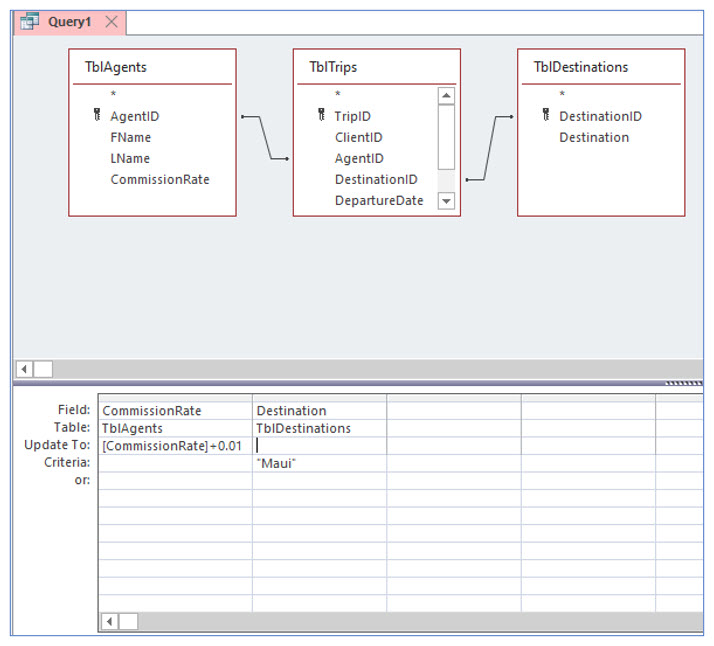
In this portion of the lesson, you will create an update query that increases by 1% the commission rate of all agents who have scheduled trips to Maui.

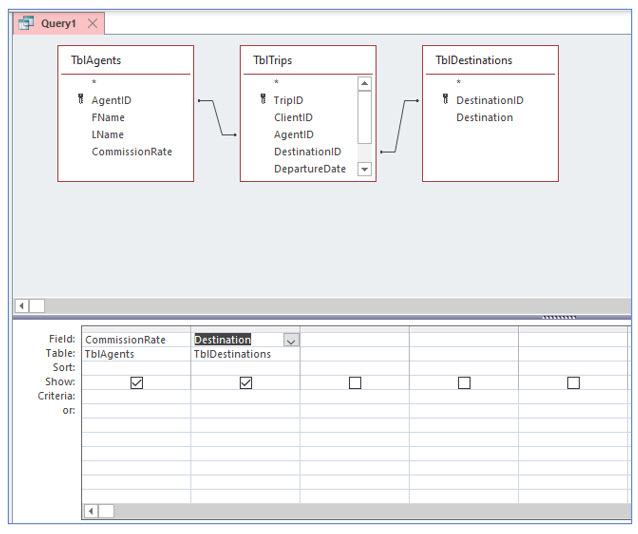
1. Create a new query in Design View based on TblAgents, TblTrips and TblDestinations.
Microsoft Access lesson screenshot 9thLesson8

2. Add the CommissionRate field from TblAgents and Destination from TblDestinations.

You added the destinations table so that you could refer to the destination by name instead of number as you did when you created a macro.
Microsoft Access lesson screenshot 9thLesson9

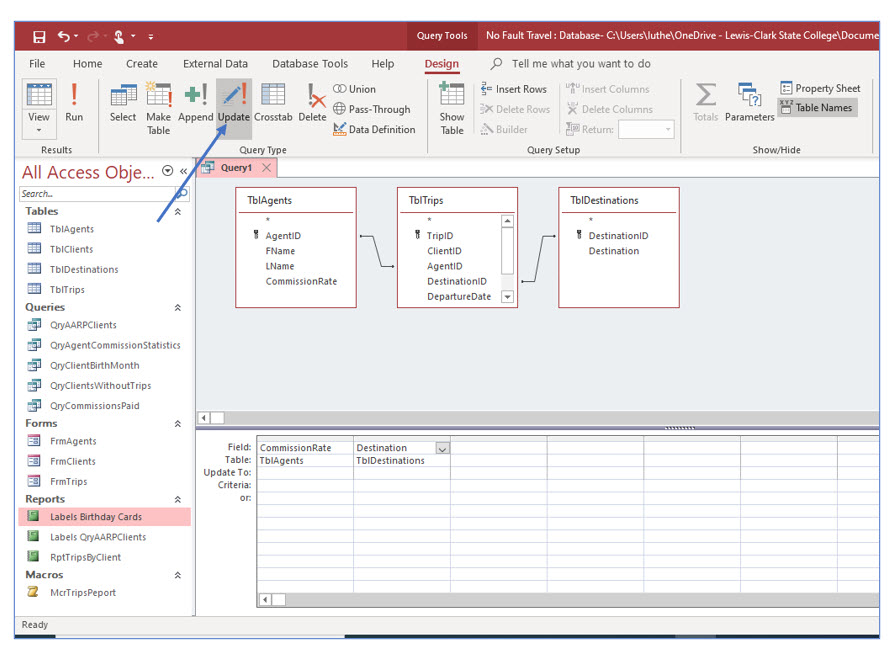
3. From the Query Type group in the Design tab, choose Update query.

This changes the query type to update. You should notice a new row in query design labeled Update To.

4. In the Criteria row of the Destination field, type Maui.
Microsoft Access lesson screenshot 9thLesson10

5. In the Update To row in the CommissionRate field, type [CommissionRate]+.01.

This is the formula to increase the commission rates of those agents who have booked trips to Maui by 1%.

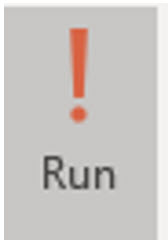
Note: To run an action query from Design View, you must use the "run" tool (seen below) in the Results group on the Design ribbon. The View tool in the Results group works great for running select queries but not action queries.
Microsoft Access lesson screenshot 9thLesson11

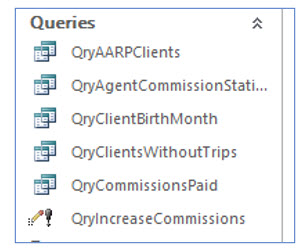
6. Save this query as QryIncreaseCommissions and close it.
Microsoft Access lesson screenshot 9thLesson12

Notice that the action query you just saved has a different icon in the navigation pane object list than the select queries on the list. Be extremely cautious when you run action queries. You might consider not saving them at all, unless there is something you need to do regularly to the data..

Every time you run the update query you just created, the commission rates of agents with trips to Maui will be increased. Running the query multiple times would result in extremely high commissions for the lucky agents.

You will run the query once in this course – just to see how an action query works. Since this is fictitious data, you may run it multiple times just for fun.

7. In the list of queries, open QryIncreaseCommissions.

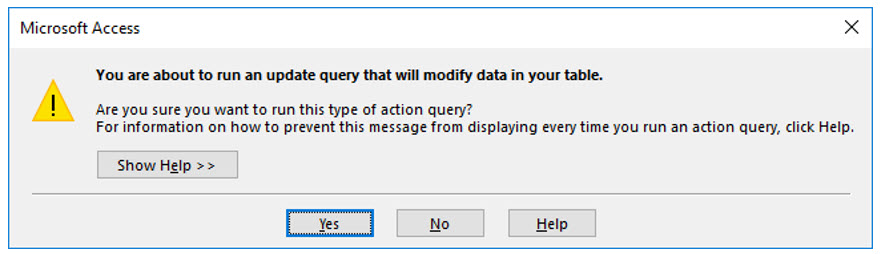
You can “Open” this query by double clicking on it. Because it is an action query, opening it causes it to run.
Microsoft Access lesson screenshot 9thLesson13

8. Answer Yes when asked if you want to continue.

This is a warning message telling you to use caution when running Action queries.

Access now tells you how many records this query will update. Your number may be different if you have modified or entered additional fictitious data.

9. Answer Yes when asked if you want to update the rows.
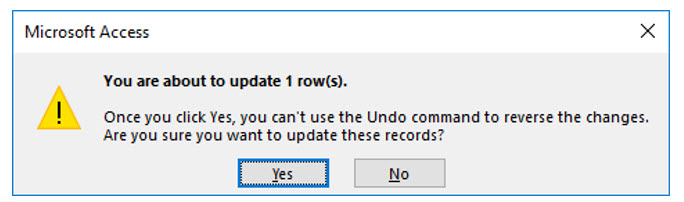
Microsoft Access lesson screenshot 9thLesson14

After clicking yes here, you will not see any confirmation that the query has run. To verify that the query has modified the commission rates in the agents table, you can examine the records in that table.

10. Open TblAgents in Datasheet View.

If you compare the before and after agents table, you will see that Carl has received an increase in his commission rate because he booked a trip to Maui.
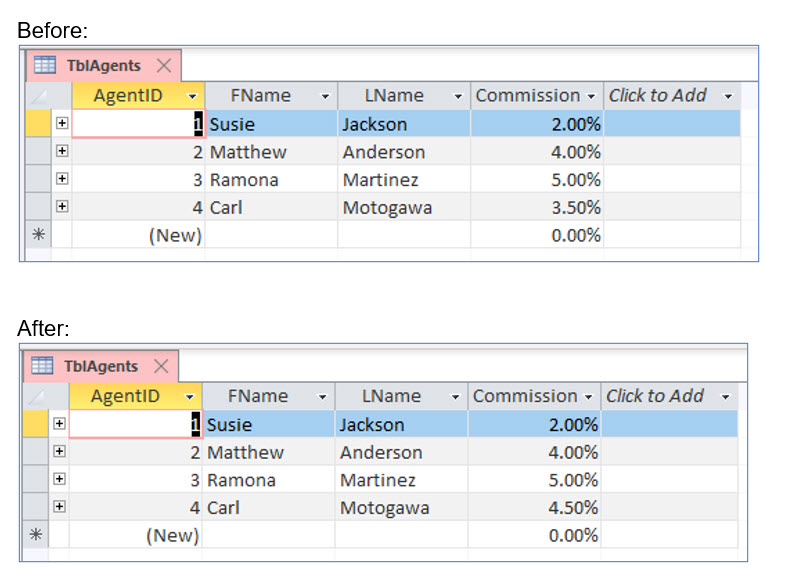
Microsoft Access lesson screenshot 9thLesson15

11. Close the table.

You have successfully completed Access: Beyond the Basics. Hopefully you have a better idea of some of the power in Access and see that is it not really all that difficult to use.  

Advertisement

Next step

See the concepts demonstrated.

Continue to Watch for chapter videos and worked examples.

Go to Watch

See it explained

Watch

Choose the explanation or example that best supports your learning.

Instructional videos will be added later.

Next step

Apply what you have learned.

Use the guided questions and activities in Practice.

Go to Practice

Apply what you learned

Practice Parameter and Action Queries

Create a reusable birthday-label parameter query and a controlled commission update query.

Guided Practice

  • Enter [What birth month do you want?] as the BirthMonth criterion.
  • Save and run the query with at least two month values.
  • Copy the existing label report and rename it Labels Birthday Cards.
  • Change its Record Source to QryClientBirthMonth.
  • Create an update query using TblAgents, TblTrips, and TblDestinations.
  • Use Maui as the destination criterion.
  • Set CommissionRate to [CommissionRate]+.01.
  • Run the update and verify the changed rates.

Challenge Yourself

  • Create a second parameter that limits records by year or destination.
  • Preview the records with a select query before converting it to an update query.
  • Create a backup copy of the table before running an action query.
  • Explain why action queries should not be run casually.

Check Your Understanding

  • Can you explain how bracketed prompt text creates a parameter?
  • Can you distinguish a parameter query from an action query?
  • Can you explain what the Update To row does?
  • Can you identify how criteria limit which records are changed?

Next step

Save the materials you may need later.

Open Resources for the study sheet, spreadsheets, and related learning materials.

Go to Resources

Keep learning

Resources

Study sheets, downloadable files, companion tools, and related lessons for this chapter.

For educators

Teaching this chapter?

The Instructor tab contains objectives, teaching ideas, assessments, and a printable guide.

Open Instructor Resources

LutherMaddy.com — Helping Humans Learn

Parameter and Action Queries: Instructor Resources

Teach this lesson

Instructor Resources

Classroom-ready objectives, teaching ideas, questions, and assessment materials for this chapter.

Learning Objectives

  • Create and run parameter queries.
  • Use parameter queries as report sources.
  • Create and save update queries.
  • Apply criteria to limit changed records.
  • Use Update To expressions.
  • Run and verify action queries safely.

Prerequisite Knowledge

  • Select queries
  • Criteria
  • Reports
  • Expressions

Teaching Outline

  • Add the birth-month parameter.
  • Copy and revise the label report.
  • Run the parameter report.
  • Create the commission update query.
  • Apply destination criteria.
  • Enter the update expression.
  • Run and verify the action query.

Key Concepts

  • Bracketed criteria text creates a parameter prompt.
  • Reports can use parameter queries as record sources.
  • Action queries modify stored records.
  • Criteria determine which records are affected.
  • Update To defines the new value or expression.
  • Action-query changes may be difficult to reverse.

Classroom Demonstration

  • Run the same parameter query with two values.
  • Preview update records with a select query first.
  • Show the affected records before and after the update.

Questions to Ask

  • What makes a parameter prompt clear and useful?
  • Why should an update query be tested as a select query first?
  • What backup practices should precede action queries?

Teaching Notes

  • Use precise prompts that identify expected units or values.
  • Back up data before running an action query.
  • Verify criteria and record counts before confirming warnings.

Assessment Ideas

  • Create a parameter query and report.
  • Create a controlled update query.
  • Verify and document affected records.

Grading Rubric

CriterionPoints
Parameter prompt correct2
Report record source correct2
Update query tables and fields correct2
Criteria and update expression correct2
Update verified safely2
Total10

Exam and Discussion Questions

Basic

  • Explain how Access recognizes a parameter prompt.

Applied

  • Create an update query that changes only records meeting a specified criterion.

Conceptual

  • Explain why action queries require more caution than select queries.

Keep Exploring

Continue Learning

Explore step-by-step lessons, interactive calculators, downloadable study sheets, and practical educational resources.