
Creating and Using Reports
In this lesson you will learn to create and use Access to display and summarize your database information.
Creating and Using Reports
Reports are usually lists of information presented in column form. With Reports, you can display the information in tables or queries with additional formatting and features such as totals and sub-totals. Reports are very flexible and can even be used to create and print mailing labels.
In this lesson, you will create reports which total numeric values. You will also create mailing labels.
Steps in Creating Reports
The first steps are:
1) determining which fields you want to include
2) how you want the report formatted, and
3) deciding which records you want to appear on the report.
After determining the fields and records you wish to display on the report, the next step is often to create a query that provides you with those fields and records.
The final step is often to use a report wizard to build the report you envision, based on the query you created just for that report.
Using the Label Wizard
The Label Wizard will quickly help you through the process of creating a mailing label or some other label type. In the following exercise, you will create mailing labels for all clients flagged as “Active” in the Clients table of the No Fault Travel database. You will use the query you created earlier which displays the names and addresses of the active clients.
1. Open the No Fault Travel database.
2. Select the query named, Clients Currently Active, by clicking on it one in the All Access Objects it.
You do not want to open this query, but just select it. Selecting this query will help the Label Wizard know which query or table you want to create labels for.
The Label Wizard will help you create labels for the selected table or query.
3. Display the Create tab.
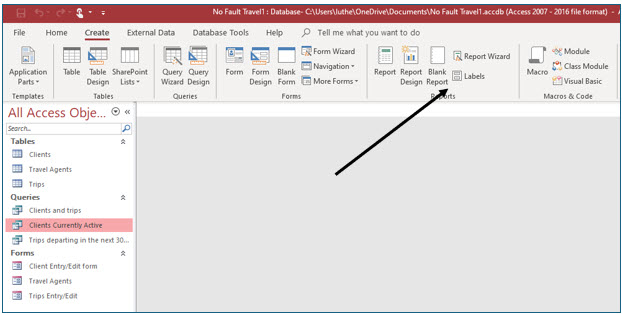
4. Click the Labels tool in the Reports group.
Access will now start the Label Wizard. The first step is to choose the label type that you are using.
5. In the text box next to Filter by manufacturer, click the drop-down list button and select Avery.
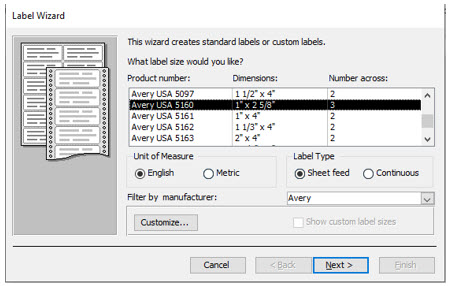
6. Make sure that the English radio button is selected under Unit of Measure.
7. Under Product number (for Avery labels), choose 5160 and click Next.
The label size you have selected is a standard mailing label. When you create your own labels, you can select a different size. If the manufacturer of your label is not listed, you can use the label’s measurements to select a label with the same label size, or you can customize your own label.
Access will now ask you to choose the font and text color on the labels.
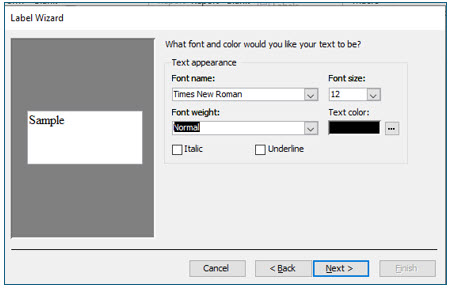
8. Choose Times New Roman as the Font name, 12 point as the Font size, and Normal as the Font weight. Leave the text color as Black and then click Next.
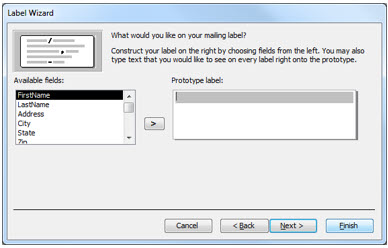
You will now lay out the fields as you want them to appear on the mailing label.
9. Double-click the FirstName field.
You should see this field added to the Prototype label.
10. Press (space) and then double click the LastName field.
You pressed the space bar so that a space appears between the two fields on the printed labels.
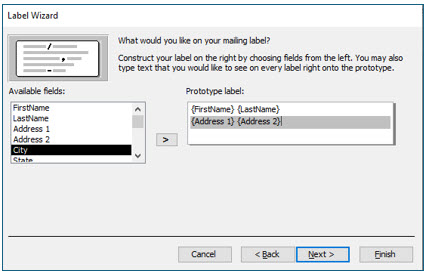
11. Press (Enter) and then double click the Address1. Hit a space and add the Address2 field.
The Address fields should appear in the row below the first and last names.
12. Press (Enter) again and then add the City, State, and Zip fields. After the City field, add a space and then add the State field. Add a space after the State field and then add the Zip field.
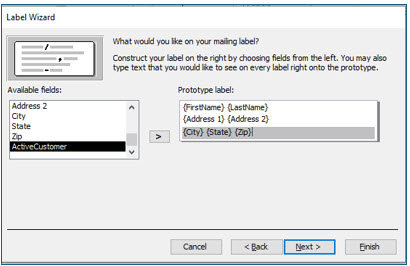
13. After adding these fields, click Next.
In this dialog box, you will specify how you want the labels sorted.
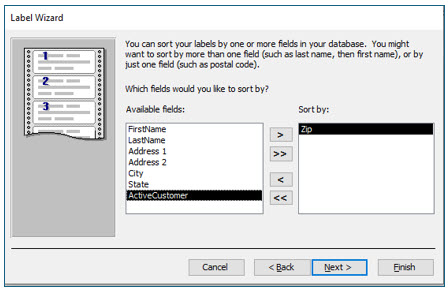
14. Double-click the Zip field to add it to the Sort by field list, and then click Next.
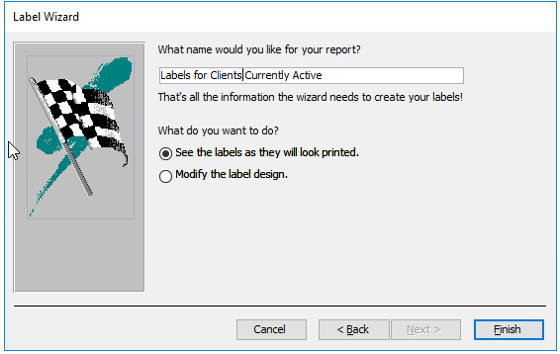
15. Name this report, Labels for Clients Currently Active and then click Finish.
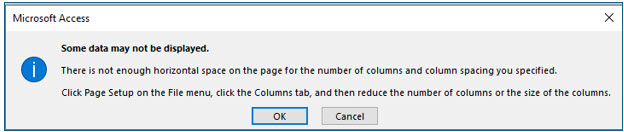
If you see the above Microsoft Access message, click OK. Access is simply warning you that your printer and label size might not be perfectly compatible.
You should now see mailing labels for the three active clients in this database.
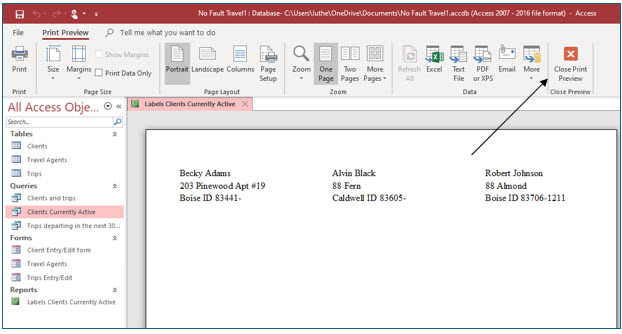
16. Click the Close Print Preview button on the Print Preview tab ribbon.
17. Close the Label report.
Using the Report Wizard
You will now use the Report Wizard to create a report that lists every trip that each client has taken or booked. This report will also total the cost of all the trips for each client.
You do not need to create a query to build because you want every client with a trip to appear on this report. If you wanted a specific date range, then creating the query would be the first step. Since you will base the report on two tables, Clients and Trips, only the clients who have taken or scheduled trips will appear in this report.
1. Click on the Clients table in the All Access Objects pane to select it. Click the Create tab, and then select the Report Wizard tool in the Reports group.
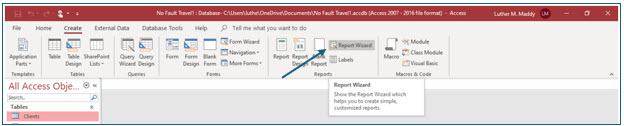
Unlike the Label Wizard, the Report Wizard allows you to easily select one or more tables to be used in the report. Selecting the Clients table before opening the Report Wizard simply saved a step in the report creation process.
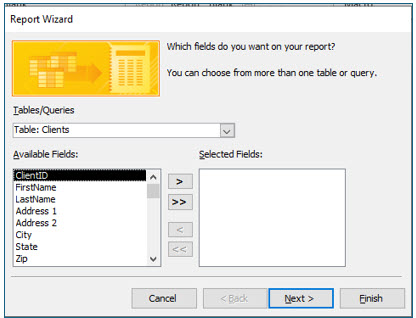
2. Make sure that the Clients table is displayed in the Tables/Queries drop-down list.
If you selected the Clients table before clicking the Report Wizard, the Clients table is selected when you open the wizard. If not, you can use the drop-down list for Tables/Queries to choose the Clients table. After choosing the table, you will choose the fields you want included on the report and the order that the fields should appear.
3. Double-click the LastName field and then the FirstName field.
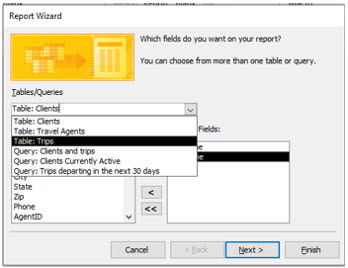
4. After adding both fields, click the Tables/Queries drop down arrow and choose the Trips table from the drop-down list.
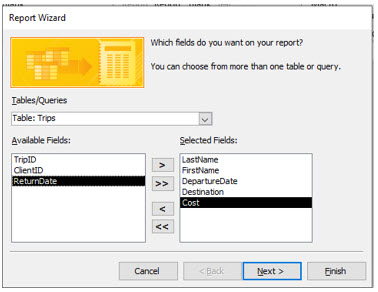
5. From the Trips field list, add DepartureDate, Destination and Cost by double-clicking each field.
Remember, you can also select individual fields by clicking on the field name once and then clicking the single right arrow.
The Report Wizard allows you to choose fields from different tables. In doing so, you will only see the clients who have trips because you are using two related tables. If you wanted to filter the records further, for example, to list only the clients who scheduled trips to Maui, you should first create a query and then the report.
6. After adding these fields, click Next.
Access now asks how you want to view the data in this report. Leaving this as view by Clients will allow you to subtotal the cost of the trips for each client.
7. Click Next when Access asks how you want to view the data in this report.
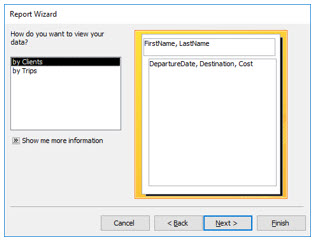
Access now asks if you want to add any grouping levels. You want this report to be grouped by clients as it already is, so you will not make any changes here.
8. Click Next, when Access asks if you want to add any additional grouping levels.
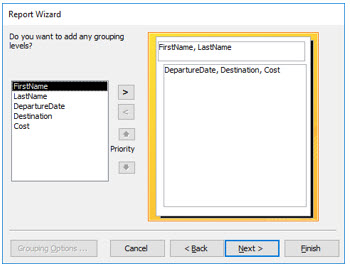
Access now asks how you how you want the information sorted. The report will already be sorted by the client’s name, but trips scheduled or taken by each client will be sorted by the departure date that you included from the Trips table.
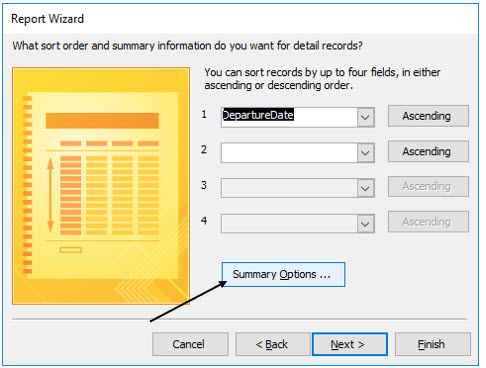
9. Choose DepartureDate in the first Sort text box.
For clients with multiple trips, the trips will be sorted by departure date.
This dialog box also asks you what summary information that you want included. You want this report to total the cost of each client’s trips and to provide the grand total of all trips. You will do this by clicking the Summary Options button to open the Summary Options dialog box.
10. Click the Summary Options button in the Report Wizard dialog box.
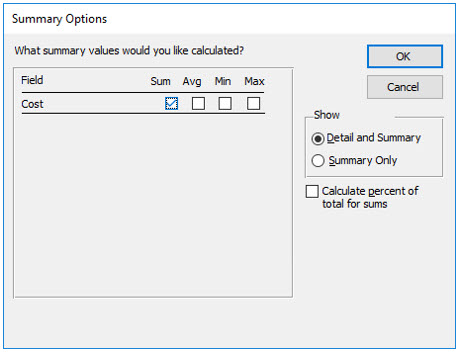
11. Turn on the Sum checkbox and click OK.
Access will list all the numeric fields included in your report here. You can choose several calculations in the Summary Options dialog box.
12. When you return to the sort specifications, click Next.
You will now specify the report layout. You can also select either portrait or landscape orientation.
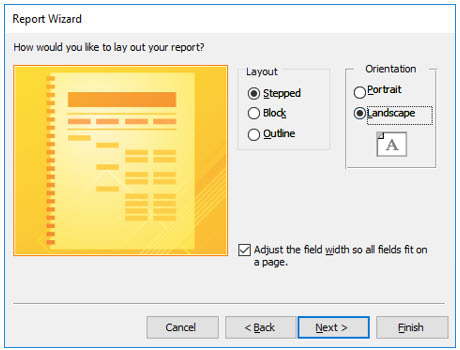
13. Choose Stepped as the Layout and Landscape as the Orientation. Click Next.
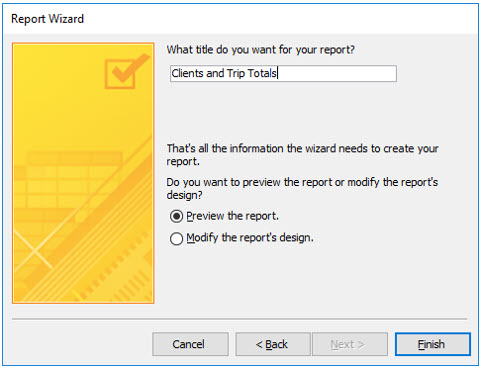
14. Enter the name, Clients and Trip Totals, and click Finish.
You are now viewing the report in Print Preview. If you are not satisfied with the report’s appearance, you will make changes to the design of the report.
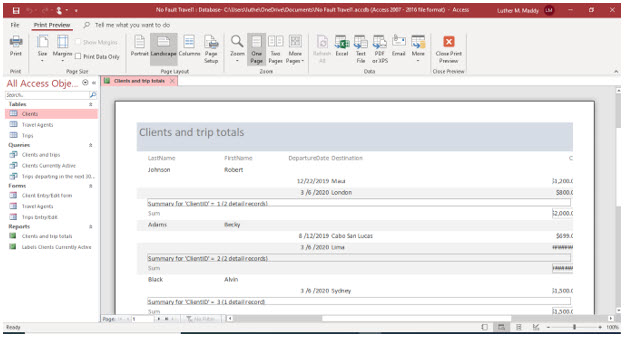
It is likely that you see #### instead of values in some cost and total fields. These characters (i.e., ####) appear because the report field widths are not large enough to display the information correctly. You will make these fields wider, as well as modify other aspects of this report.
Modifying the Report Design
To change a report’s appearance, you will enter Design View and make changes, much like you did when you created the database forms. In Design View, you can change the position or size of fields and make other changes.
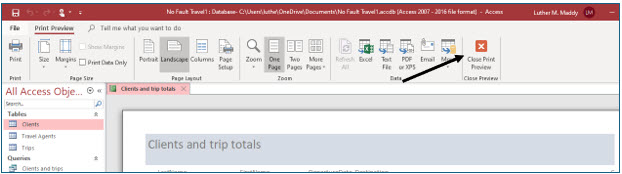
1. After previewing the report, close Print Preview.
You are now viewing the report design. Notice this report has several sections: a report header and footer; a page header and footer; and the client header, footer and detail.
The Report Header and Footer appear once at the beginning and end of the report, respectively. The Page Header and Page Footer appear at the top and bottom of each page, respectively. The ClientID header and footer appear once for each client. The detail section displays the information for each client. The sections in our Clients and Trips report display the following:
Report Header Report Title
Page Header Field names (labels) for data in report
ClientID Header Client’s name
Detail Trips scheduled for each client
ClientID Footer Subtotal of trips scheduled by each client
Page Footer Today’s date and page number
Report Footer Grand total of all trips scheduled
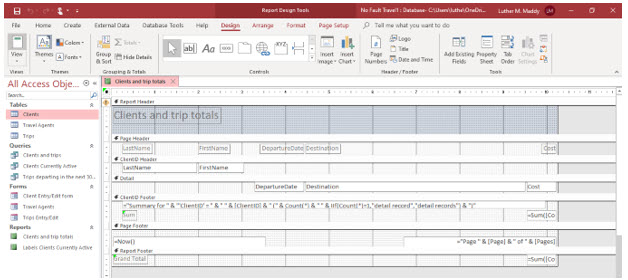
Notice that there are text boxes in the ClientID header and in the detail section. The report displays the selected data from the tables in the text boxes. The client’s first and last names stored in the Client table are displayed in ClientID Header. The trip’s departure date, destination, and cost stored in the Trips table are displayed in the Detail section.
You will now modify the design of this report so that everything fits on a landscape page and shows properly when you print or preview it.
2. Select the Destination text box in the Detail section. Use the sizing handle at the right edge to decrease its width by approximately 1 inch.
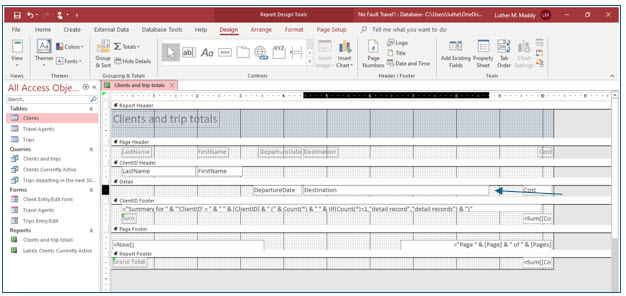
Reminder: When the double-headed arrow appears, you can adjust the size.
You are making this field smaller so that you can increase the width of the Cost field and the Cost subtotal field.
3. Select and increase the size of the Cost field by dragging the sizing handle on the edge approximately ¾ inch. Do this also for the =Sum[Cost] field in ClientID Footer and the =Sum([Cost]) field in Report Footer.
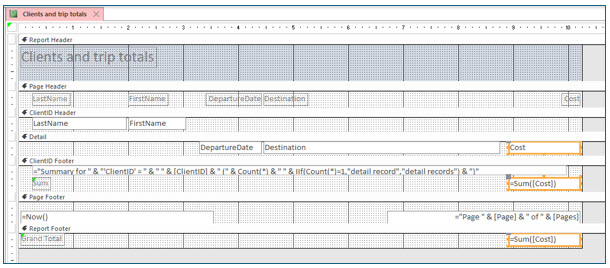
You could resize all these fields at once by using the Shift key to select more than one field.
4. Save the modified report and then select Print Preview from the View tool.
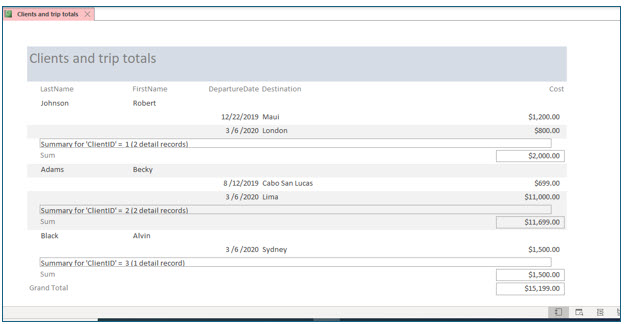
The report should reflect the changes you just made. Notice that the clients do not appear in alphabetical order. This is because the report is sorted by client ID. If you want the report sorted by client’s last name, you would need to create a query to control sorting, and use the query results to generate the report.