
Microsoft Access Training

Working with Data in Tables

Learn to enter records, navigate fields, sort data, change column widths, edit values, undo changes, and delete records in Access tables.

Start here

Overview

This lesson uses the Travel Agents table to introduce practical data-entry and table-management skills in Datasheet View.

What You Will Learn

  • Open a table in Datasheet View.
  • Enter new records and navigate with Tab and Enter.
  • Recognize values generated automatically by AutoNumber.
  • Sort table data in ascending order.
  • Resize columns with AutoFit.
  • Edit a field value and undo a change.
  • Select and delete an entire record.
  • Explain the difference between changing data and changing table design.

Before You Begin

  • Creating Access tables
  • Primary-key and AutoNumber concepts
  • Field properties

Why This Matters

A database is useful only when records are entered accurately and maintained carefully. Basic table skills support every later Access object, including queries, forms, and reports.

Plan Your Study

  • Download and open the practice database.
  • Open the Travel Agents table.
  • Enter the required agent records.
  • Sort by last name.
  • Resize the columns.
  • Edit and undo a field value.
  • Delete a complete record and confirm the deletion.

Next step

Read the complete chapter.

The Learn tab contains the written lesson from Surviving Statistics.

Go to Learn

Written lesson

Learn Working with Data in Tables

Learn to enter records, navigate fields, sort data, change column widths, edit values, undo changes, and delete records in Access tables.

Advertisement

Working with Data in Tables

After you have properly designed and created a database you can then begin to add and edit data directly into tables. In a future lesson you will learn to use forms to work with data, but this lesson will show you how to enter and edit data into Access tables.

⬇
No Fault Travel Database to complete this chapter Open or download

Working with Data in Tables

You were probably wondering if you were ever going to get to work with data in this Access course. Well, you have finally reached that point. The purpose of the previous lessons was to strongly emphasize how important it is to get the structure of a database correct before you start using it with data. Now that you have the tables, table properties and the relationships setup, you can now begin to enter data into the database.

1. Open the No Fault Travel database.

2. In the list of tables, right-click the Travel Agents table and then select Open on the shortcut menu.

You could also double-click the table to open it.
Microsoft Access lesson screenshot DataInTables1

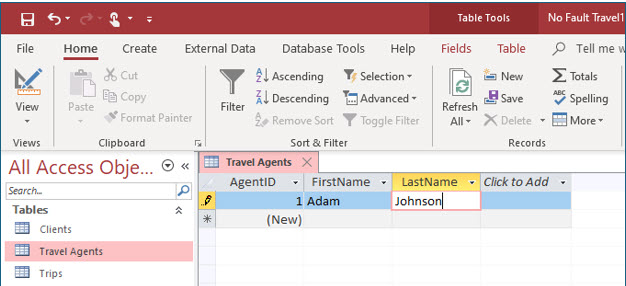
You should now see the Datasheet View of the table. In this lesson you will enter data directly into the table and then arrange the data using Datasheet View. In the next lesson you will create forms, which provide a superior way of viewing and entering data.

3. Click in the FirstName field and type Adam and press (Tab).

As soon as you began typing the first name, Access entered a number in the AgentID field.

4. In the LastName field type Johnson and press (Tab) twice.

Since Access will automatically enter the data in the AgentID field (because it has an AutoNumber field type), you skipped this field.
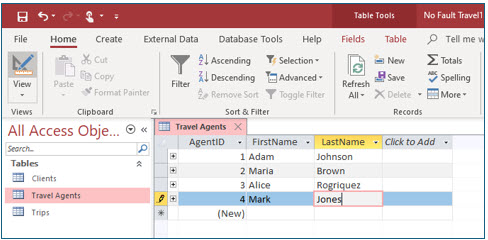
Microsoft Access lesson screenshot DataInTables2

5. Enter the additional records as shown above.

Sorting Table Data

By default, Access sorts the records in a table by the primary key. In this table the primary key, the AgentID field, has the field type AutoNumber, so the ascending successive order from 1 to 4 is the order in which the records were entered. You can easily change the sorting order using the sorting tools .

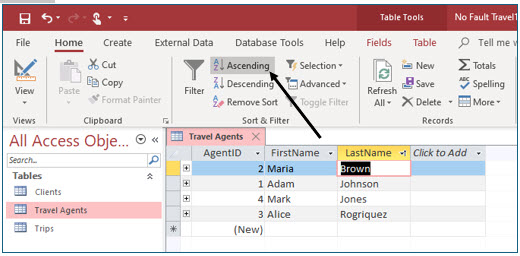
To change the sort order of a table, move into the field you want to sort on, and then click either Ascending or Descending tool in the Sort & Filter group on the Home tab ribbon.
Microsoft Access lesson screenshot DataInTables3

1. Click in any cell of the LastName field in the table. Then click the Ascending tool in the Sort & Filter group on the Home tab ribbon.

The table is now sorted by last name.

Changing Column Widths

When you view data in a table, you may wish to adjust the width of a displayed column. Access allows you to increase or decrease a column width as desired.

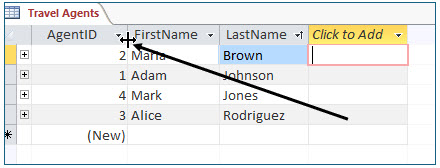
To manually adjust the column width, move the mouse pointer to the right border of the heading of the column you want to adjust. When the mouse pointer turns into a “black crosshair,” drag left to decrease the column width or drag right to increase column width.

To automatically adjust the column width, move the mouse pointer to the right border of the column heading you want to adjust. When the mouse pointer turns into the “black crosshair,” double-click and the column wide will automatically adjust so that the largest entry (including field name) in that field is visible.
Microsoft Access lesson screenshot DataInTables4

1. Move the mouse pointer between the AgentID and FirstName column headings and double-click.

You should notice that Access decreased the width of the AgentID field column.

2. Use the same method to adjust the widths of the FirstName and LastName fields.

3. Close the table.
Microsoft Access lesson screenshot DataInTables5

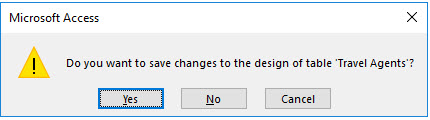
Access will ask if you want to save the changes you made to the design of this table. If you answer yes, the next time you open the table, it will be sorted by agent’s last name and the column widths will be as they are now. If you answer no, the table will revert to the default design which you altered.

4. Click Yes to save the changes you just made to the table design.

Editing Data

At some point, you will need to edit some data in the database. In the next steps, you will edit existing data from Datasheet View, but the same techniques can be used in forms.

1. Open the Travel Agents table.

To open a table in Datasheet View, you can double-click it in the Objects pane.

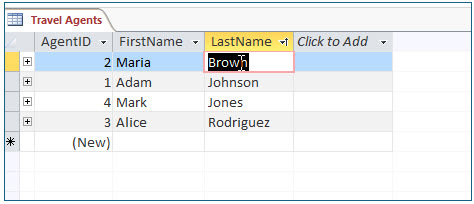
2. Double-click on Maria Brown’s last name.
Microsoft Access lesson screenshot DataInTables6

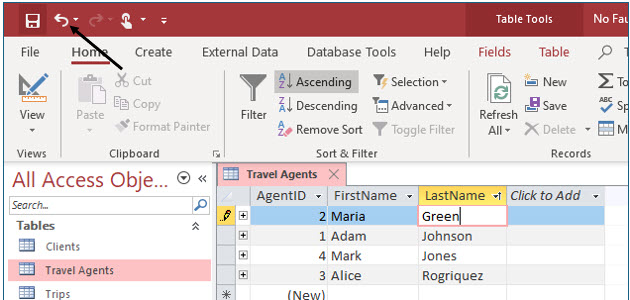
3. Type Green and press (Enter).

When the entire contents of the field is selected, whatever you type replaces the entire contents in the field.
Microsoft Access lesson screenshot DataInTables7

4. Click the Undo tool on the Quick Access Toolbar to undo this change.

5. Click to the right of Brown in Maria Brown’s last name.

Notice that the insertion point is displayed. By single clicking in the cell, you can edit the cell contents letter by letter.

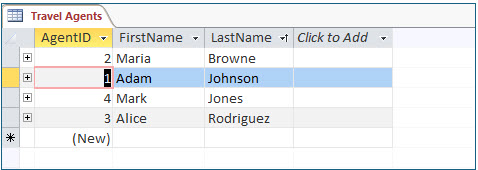
6. Type an e and press (Enter) to change the spelling of Maria’s last name.
Microsoft Access lesson screenshot DataInTables8

Deleting Records

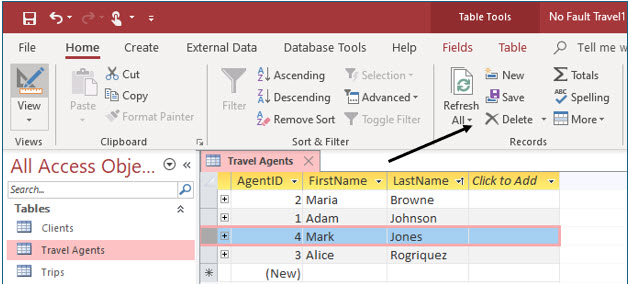
Access helps safeguard from deleting records accidentally by requiring you to confirm that you want to delete a record. To delete a record, you must select the entire record, or row, when you are in the datasheet view. You can select the entire record by clicking the record selector to the left of the first field in the record. Then, click the Delete drop-down arrow in the Records group of the Home tab ribbon. On the Delete drop-down list, choose Delete Record. You will be asked if you are sure you want to delete the record. If you answer yes, you will never see that record again. Delete with care.
Microsoft Access lesson screenshot DataInTables9

1. Click the record selector to the left of Mark Jones’ AgentID. Then click the Delete tool in the Records group.
Microsoft Access lesson screenshot DataInTables10

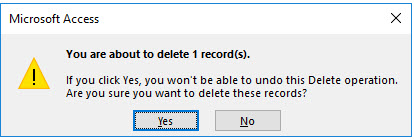
You will now see the delete confirmation.

2. Click Yes to delete the record.

This record is now permanently deleted.

3. Close the Travel Agents table and the No Fault Travel database.

Advertisement

Next step

See the concepts demonstrated.

Continue to Watch for chapter videos and worked examples.

Go to Watch

See it explained

Watch

Choose the explanation or example that best supports your learning.

Instructional videos will be added later.

Next step

Apply what you have learned.

Use the guided questions and activities in Practice.

Go to Practice

Apply what you learned

Practice Working with Data in Tables

Use the Travel Agents table to practice entering, organizing, correcting, and deleting data.

Guided Practice

  • Enter the supplied travel-agent records.
  • Observe how Access assigns AgentID values.
  • Sort the table by LastName in ascending order.
  • AutoFit the AgentID, FirstName, and LastName columns.
  • Change a last name, then use Undo to restore it.
  • Correct the spelling of a last name and save the record.
  • Select and delete the designated record.

Challenge Yourself

  • Sort the table by another field and then return it to the original order.
  • Identify one table-layout change that Access asks to save separately from record data.
  • Enter a duplicate or invalid value in a restricted field and describe the result.
  • Explain why deleted records should be reviewed carefully before confirmation.

Check Your Understanding

  • Can you distinguish a field value from a complete record?
  • Can you explain how AutoNumber values are assigned?
  • Can you identify the record selector used to delete a record?
  • Can you explain the difference between Undo and deleting a record?

Next step

Save the materials you may need later.

Open Resources for the study sheet, spreadsheets, and related learning materials.

Go to Resources

Keep learning

Resources

Study sheets, downloadable files, companion tools, and related lessons for this chapter.

For educators

Teaching this chapter?

The Instructor tab contains objectives, teaching ideas, assessments, and a printable guide.

Open Instructor Resources

LutherMaddy.com — Helping Humans Learn

Working with Data in Tables: Instructor Resources

Teach this lesson

Instructor Resources

Classroom-ready objectives, teaching ideas, questions, and assessment materials for this chapter.

Learning Objectives

  • Enter and navigate table records.
  • Recognize AutoNumber behavior.
  • Sort records by a selected field.
  • Adjust column widths.
  • Edit and undo field changes.
  • Delete a complete record safely.

Prerequisite Knowledge

  • Access tables
  • Primary keys
  • Field properties

Teaching Outline

  • Open a table in Datasheet View.
  • Enter records and navigate fields.
  • Sort the data.
  • AutoFit columns.
  • Edit and undo values.
  • Select and delete a record.

Key Concepts

  • A record contains all fields for one item.
  • AutoNumber values are generated by Access.
  • Sorting changes display order, not the stored meaning of records.
  • Data edits are saved as users move between records.
  • Deleting a record is different from clearing one field.

Classroom Demonstration

  • Enter a record and show the AutoNumber assignment.
  • Sort ascending and compare the record order.
  • Edit a value, undo it, and then make a permanent correction.

Questions to Ask

  • Why should users avoid manually changing primary-key values?
  • What is the difference between deleting a field value and deleting a record?
  • Why can record deletion be difficult to reverse?

Teaching Notes

  • Use a practice copy before demonstrating deletion.
  • Point out the pencil and asterisk record indicators.
  • Explain when Access saves record changes automatically.

Assessment Ideas

  • Enter the supplied records accurately.
  • Sort and resize the table.
  • Correct one value and delete one specified record.

Grading Rubric

CriterionPoints
Records entered accurately3
Sorting completed correctly1
Columns resized appropriately1
Edit and undo completed correctly2
Record selected and deleted safely2
Table closed and changes handled correctly1
Total10

Exam and Discussion Questions

Basic

  • Explain what AutoNumber does and identify the record selector.

Applied

  • Enter, sort, edit, and delete records in a supplied table.

Conceptual

  • Explain why deleting a record requires more caution than editing a field.

Keep Exploring

Continue Learning

Explore step-by-step lessons, interactive calculators, downloadable study sheets, and practical educational resources.