
Microsoft Access Training

Getting Started with Access: Database Design

Learn essential Microsoft Access terminology and the principles of relational database design before creating your first database.

Start here

Overview

This lesson introduces the purpose of Microsoft Access, explains the major database objects, and shows how relational design reduces duplicate data and improves accuracy.

What You Will Learn

  • Define database, table, record, field, query, form, and report.
  • Explain the purpose of primary and foreign keys.
  • Distinguish a flat-file database from a relational database.
  • Explain why related subjects should be stored in separate tables.
  • Describe one-to-many relationships.
  • Explain how normalization and referential integrity improve data quality.

Before You Begin

  • Basic Windows file-management skills
  • No previous Microsoft Access experience required

Why This Matters

Good database design must come before data entry. A well-designed relational database reduces repeated information, prevents inconsistent records, and makes queries, forms, and reports more useful.

Plan Your Study

  • Review the terminology guide.
  • Watch the Access terminology video.
  • Study the relational database design section.
  • Identify the tables, primary keys, and foreign keys in the No Fault Travel example.
  • Complete the design and data-integrity practice questions.

Next step

Read the complete chapter.

The Learn tab contains the written lesson from Surviving Statistics.

Go to Learn

Written lesson

Learn Getting Started with Access: Database Design

Learn essential Microsoft Access terminology and the principles of relational database design before creating your first database.

Advertisement

Getting Started with Access

Getting started with Access can seem rather daunting, but it is not insurmoumtable. This Getting Started lesson will give you an overview of Access terminology and explain the basic concept of database design.

MS Access- File Downloads & Other Resources

⬇
Microsoft Access Terminology Guide Open or download

▶
Watch the video: Access Database Terminology Watch video
▶
Watch the video: Understanding Relational Database Design Watch video

Access Terminology

A database is an organized collection of information. Access makes it easy not only to organize data but also to manipulate and analyze the data it contains. You need to be familiar with a few database terms before you learn how to use a database.

Field: A field is a piece of information such as a First Name, City, or State. The field is the most basic element of an Access database.

Record: A record is a collection of related fields. An example might be a table of clients. Each record stores all information about a client in fields such as: First Name, Last Name, Street Address, City, State, Zip Code, Phone Number, and Birthday.

Table: A table is a collection of records with the same fields, as in our example of a client table. The records consist of rows in the table and the fields are the columns. For example, a table named Employees would be expected to only include company employees.

Database file:The database file is a collection of related tables. The file also contains the other Access database objects such as the Forms, Queries, Reports and Macros that comprise a specific database.

Query: A query is an Access object that allows you to specify which fields and records you want to see. Queries are often used as the basis of reports. The query selects the records and fields to view and the report allows you to enhance the appearance of the resulting list produced.

Form: A form is a way to view, enter, edit, or print records in a table. You can design the form to match existing forms you already use.

Report: Reports allow you to present and view selected information in a meaningful way. The most common report layout organizes the information in columns. You can use reports to create totals and sub-totals.

Database Design

When you begin to create an Access database, think before you act. You should spend considerable time designing the database before you even start Access. The database design includes the tables and the fields they contain. You also need to establish the relationship between the tables.

Ideally, the design should be complete before you start using the database to prevent important tables or fields from being left out. Although Access allows you to change the design of a working database, you will often need to modify the forms, reports, and queries that refer to the table or tables which have been changed.

Changing the design of a database in use is often time consuming and difficult, depending on the number of existing forms, reports, and queries. Remember the old adage, a stitch in time saves nine. Plan for every possible use of the database during the design phase: every question it might be asked and every report that might be wanted before you begin to create the database.

Relational Database Design

Access has relational database capabilities, which means it can link or relate two or more tables. Relating tables allows Access to look up information from either table when needed.

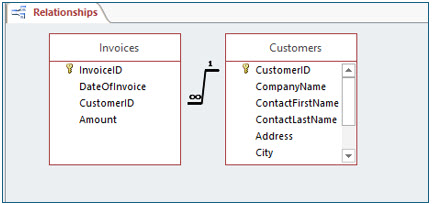
A well-designed relational database design saves in the duplication of information. With an invoicing database, instead of entering a customer's name and address each time he or she makes a purchase, you can store customer information in a separate Customer table. When you create a new invoice stored in the Invoices table, the Invoices table needs to contain a field that links to the specific customer record in the Customers table, often a customer number.
Microsoft Access lesson screenshot DatabaseDesign1

To relate two tables, each must have one field in common. This field must also be the primary key in the table representing the “one” of the "one to many" relationship. In this invoicing example, one customer may have many invoices.

Relating these two tables saves having to enter the complete customer name and address on each invoice each time he or she places an order. If you find yourself duplicating the same information, your database design is suboptimal.

Relational databases also allow you to maintain historical data. In the invoicing database, you have a record of every invoice your customers have. This process is referred to as normalization, which means that the database is optimally designed to reduce redundancy and to improve the data integrity.

Ensuring Data Integrity

Data integrity refers to having correct or valid data in the database. You can address this in the design process by identifying how to restrict a user’s ability to enter incorrect data. One way to ensure data integrity is to limit the type of allowable data entered in a field, which can be done by setting specific options in “Field Properties”. You will learn about this is a future lesson, but remember data integrity should considered during the database design process.

Advertisement

Next step

See the concepts demonstrated.

Continue to Watch for chapter videos and worked examples.

Go to Watch

See it explained

Watch

Choose the explanation or example that best supports your learning.

Next step

Apply what you have learned.

Use the guided questions and activities in Practice.

Go to Practice

Apply what you learned

Practice Getting Started with Access: Database Design

Use the No Fault Travel scenario to design a relational database before opening Microsoft Access.

Guided Practice

  • List the main subjects that should become separate tables.
  • Choose an appropriate primary key for each table.
  • Identify the foreign keys needed to connect the tables.
  • Describe the relationship between Travel Agents and Clients.
  • Describe the relationship between Clients and Trips.

Challenge Yourself

  • Draw a simple relationship diagram for the three tables.
  • Identify one example of repeated data that normalization would eliminate.
  • Explain what could go wrong if a trip record referred to a client who did not exist.

Check Your Understanding

  • Can you distinguish a record from a field?
  • Can you explain why a primary key must be unique?
  • Can you identify the one side and many side of a relationship?
  • Can you explain the purpose of referential integrity?

Next step

Save the materials you may need later.

Open Resources for the study sheet, spreadsheets, and related learning materials.

Go to Resources

Keep learning

Resources

Study sheets, downloadable files, companion tools, and related lessons for this chapter.

For educators

Teaching this chapter?

The Instructor tab contains objectives, teaching ideas, assessments, and a printable guide.

Open Instructor Resources

LutherMaddy.com — Helping Humans Learn

Getting Started with Access: Database Design: Instructor Resources

Teach this lesson

Instructor Resources

Classroom-ready objectives, teaching ideas, questions, and assessment materials for this chapter.

Learning Objectives

  • Define the major Microsoft Access objects and database terms.
  • Distinguish flat-file and relational database structures.
  • Identify primary keys, foreign keys, and one-to-many relationships.
  • Explain normalization and referential integrity.
  • Design the tables needed for a simple business database.

Prerequisite Knowledge

  • No previous Access experience required
  • Basic computer and file-management skills

Teaching Outline

  • Introduce databases and Access objects.
  • Compare records and fields.
  • Explain tables, queries, forms, and reports.
  • Introduce relational design and normalization.
  • Identify primary and foreign keys.
  • Discuss one-to-many relationships and data integrity.

Key Concepts

  • Tables store data about one subject.
  • Records represent individual items; fields represent attributes.
  • Primary keys uniquely identify records.
  • Foreign keys connect related tables.
  • Normalization reduces duplicate data.
  • Referential integrity protects valid relationships.

Classroom Demonstration

  • Convert one poorly designed flat table into three related table sketches.
  • Identify duplicated agent information in a sample trip list.

Questions to Ask

  • Why should agents, clients, and trips not be stored in one table?
  • What makes a field suitable as a primary key?
  • How can duplicate data lead to conflicting information?

Teaching Notes

  • Keep the first lesson conceptual before opening Access.
  • Use the No Fault Travel example throughout all three lessons.
  • Have students identify subjects before choosing fields.

Assessment Ideas

  • Complete a terminology matching exercise.
  • Design a three-table relational database on paper.
  • Identify primary and foreign keys in a sample schema.

Grading Rubric

CriterionPoints
Tables represent appropriate subjects2
Fields are assigned to correct tables2
Primary keys selected appropriately2
Foreign keys and relationships identified2
Normalization and integrity explained2
Total10

Exam and Discussion Questions

Basic

  • Define record, field, table, query, form, and report.

Applied

  • Design tables and keys for agents, clients, and trips.

Conceptual

  • Explain how normalization improves data integrity.

Keep Exploring

Continue Learning

Explore step-by-step lessons, interactive calculators, downloadable study sheets, and practical educational resources.