
Microsoft Excel Training

Filtering and Subtotals

Learn to organize large data sets by sorting records, calculate automatic subtotals, use outline levels, add a second subtotal calculation, and remove subtotal results.

Start here

Overview

This lesson uses TripData to summarize costs by destination. Students first sort the records, then create grouped totals and counts that can be expanded or collapsed with Excel’s outline controls.

What You Will Learn

  • Sort records by the field used for grouping.
  • Create automatic subtotals when a field value changes.
  • Select the appropriate subtotal function and value field.
  • Use outline levels to expand and collapse grouped records.
  • Add a second subtotal calculation without replacing the first.
  • Remove all automatic subtotals safely.

Before You Begin

  • Entering and editing data
  • Worksheet ranges and field headings
  • Basic SUM and COUNT concepts

Why This Matters

Subtotals provide a fast way to summarize long lists by category without manually writing formulas for every group. The outline controls also make detailed reports easier to review and print.

Plan Your Study

  • Download TripData and identify the database fields.
  • Sort the records by Destination.
  • Create cost totals for each destination.
  • Explore outline levels and collapsed views.
  • Add record counts without replacing the sums.
  • Remove all subtotals and restore the original data list.

Next step

Read the complete chapter.

The Learn tab contains the written lesson from Surviving Statistics.

Go to Learn

Written lesson

Learn Filtering and Subtotals

Learn to organize large data sets by sorting records, calculate automatic subtotals, use outline levels, add a second subtotal calculation, and remove subtotal results.

Advertisement

Using Excel's Filtering and Subtotals

This lesson explains how to use Excel’s filtering and subtotaling feature to quickly and easily summarize large data sets.

▶
Watch the video-Using Excel's Filtering and Subtoal features Watch video

⬇
Download TripData to complete the lesson Open or download

Creating Automatic Subtotals

When you are dealing with many records, Excel’s Subtotal feature allows you to group and summarize values in that data. You can perform basic statistical functions such as sum, average, or count for groups of records, such as by trip destination with this example. You can also use Excel’s subtotal feature to create slightly more complex statistical analysis by computing standard deviation and variance.

To “group” the records, you will first need to sort the records by the field you intend to group on.

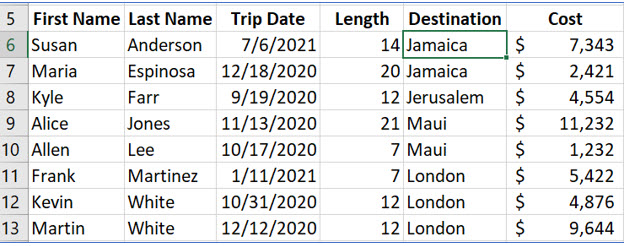
1. Click in the Destination field. In the Sort & Filter group on the Data tab, use the Sort A to Z button to sort the records based on the Destination field in ascending order.
Microsoft Excel lesson screenshot Filters1

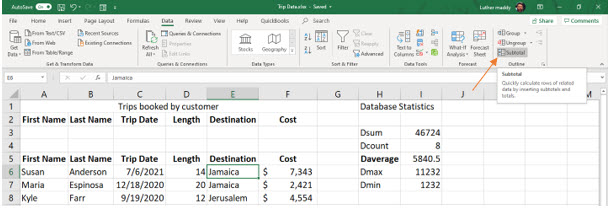
2. Be sure the active cell is within the database. Click the Subtotal tool in the Outline group on the Data tab.
Microsoft Excel lesson screenshot Filters2

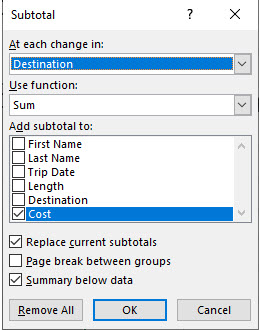
In the Subtotal dialog box, you will select which field determines how the records are subdivided. You will also select which computation will be performed (i.e., sum, average, etc.) and which field values will be used in the computation.
Microsoft Excel lesson screenshot Filters3

3. Select Destination in the At each change in text box (which establishes the groups).

This tells Excel to compute a subtotal each time the Destination field value changes. You sorted the records by destination in ascending order so the destinations would be grouped together.

4. Select Sum as the function. Select Cost as the field to Add subtotal to; these values will be used in the computation.

Leave the other options as shown.

5. Click OK

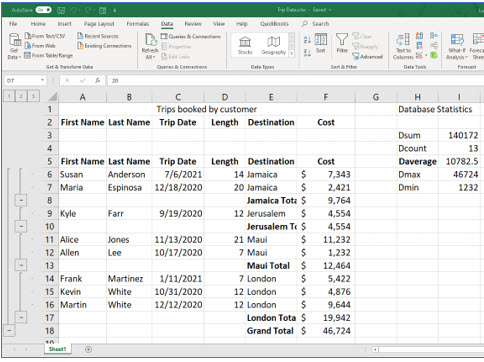
Your worksheet should look like the one below. You should see a total computed for each destination. Did you notice that the Subtotal tool was in the Outline group when you selected it? Do you remember when we experimented with outlining in the Excel: Beyond the Basics course that preceded this one? Notice the outline level numbers and controls left of the column headings and row numbers. We will explore these next.
Microsoft Excel lesson screenshot Filters4

Expanding and Collapsing Subtotals

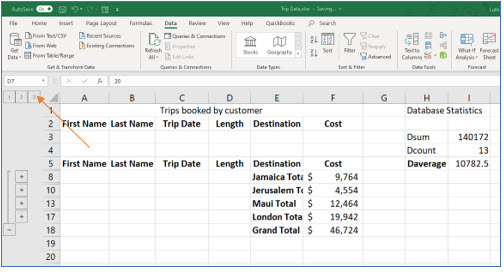
The Excel workbook currently shows all records (details), group totals (subtotals), and the grand total (summary). You can click on the outline level numbers 1, 2, or 3 to see just the grand total (level 1), the grand and group totals (level 2), or all information (level 3). You can also click on the outline buttons to the left of the row numbers. The level 2 buttons (+ or -) will expand or collapse the group records, but not the subtotals.
Microsoft Excel lesson screenshot Filters5

1. Click on the “2” to the left of Column A’s heading.

Excel should now show the subtotal for each destination and the grand total. Experiment with the various outline levels. Also look at the worksheet in Print Preview; the worksheet will print as it is displayed on screen.

Adding more subtotals

The subtotals you created added a sum or total for each destination and a grand total. This is because you selected Sum as the subtotaling function. If you decided that you wanted the record count instead of the total, you could click the subtotal tool again and choose Count instead of Sum. By default, Excel will replace the Sum computations with a count.

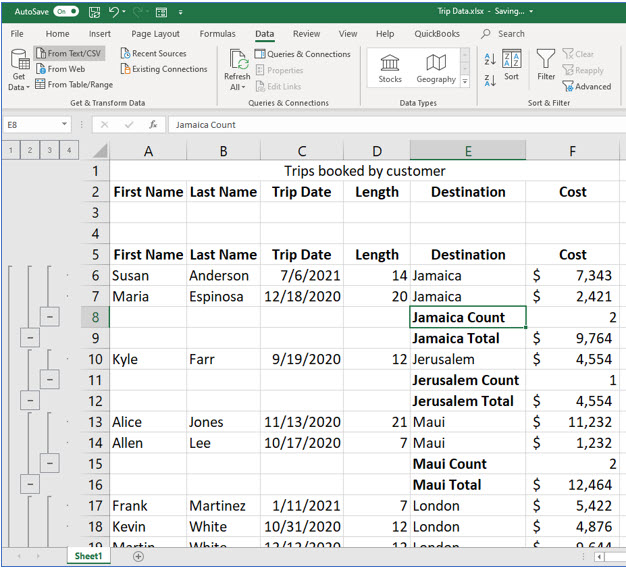
However, there may be times when you want two computations to display on the worksheet when you are using the Subtotal feature. In this portion of the lesson you will add a Count for each destination, but leave the Sum as it is.

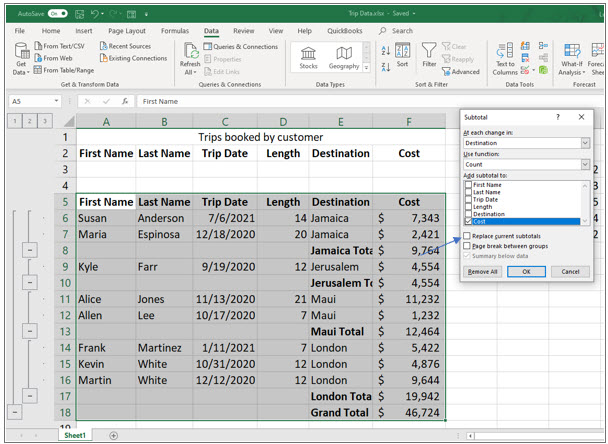
2. Ensure the active cell is located in the database area and click the Subtotal tool again.
Microsoft Excel lesson screenshot Filters6

3. In the Subtotal dialog box, change the function to Count. Then turn off the Replace Current subtotals check box and click OK.
Microsoft Excel lesson screenshot Filters7

You should now see that Excel added the count and the total to the worksheet. Adjust the destination’s column width if needed to see the complete titles.

Removing Subtotals

Changing the computation to be performed on the grouped items or removing the subtotals is simple with the Subtotal dialog box. To change the computation, just click on the Subtotal tool when any cell in the database is active. You might try changing the computation to group averages and grand average for our current database.

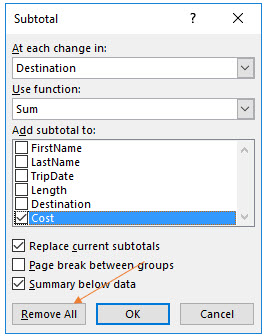
1. With the active cell in the database area, click the Subtotals tool in the Outline group on the Data tab.

The Subtotal dialog box should appear.
Microsoft Excel lesson screenshot Filters8

2. In the Subtotal dialog box, click Remove All.

Excel will now remove all subtotals (the group and grand totals) calculated for the database records.

Advertisement

Next step

See the concepts demonstrated.

Continue to Watch for chapter videos and worked examples.

Go to Watch

See it explained

Watch

Choose the explanation or example that best supports your learning.

Next step

Apply what you have learned.

Use the guided questions and activities in Practice.

Go to Practice

Apply what you learned

Practice Filtering and Subtotals

Use TripData to create destination totals and counts, then use the outline controls to display only the level of detail you need.

Guided Practice

  • Sort the data by Destination in ascending order.
  • Create a Sum subtotal for Cost at each change in Destination.
  • Collapse the worksheet to outline level 2.
  • Add a Count subtotal without replacing the existing Sum subtotal.
  • Remove all subtotals when finished.

Challenge Yourself

  • Replace the subtotal calculation with Average and interpret the result.
  • Print-preview the worksheet at outline levels 1, 2, and 3.
  • Create subtotals using a different grouping field and compare the report.

Check Your Understanding

  • Can you explain why the data must be sorted before using automatic subtotals?
  • Can you distinguish group totals from the grand total?
  • Can you explain what happens when Replace Current Subtotals remains selected?

Next step

Save the materials you may need later.

Open Resources for the study sheet, spreadsheets, and related learning materials.

Go to Resources

Keep learning

Resources

Study sheets, downloadable files, companion tools, and related lessons for this chapter.

For educators

Teaching this chapter?

The Instructor tab contains objectives, teaching ideas, assessments, and a printable guide.

Open Instructor Resources

LutherMaddy.com — Helping Humans Learn

Filtering and Subtotals: Instructor Resources

Teach this lesson

Instructor Resources

Classroom-ready objectives, teaching ideas, questions, and assessment materials for this chapter.

Learning Objectives

  • Sort records by the field used to form subtotal groups.
  • Create grouped totals with Excel’s Subtotal feature.
  • Use outline levels to control displayed detail.
  • Add a second subtotal computation without replacing the first.
  • Remove all automatic subtotals.

Prerequisite Knowledge

  • Data lists with headings
  • Sorting records
  • SUM and COUNT concepts

Teaching Outline

  • Explain why grouped records must be sorted.
  • Create a Sum subtotal by destination.
  • Demonstrate outline levels and expand/collapse controls.
  • Add Count while preserving Sum.
  • Remove subtotals and restore the original list.

Key Concepts

  • Subtotals are inserted whenever the grouping field changes.
  • Sorting places matching records together.
  • Outline levels control detail, group totals, and grand totals.
  • Replace Current Subtotals determines whether a second calculation replaces or supplements the first.

Classroom Demonstration

  • Create subtotals on unsorted data first, then sort and compare the correct result.
  • Switch between outline levels and preview the resulting printed report.

Questions to Ask

  • Why does the Subtotal feature depend on sorting?
  • When would Count be more useful than Sum?
  • How do outline levels improve a long report?

Teaching Notes

  • Confirm that the active cell is inside the data list.
  • Use a copy of the workbook so students can remove and recreate subtotals.
  • Emphasize that the Subtotal feature changes the worksheet structure.

Assessment Ideas

  • Create Sum subtotals by one category.
  • Add Count without replacing Sum.
  • Display only group totals and the grand total.
  • Remove all subtotals at the end.

Grading Rubric

CriterionPoints
Data sorted by grouping field2
First subtotal configured correctly2
Outline levels used correctly2
Second subtotal added correctly2
Subtotals removed and data restored2
Total10

Exam and Discussion Questions

Basic

  • State why records should be sorted before creating subtotals.

Applied

  • Create both Sum and Count subtotals for a grouped data set.

Conceptual

  • Explain the difference among outline levels 1, 2, and 3.

Keep Exploring

Continue Learning

Explore step-by-step lessons, interactive calculators, downloadable study sheets, and practical educational resources.