
Microsoft Excel Training

Using Goal Seek and Future Value

Learn to calculate future value with Excel’s FV function and use Goal Seek to determine the monthly contribution needed to reach a financial target.

Start here

Overview

This lesson creates a retirement-savings model, uses the FV function to calculate future value, and then applies Goal Seek to solve for the required monthly contribution.

What You Will Learn

  • Explain what Goal Seek does in a formula-based worksheet.
  • Create a retirement-savings template.
  • Use the FV function with a monthly rate and monthly number of periods.
  • Recognize Excel’s cash-flow sign convention.
  • Use Goal Seek to set a formula cell to a specified value.
  • Identify the changing input cell that Goal Seek should adjust.
  • Accept or reject Goal Seek’s proposed solution.

Before You Begin

  • Basic formulas and functions
  • Percentage and currency formatting
  • Understanding of future value and periodic contributions

Why This Matters

Goal Seek reverses a calculation. Instead of asking what result an input produces, it determines the input required to achieve a desired result.

Plan Your Study

  • Create the retirement-savings worksheet.
  • Insert the FV function and convert annual values to monthly values.
  • Adjust the formula’s sign for easier interpretation.
  • Open Goal Seek from What-If Analysis.
  • Set the target future value and choose the monthly contribution cell to change.

Next step

Read the complete chapter.

The Learn tab contains the written lesson from Surviving Statistics.

Go to Learn

Written lesson

Learn Using Goal Seek and Future Value

Learn to calculate future value with Excel’s FV function and use Goal Seek to determine the monthly contribution needed to reach a financial target.

Advertisement

Using Excel's Goal Seek and Future Value Function

Excel’s Goal Seek feature allows you to specify the outcome you would like in a cell that is a formula then then Excel will adjust a related cell until it finds the outcome you have specified. So, as an example using the Future Value function, you can specify an amount you would like saved for retirement and then have goal seek determine how much you need to contribute and for how long. In this example we’ll have you start with an introduction to the future value (FV) functions and then use goal seek to see what amount you need to save each month to reach your goal.

▶
Watch the video-Goal Seek with Future Value Watch video
▶
Watch the video-Goal Seek with Mortgage Payment Watch video

Using Goal Seek & the Future Value Function – Retirement Scenario

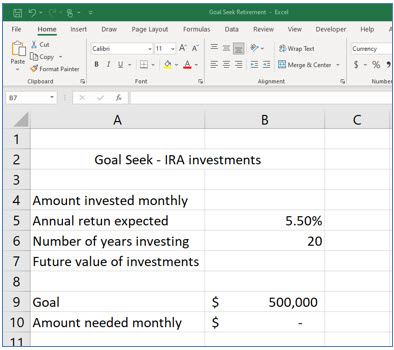
1. Begin by creating the worksheet shown in the image below. You can format the currency and percentage cells as you see fit.
Microsoft Excel lesson screenshot GoalSeek1

For this example, we are assuming that you expect an average annual return of 5.5% and that you have 20 years before you retire. You can, of course put any values you like in these cells, but maybe after you complete this tutorial. We are also using 500,000 as the target goal.

Using the Future Value (FV) function

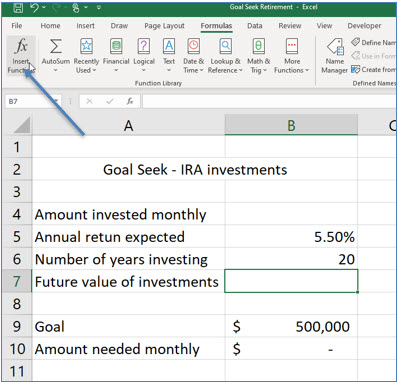
2. Move to cell B7, display the Formulas tab and then click the Insert Function tool.
Microsoft Excel lesson screenshot GoalSeek2

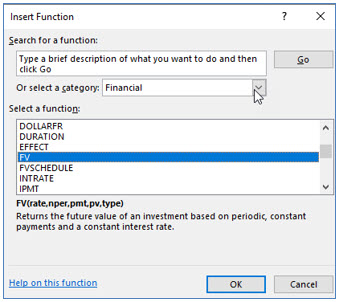
You will now see the Insert Function dialog box. Here you will locate the Future Value function.
Microsoft Excel lesson screenshot GoalSeek3

3. In the Insert Function dialog box, choose the Financial Category, then scroll down to and select the FV function, then click OK

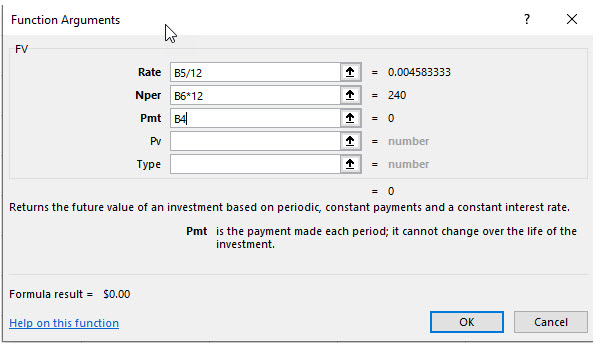
Excel will now display the Function Arguments dialog box. Here you will specify the cells that contain the variables Excel needs to compute the Future Value. Because the amount we are investing is a monthly amount, we need to convert the interest rate and the number of payments into monthly, rather than yearly terms. You will do this by dividing the interest rate by 12 and multiplying the number of payments by 12.
Microsoft Excel lesson screenshot GoalSeek4

4. Enter the values shown and click OK.

We are leaving the amount we save each month blank. We will have Goal Seek compute the amount we need to contribute each month to reach our goal.

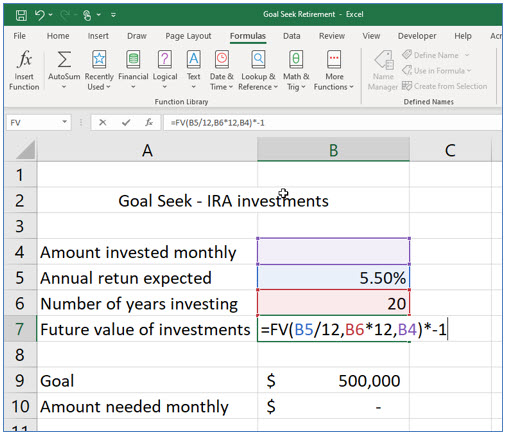
You will now modify the formula to show a positive, rather than negative number. This will make using the Goal Seek feature easier to understand.
Microsoft Excel lesson screenshot GoalSeek5

5. Click in the formula bar and add *-1 to the end of the FV formula, outside the closing parenthesis.

You can also double-click in the cell with the formula to make this change.

Using the Goal Seek feature

You have set up a working future value template. You can put in your own values and watch the result. The one drawback with this formula is that it assumes the amount contributed each month remains the same. But, knowing that limitation, this is still a very useful function.

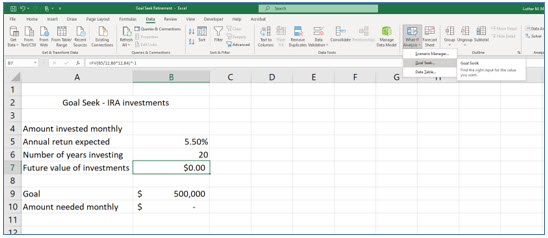
You will now use Excel’s Goal Seek to find out how much you need to contribute each month for 20 years to reach the foal of $500,000.
Microsoft Excel lesson screenshot GoalSeek6

1. Move to Cell B7, select the Data Tab, click the What If tool and select Goal Seek.
Microsoft Excel lesson screenshot GoalSeek7

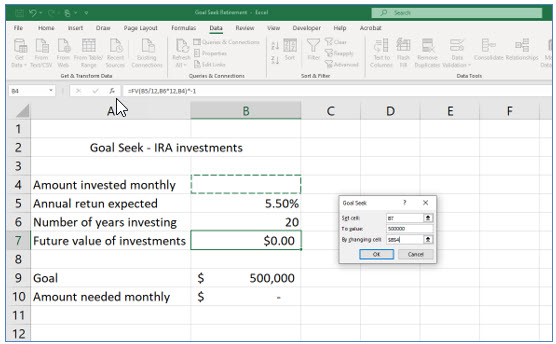
Now you will enter the cells you want to change, the value you want, and the cell that should have that value. The goal seek requires that you “hard code” the value rather than refer to a cell that has the value.

2. In the Goal Seek dialog box, enter B7 in the Set Cell area, 500000 in the To Value area and B4 in the By changing cell area, then click OK.
Microsoft Excel lesson screenshot GoalSeek8

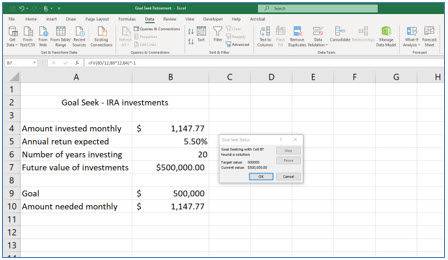
3. In the Goal Seek dialog box, enter B7 in the Set Cell area, 500000 in the To Value area and B4 in the By changing cell area, then click OK.

Excel adjusted cell B4 until it reached the goal of $500,000.

4. Click OK to accept Goal Seek’s results.

You have now seen how to use the Future Value function and Excel’s Goal Seek feature. You can now use both in your own applications.

Advertisement

Next step

See the concepts demonstrated.

Continue to Watch for chapter videos and worked examples.

Go to Watch

See it explained

Watch

Choose the explanation or example that best supports your learning.

Next step

Apply what you have learned.

Use the guided questions and interactive calculator activities in Practice.

Go to Practice

Apply what you learned

Practice Using Goal Seek and Future Value

Build the retirement model and use Goal Seek to find the monthly contribution needed to reach $500,000.

Launch Interactive Calculator

Guided Practice

  • Create cells for annual return, years, monthly contribution, target value, and calculated future value.
  • Use FV with the annual rate divided by 12 and years multiplied by 12.
  • Modify the result to display as a positive value.
  • Set the future-value cell to 500000 by changing the monthly-contribution cell.
  • Accept Goal Seek’s solution and verify the result.

Challenge Yourself

  • Change the target to $750,000 and rerun Goal Seek.
  • Compare the contribution required at 4%, 5.5%, and 7% annual returns.
  • Use Goal Seek to find the number of years required instead of the monthly contribution.
  • Compare Excel’s result with the online Future Value Calculator.

Check Your Understanding

  • Can you explain the difference between the Set Cell and By Changing Cell entries?
  • Can you explain why the annual rate is divided by 12?
  • Can you explain Excel’s negative cash-flow result and why the lesson multiplies by -1?

Next step

Save the materials you may need later.

Open Resources for the study sheet, spreadsheets, and related learning materials.

Go to Resources

Keep learning

Resources

Study sheets, downloadable files, companion tools, and related lessons for this chapter.

For educators

Teaching this chapter?

The Instructor tab contains objectives, teaching ideas, assessments, and a printable guide.

Open Instructor Resources

LutherMaddy.com — Helping Humans Learn

Using Goal Seek and Future Value: Instructor Resources

Teach this lesson

Instructor Resources

Classroom-ready objectives, teaching ideas, questions, and assessment materials for this chapter.

Calculator Instructor Resources

Learning Objectives

  • Create a future-value worksheet with consistent monthly inputs.
  • Use the FV function and explain its arguments.
  • Use Goal Seek to solve for a required input.
  • Interpret Excel’s cash-flow sign convention.
  • Verify a Goal Seek result independently.

Prerequisite Knowledge

  • Basic functions
  • Percentages
  • Financial time-value concepts

Teaching Outline

  • Introduce forward and reverse calculations.
  • Create the retirement-savings model.
  • Insert FV and convert annual inputs to monthly units.
  • Open Goal Seek and identify the three required entries.
  • Accept, reject, and verify the proposed solution.

Key Concepts

  • Goal Seek changes one input cell to produce a target formula result.
  • The Set Cell must contain a formula.
  • The By Changing Cell must be an input used by that formula.
  • Interest rate and number of periods must use consistent time units.
  • Cash outflows and inflows use opposite signs in financial functions.

Classroom Demonstration

  • Change the target future value and rerun Goal Seek.
  • Compare the monthly contribution at several assumed rates of return.
  • Verify the result with the online Future Value Calculator.

Questions to Ask

  • How is Goal Seek different from entering several guesses manually?
  • Why can Goal Seek change only one input cell at a time?
  • What assumptions make the retirement model an estimate rather than a guarantee?

Teaching Notes

  • State the target and changing variable in plain language first.
  • Emphasize monthly conversions in both rate and number of periods.
  • Discuss the limitations of assuming a constant rate and contribution.

Assessment Ideas

  • Use Goal Seek to solve for a monthly contribution.
  • Use Goal Seek to solve for a different input, such as years.
  • Compare the Excel result with an independent calculator.

Grading Rubric

CriterionPoints
Worksheet model created correctly2
FV arguments and units correct2
Goal Seek entries correct2
Result accepted and verified2
Assumptions and interpretation explained2
Total10

Exam and Discussion Questions

Basic

  • Identify the Set Cell, To Value, and By Changing Cell in Goal Seek.

Applied

  • Use Goal Seek to determine the monthly deposit required for a specified savings target.

Conceptual

  • Explain why the annual rate is divided by 12 and years are multiplied by 12.

Keep Exploring

Continue Learning

Explore step-by-step lessons, interactive calculators, downloadable study sheets, and practical educational resources.