
The IF() Function
The IF() function is a logical function. It returns one value if a condition is true and another value if the condition is false. In this lesson, you will use the IF function to calculate a discount when the total cost of a trip exceeds a specified amount.
IF() Function Syntax
The basic syntax of the IF() function is:
=IF(condition to check, value if true, value if false)
The values returned by IF can also be computations. In the following steps, you will use the IF() function to compute a customer’s discount based on the cost of the trip.
1. Add the Discount Column
In the TripData workbook, move to cell F4 in the January worksheet, type Discount, and then press Enter.
The No Fault Travel agency gives a 5% discount if the total cost of the trip exceeds $2,500. Before entering the formula, frame the IF statement in plain language:
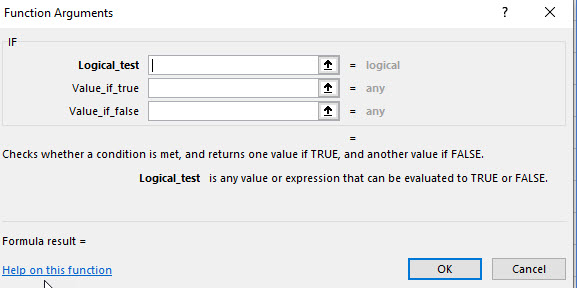
| IF Argument | Business Rule | Excel Expression |
|---|---|---|
| Logical test | Does the trip exceed $2,500? | E5>2500 |
| Value if true | Give a 5% discount. | E5*0.05 |
| Value if false | No discount. | 0 |
2. Enter the IF Formula
In cell F5, type:
=IF(E5>2500,E5*0.05,0)
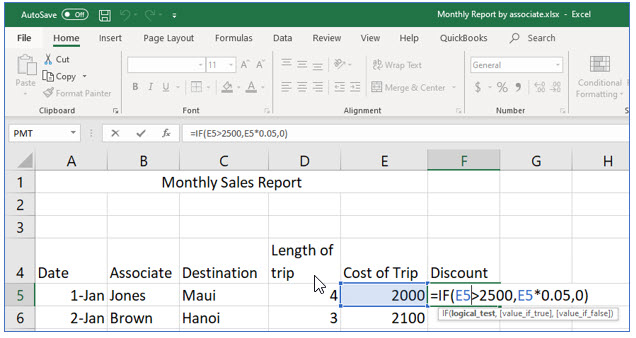
This formula asks whether the value in E5 is greater than 2500. If it is, Excel calculates 5% of E5. If it is not, Excel returns zero.
3. Copy the Formula
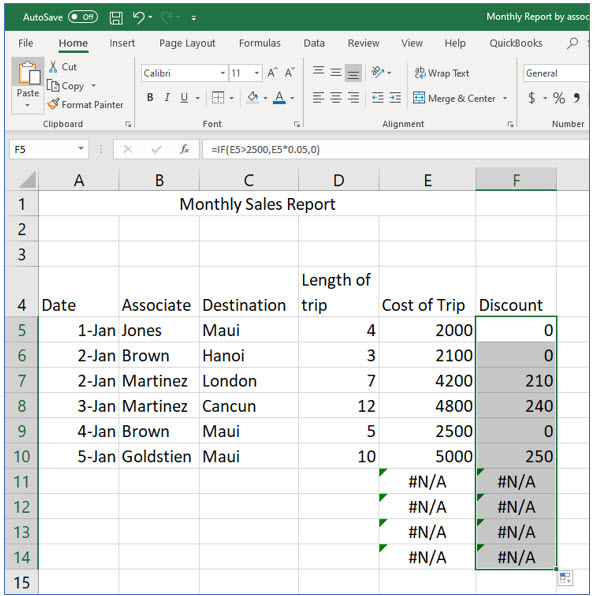
Copy the formula from F5 through F14. You may double-click the fill handle on cell F5 to quickly copy the discount formula. Add accounting formatting as shown in the lesson example.
Nested IF Statements
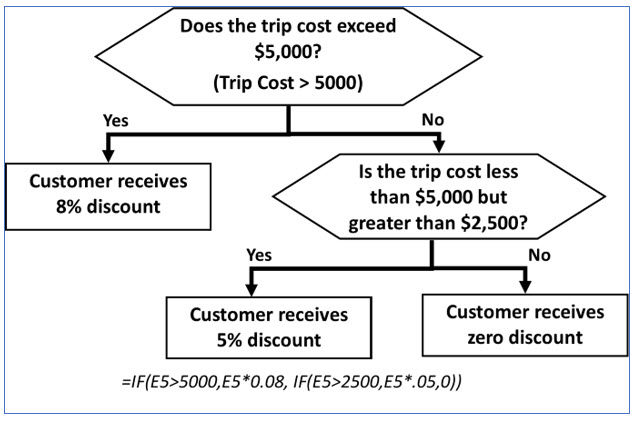
Sometimes a worksheet must return more than two possible outcomes. One approach is to place one IF function inside another. This is called a nested IF.
For example, suppose higher trip costs qualify for a larger discount:
=IF(E5>5000,E5*0.08,IF(E5>2500,E5*0.05,0))
This formula evaluates the highest threshold first. If the trip exceeds $5,000, it returns an 8% discount. Otherwise, Excel evaluates the second IF and returns either a 5% discount or zero.
Comparison Operators Used in IF
| Operator | Meaning |
|---|---|
| > | Greater than |
| < | Less than |
| >= | Greater than or equal to |
| <= | Less than or equal to |
| = | Equal to |
| <> | Not equal to |
Common Mistakes
- Reversing the value-if-true and value-if-false arguments.
- Using the wrong comparison operator, such as > when the rule means >=.
- Forgetting quotation marks around text results, such as "Pass".
- Putting nested conditions in an illogical order. When testing thresholds such as $5,000 and $2,500, test the higher threshold first.
- Failing to verify the formula with values on both sides of the decision threshold.
You have now used Excel's IF() function to automate a business decision. Experiment with your own data and consider other situations where a spreadsheet could return different results based on a logical test.
See it explained
Watch
Choose the explanation or example that best supports your learning.
Using Excel's IF() Function
Learn how to create an IF formula that tests a condition and returns different results when the condition is true or false.
Watch VideoCreating Nested IF and OR Statements
Extend logical formulas by combining conditions and working with nested IF and OR logic.
Watch VideoVisualize Formula Results with pictures
Use the If function to place pictures into cells.
Watch VideoApply what you learned
Practice Excel's IF() Function
Use the companion calculator and activities below to reinforce the chapter concepts.
Guided Practice
- In =IF(E5>2500,E5*0.05,0), identify the logical test, value if true, and value if false.
- If E5 contains 3000, what result should =IF(E5>2500,E5*0.05,0) return?
- Create a formula that displays "Pass" when A2 is at least 70 and "Review" otherwise.
- Create a formula that gives an 8% discount when a trip exceeds $5,000, a 5% discount when it exceeds $2,500, and no discount otherwise.
- Explain why the order of conditions matters in a nested IF formula.
- Change several TripData values above and below the threshold and verify that the formula recalculates correctly.
- Create your own business example in which an IF function would automate a decision.
Challenge Yourself
Resources will be added as this lesson grows.
Check Your Understanding
Resources will be added as this lesson grows.
Keep learning
Resources
Study sheets, downloadable files, companion tools, and related lessons for this chapter.
Student Grade Computation Worksheet
Download the completed Excel workbook to compute student letter grades.
Download LetterGradeTemplate.xlsxTripData Practice Workbook
Download the Excel workbook used in the lesson and create the IF formulas yourself.
Download TripData.xlsxLutherMaddy.com — Helping Humans Learn
Excel's IF() Function: Instructor Resources
Teach this lesson
Instructor Resources
Classroom-ready objectives, teaching ideas, questions, and assessment materials for this chapter.
Learning Objectives
- Identify the logical test, true result, and false result in an IF function.
- Write and copy an IF formula that returns a calculated discount.
- Construct a nested IF formula for three possible outcomes.
- Interpret and troubleshoot logical formulas.
Prerequisite Knowledge
- Basic functions
- Relative references
- Copying formulas
Teaching Outline
- Introduce decision-making in spreadsheets.
- Diagram the three IF arguments.
- Create and copy the basic discount formula.
- Change input values and observe recalculation.
- Extend the formula with a nested IF.
Key Concepts
- IF returns one result when a test is true and another when it is false.
- Comparison operators include >, <, >=, <=, =, and <>.
- Nested IF functions support more than two possible outcomes.
- Conditions should be arranged in a logical order.
Classroom Demonstration
- Change a trip cost from below to above the threshold and show the result update.
- Build the nested formula one IF at a time and evaluate each branch.
Questions to Ask
- What business decisions can an IF formula automate?
- Why does the order of nested conditions matter?
- When should a formula return text instead of a number?
Teaching Notes
- Encourage students to state the rule in plain language before writing the formula.
- Use indentation or color coding when explaining nested formulas.
- Remind students that text results require quotation marks.
Assessment Ideas
- Assign one numeric IF formula and one text-returning IF formula.
- Have students diagnose a formula with reversed true and false results.
- Require a three-level nested IF classification.
Grading Rubric
| Criterion | Points |
|---|---|
| Logical test is correct | 2 |
| True and false results are correct | 2 |
| Formula syntax is accurate | 2 |
| Formula copied and verified | 2 |
| Nested logic explained clearly | 2 |
| Total | 10 |
Exam and Discussion Questions
Basic
- Identify the three arguments in =IF(E5>2500,E5*0.05,0).
Applied
- Create a formula that returns Pass when a score is at least 70 and Review otherwise.
Conceptual
- Explain why nested IF conditions should often be tested from highest to lowest.