
Microsoft Access Training

Creating Relationships

Connect Access tables with one-to-many relationships and apply referential integrity, cascade updates, and carefully selected cascade-delete rules.

Start here

Overview

This lesson connects the Travel Agents, Clients, and Trips tables. You will create one-to-many relationships and choose rules that protect the validity of related records.

What You Will Learn

  • Open the Relationships window and add tables.
  • Identify primary-key and foreign-key fields.
  • Create a one-to-many relationship by dragging matching fields.
  • Enforce referential integrity.
  • Explain the effect of Cascade Update Related Fields.
  • Evaluate when Cascade Delete Related Records is appropriate.
  • Save and review the completed relationship diagram.

Before You Begin

  • Relational database design
  • Creating Access tables
  • Primary and foreign keys
  • Compatible field data types

Why This Matters

Relationships allow separate tables to work as one database while rules such as referential integrity prevent invalid foreign-key values and orphaned records.

Plan Your Study

  • Download and open the relationship-start database.
  • Add all three tables to the Relationships window.
  • Relate Travel Agents to Clients through AgentID.
  • Enable referential integrity and cascade updates.
  • Relate Clients to Trips through ClientID.
  • Evaluate and apply the cascade-delete option.
  • Save the relationship layout.

Next step

Read the complete chapter.

The Learn tab contains the written lesson from Surviving Statistics.

Go to Learn

Written lesson

Learn Creating Relationships

Connect Access tables with one-to-many relationships and apply referential integrity, cascade updates, and carefully selected cascade-delete rules.

Advertisement

Creating Relationships

⬇
No Fault Travel Database to complete the Relatioinships chapter Open or download

After correctly designing and creating the table in your access database, the next step, before you start to use it is to create the relationships between the tables. This lesson will step you through creating Aaccess relationshiops.

▶
Watch the video-Understanding Relational Databases Watch video

⬇
No Fault Travel Database to complete this chapter Open or download

Creating Relationships

Relating or linking tables allows you to share information between tables. In the No Fault Travel agency database you are building in these lessons, you will link the Travel Agents table with the Clients table. You will also link the Clients and Trips tables. Relating, or normalizing tables, you should recall reduces data redundancy (which saves space) and improves data integrity. By linking the Clients table to the Trips table, only the client’s ID number needs to be included in the Trips table to link a trip to a client.

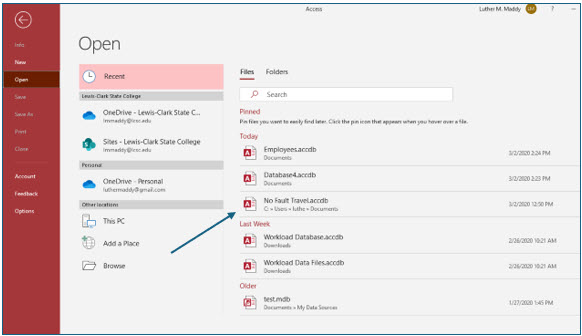
1. Click the File tab to display the Backstage view. Choose Open.
Microsoft Access lesson screenshot CreatingRelationships1

Access will display a list of files you have recently opened. In this case, the No Fault Travel database should be in this list. If not, you can use the Browse feature to find the location of the file.

2. Click the No Fault Travel database file in the list of recent files to open it.

In the next steps, you will create the relationships you need in this database. Some features you use in Access will create links in tables. These features include queries and lookup fields. Creating your own links before you start using the database allows you to choose relationship options that Access does not automatically use. Creating relationships before adding data ensures that when data is added, it will follow the relationship rules you set up.

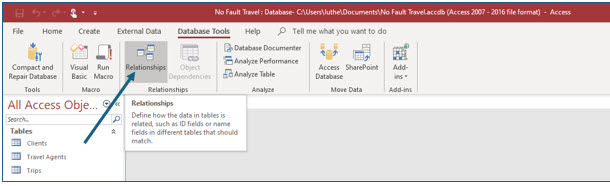
3. Display the Database Tools tab, then choose Relationships.
Microsoft Access lesson screenshot CreatingRelationships2

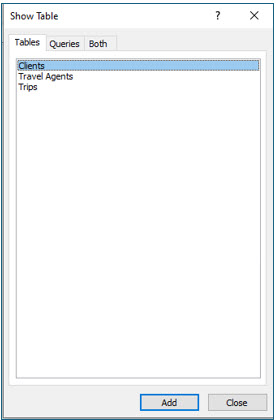
The Show Table dialog box appears where you choose the tables that you wish to relate. In this case, you will add all three tables.
Microsoft Access lesson screenshot CreatingRelationships3

4. In the Show Table dialog box, select the Travel Agents table and click Add.

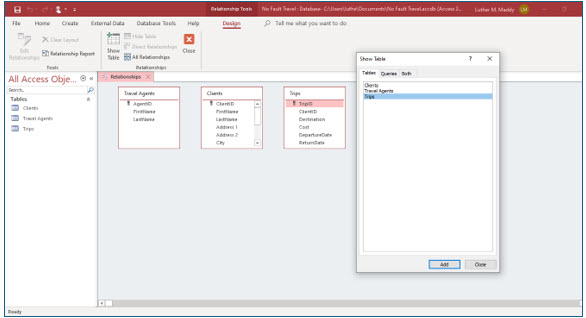
The Travel Agents table should now be displayed in the Relationships window. Move the Show Table dialog box below the area of the table information (by dragging its title bar down), so that the tables will not be covered by the Show Table dialog box.

5. Select Clients and then click Add. Next, select Trips and click Add.
Microsoft Access lesson screenshot CreatingRelationships4

6. After adding all three tables, click Close to close the Show Table dialog box.

You should now see all three tables in the Relationships window. If you inadvertently added a table more than once, you can click the title bar of the extra table and then press (Delete) to remove the extra occurrence of the table.
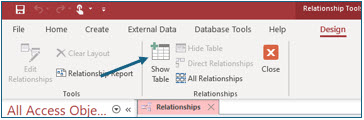
Microsoft Access lesson screenshot CreatingRelationships5

If you skipped a table, you can click the Show Table tool on the ribbon to open the Show Table dialog box. This will allow you to add the missing table or tables.

After adding all three tables you are now ready to create the relationships between them.

7. Scroll down in the Clients table so that the AgentID field is visible in the field list.

The relationship you will create between the Travel Agents and Clients tables will be based on the AgentID field. This field is the primary key in the Travel Agents table. It is not the primary key in the Clients table. In the Clients table, it is called a foreign key.

If the AgentID field were the primary key in the Clients table and the Agents table, that would mean that each agent could have only one client. The relationship you are about to create is a one to many relationship, which means that one agent may have many clients.

8. Carefully drag the AgentID field from the Travel Agents table and place it on top of the AgentID field in the Clients table.

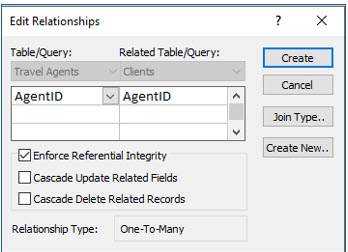
The Edit Relationships dialog box should appear where you will specify the relationship options you want between these two tables.
Microsoft Access lesson screenshot CreatingRelationships6

9. In the Edit Relationships dialog box, turn on the Enforce Referential Integrity check box.

Enforce Referential Integrity

You have told Access to check the validity of the AgentID field when this value is entered into the Clients table. You will want to enable this option for most relationships you create. This check ensures that every client will be assigned a valid travel agent identification number. Otherwise, values might be permitted in this field that do not correspond to actual agents listed in the Agents table.

Cascade Update Related Records

When you selected Enforce Referential Integrity, the Cascade Update Related Fields option became available. Turning on this option allows you to change the travel agent’s ID number in the Travel Agents table and have Access automatically change this value for all the clients assigned to this travel agent in the Clients table. This is an option you will want to enable in most of your databases; however, when using the AutoNumber field type for the primary key as we did in the AgentID field in the Travel Agents table, this option has no effect.

1. Turn the Cascade Update Related Records option on.

2. In the Edit Relationships dialog box, click Create.
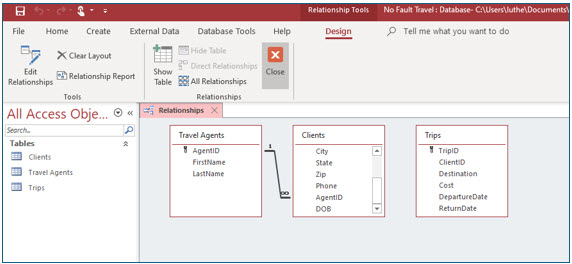
Microsoft Access lesson screenshot CreatingRelationships7

You should now see a join line between these two tables. You should also notice that Access has created a one to many relationship (i.e., one agent may have many clients).

3. Now, scroll up in the Clients table to display the ClientID field.

4. Drag the ClientID field from the Clients table and place it on top of the ClientID field in the Trips table.

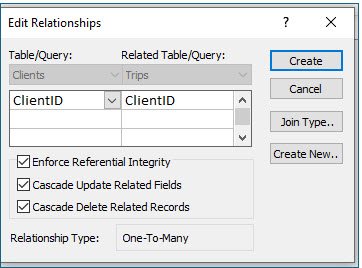
You should once again see the Edit Relationships dialog box.

5. In the Edit Relationships dialog box, enable the Enforce Referential Integrity option.

6. Enable the Cascade Update Related Fields option.

Cascade Delete Related Records

With this option enabled, if you delete a client from the database then all the trips booked for that client would also be deleted. This option causes the deletion of the “many” records associated with the “one” when the one record is deleted.

Use extreme care when determining if this option should be enabled! In our No Fault Travel database, this is an option you will enable. If you delete a client, you do not want the Trips table keep trip information without identifying who took those trips. If you delete a client, all the trips for that client should also be deleted. Of course, use caution any time you delete a record.
Microsoft Access lesson screenshot CreatingRelationships8

1. Enable the Cascade Delete Related Records option in the Edit Relationships dialog box and click Create.

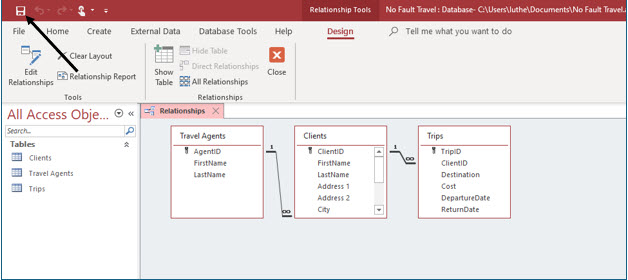
You have now created a relationship between the Clients and Trips tables. You should see that this relationship is also “one to many.” With this relationship, each client may book one or more trips.
Microsoft Access lesson screenshot CreatingRelationships9

2. On the Quick Access bar, click Save.

This saves the file with the new relationships.

3. Close the Relationships window by clicking the Close button in the Relationships group.
Microsoft Access lesson screenshot CreatingRelationships10

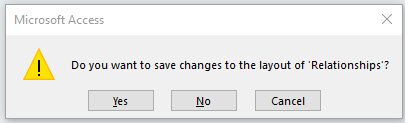
If you do not save before closing the relationships, Access will display the dialog box above.

4. Close the No Fault Travel database.

Advertisement

Next step

See the concepts demonstrated.

Continue to Watch for chapter videos and worked examples.

Go to Watch

See it explained

Watch

Choose the explanation or example that best supports your learning.

Next step

Apply what you have learned.

Use the guided questions and activities in Practice.

Go to Practice

Apply what you learned

Practice Creating Relationships

Use the No Fault Travel practice database to create and verify the two one-to-many relationships described in the lesson.

Guided Practice

  • Add Travel Agents, Clients, and Trips to the Relationships window.
  • Relate Travel Agents.AgentID to Clients.AgentID.
  • Enable referential integrity and cascade updates.
  • Relate Clients.ClientID to Trips.ClientID.
  • Decide whether cascade deletes are appropriate for the Clients-to-Trips relationship.
  • Save the completed relationships.

Challenge Yourself

  • Attempt to add a client with an AgentID that does not exist and explain the result.
  • Explain why AgentID is a primary key in one table and a foreign key in another.
  • Identify a situation where cascade delete would be dangerous.
  • Create a written relationship rule for each table pair.

Check Your Understanding

  • Can you identify the one side and many side of each relationship?
  • Can you explain what referential integrity prevents?
  • Can you explain why related fields must use compatible data types?
  • Can you distinguish cascade update from cascade delete?

Next step

Save the materials you may need later.

Open Resources for the study sheet, spreadsheets, and related learning materials.

Go to Resources

Keep learning

Resources

Study sheets, downloadable files, companion tools, and related lessons for this chapter.

For educators

Teaching this chapter?

The Instructor tab contains objectives, teaching ideas, assessments, and a printable guide.

Open Instructor Resources

LutherMaddy.com — Helping Humans Learn

Creating Relationships: Instructor Resources

Teach this lesson

Instructor Resources

Classroom-ready objectives, teaching ideas, questions, and assessment materials for this chapter.

Learning Objectives

  • Create one-to-many relationships between Access tables.
  • Identify the primary-key and foreign-key sides of a relationship.
  • Enforce referential integrity.
  • Explain cascade updates and cascade deletes.
  • Save and interpret a relationship diagram.

Prerequisite Knowledge

  • Access table design
  • Primary keys
  • Foreign keys
  • Compatible data types

Teaching Outline

  • Open the Relationships window.
  • Add all required tables.
  • Create the Agents-to-Clients relationship.
  • Configure integrity and update options.
  • Create the Clients-to-Trips relationship.
  • Evaluate cascade delete carefully.
  • Save and review the diagram.

Key Concepts

  • One parent record can relate to many child records.
  • The primary key appears on the one side.
  • The foreign key appears on the many side.
  • Referential integrity rejects invalid foreign-key values.
  • Cascade updates change related foreign keys automatically.
  • Cascade deletes can remove many records and require caution.

Classroom Demonstration

  • Attempt to enter an invalid AgentID after referential integrity is enabled.
  • Trace what would be deleted if a client with related trips were cascade-deleted.

Questions to Ask

  • Why does each client need a valid agent?
  • When should cascade delete be avoided?
  • Why must related fields use compatible types?

Teaching Notes

  • Require a backup before demonstrating cascade delete.
  • Distinguish removing a table from the relationship window from deleting the table.
  • Have students verbalize the one side and many side before creating each relationship.

Assessment Ideas

  • Create both No Fault Travel relationships.
  • Submit a screenshot or diagram showing the one and infinity symbols.
  • Explain each integrity and cascade setting.

Grading Rubric

CriterionPoints
Correct tables added1
Agents-to-Clients relationship correct2
Clients-to-Trips relationship correct2
Referential integrity configured2
Cascade options justified2
Relationships saved and explained1
Total10

Exam and Discussion Questions

Basic

  • Define referential integrity, cascade update, and cascade delete.

Applied

  • Create a one-to-many relationship between Customers and Orders.

Conceptual

  • Explain one benefit and one risk of cascade delete.

Keep Exploring

Continue Learning

Explore step-by-step lessons, interactive calculators, downloadable study sheets, and practical educational resources.