Microsoft Excel Training

Create a Loan Amortization Schedule in Excel

Calculate a loan payment with Excel’s PMT function and build a schedule showing the interest, principal, and remaining balance for every payment.

Start here

Overview

This lesson shows how to create a reusable loan amortization workbook in Microsoft Excel. Visitors who need a schedule without building the workbook can use the companion online calculator.

What You Will Learn

  • Calculate the financed amount and periodic payment.
  • Use the PMT function with consistent time periods.
  • Create interest, principal, and balance formulas.
  • Use absolute references when copying formulas.
  • Compare the Excel schedule with the online calculator.

Before You Begin

  • Basic Excel formulas
  • Cell references
  • Fill handle
  • Basic percentage and loan concepts

Why This Matters

An amortization schedule helps borrowers understand the true cost of a loan, see how payments reduce the balance, and evaluate strategies such as extra principal.

Plan Your Study

  • Review the overview and loan terminology.
  • Follow the written Excel steps.
  • Watch the complete video demonstration.
  • Build or download the Excel workbook.
  • Use the online calculator to compare results and test extra principal.

Next step

Read the complete chapter.

The Learn tab contains the written lesson from Surviving Statistics.

Go to Learn

Written lesson

Learn Create a Loan Amortization Schedule in Excel

Calculate a loan payment with Excel’s PMT function and build a schedule showing the interest, principal, and remaining balance for every payment.

Advertisement

Create a Loan Amortization Schedule in Excel

Note: These instructions are an excerpt of Luther Maddy’s Excel Beyond the Basics. This full text is available in printed or eBook format from Amazon.com The PMT() function allows you to compute loan payments based on a fixed payment amount and fixed interest rate. If you know the amount of the loan, the interest rate and the loan length, Excel’s PMT() function will do the rest. After you have computed a loan payment, it is also then very easy to create a complete loan amortization schedule. Here's some step-by-step instructions to compute a loan payment then create a loan amortization schedule. An amortization schedule displays the breakdown for each payment of the loan, including the amount applied to interest and principal. It also displays the loan balance after each scheduled payment.
▶
Watch the video-Creating a loan amortization schedule Watch video

⬇
Printable Instructions - Creating a loan amortization schedule Open or download

⬇
Download completed Loan Amortization Schedule template Open or download

1. In a new workbook, enter the labels as shown below. Change the column width of Column A as needed.

Microsoft Excel lesson screenshot LoanStart
<

To change column width you can double-click the column’s edge to have Excel adjust the column to the widest value or label in the column. Or, you can click and drag to manually adjust the width.

2. Create a formula in cell B3 that subtracts the Down Payment from the Purchase Price.

The computed value in cell B3 will be the amount that the PMT() function uses to calculate a loan payment. The formula is =B1-B2.

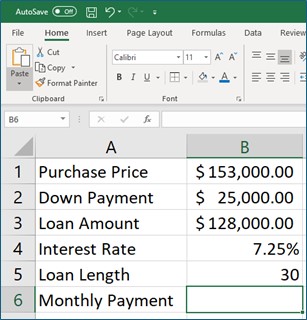
3. Enter the values as shown below. Format the values as shown.
Microsoft Excel lesson screenshot LoanValues
It is not necessary to enter values before creating the formula that computes the loan payment. Placing values in the cells first will make the formula easier to understand as you create it. The loan length is in years, making this a 30-year loan.

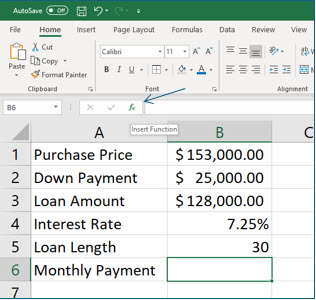
4. Move to cell B6 and then click the Insert Function tool on the Formula bar.
Microsoft Excel lesson screenshot PaymentStart
As soon as you click the Insert Function tool, the Insert Function dialog box pops up. By default, Excel displays a list of functions in the “Most Recently Used” category. Excel adds the functions you use to this category, making the functions you commonly use easy to find with the most recent function used being first on the list.
Microsoft Excel lesson screenshot FinancialCategory

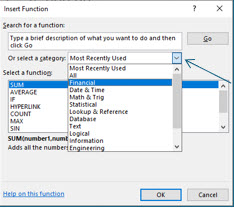
5. Click the Or select a category drop down list and choose the Financial category.
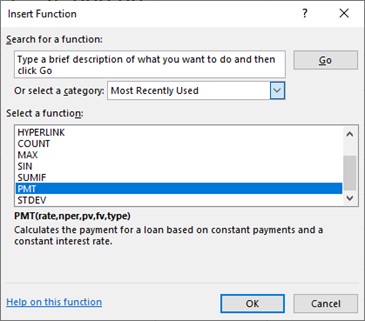
Microsoft Excel lesson screenshot SelectPMTFunction

6. In the Select a function section, select the PMT function and click OK.

Excel will now display the Function Arguments dialog box which allows you to specify the arguments or parameters you want to use for this function. If the data in the worksheet is hidden by the dialog box, you can easily move the dialog box out of the way by clicking and dragging it to another location on the screen.

7. If needed, move the Function Arguments dialog box so that you can see the values in the worksheet.
Microsoft Excel lesson screenshot FunctionArguments

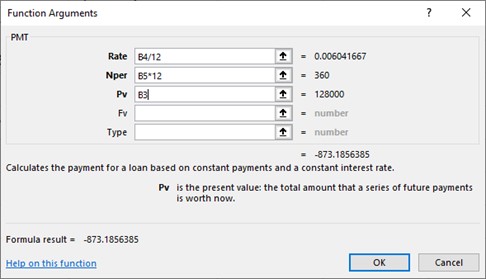
8. Enter the arguments for Rate, Nper, and Pv as shown in the Function Arguments dialog box.

Use the (Tab) key, not the (Enter) key, to move from field to field. You can type the cell references or select them with the mouse. Take the time to read the text in the dialog box. The purpose of the function is explained, as well as the function argument for the active field. Values must be entered into fields for bold-font function arguments. Default values are used if values are not entered in the fields with function argument font is not bold. You have taken the annual interest rate and divided by 12 to convert it to a monthly interest rate. You have also multiplied the loan length by 12 to provide the total number of monthly payments. When dealing with formulas that depend on time, all time elements should be the same.

9. Click OK to complete the monthly payment formula.

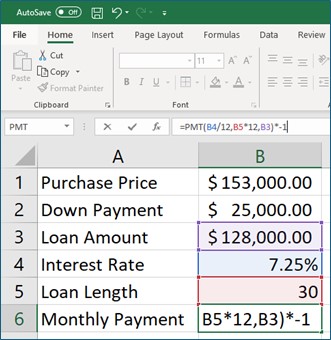
The loan payment amount in cell B6 is displayed in red because Excel has computed a negative number, representing financial outflow (payment). You can create an amortization schedule easier if this number is positive.
Microsoft Excel lesson screenshot AddNegOne

10. In cell B6, click in the formula bar and add *-1 at the very end of the formula and press (Enter).

Multiplying a negative value by -1 changes it into a positive value. In the following steps, you will create a loan amortization schedule. After you have created it, you may use it for your own values if you like.
Microsoft Excel lesson screenshot Amort1

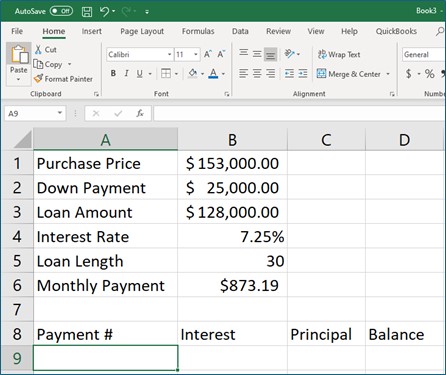
11. In cell A8 enter Payment #. In cell B8 enter Interest. In cell C8 enter Principal and then enter Balance in cell D8 as shown.
Microsoft Excel lesson screenshot Amort2

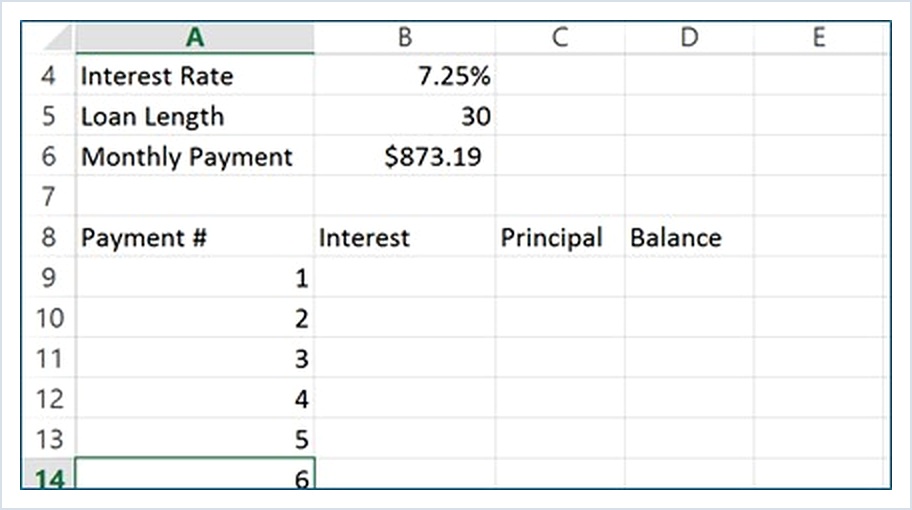
12. Use the fill handle to create incrementing numbers from 1 to 360 in cells A9 through A368.

Type a 1 in cell A9 and a 2 in cell A10. Select both cells; remember, you can select cells when you see the thick white plus sign. Move the mouse pointer to the fill handle, which is the small square in the bottom left corner of your selection. When the thick white plus sign changes to the skinny black plus sign, you have located the fill handle; now click and drag down to cell A368. To replicate a pattern, Excel needs to identify the pattern. Excel interpreted “1,2,…” as a list of numbers with incremental values of one. To replicate a pattern, Excel needs to identify the pattern. Excel interpreted “1,2,…” as a list of numbers with incremental values of one. The numbers you just placed in column A will become the payments scheduled for this loan, 360 in all because it is a 30 year loan (30 years X 12 months). You are now ready to create the formulas for the amortization schedule. You will begin by creating the formals for payment #1.
Microsoft Excel lesson screenshot Amort3

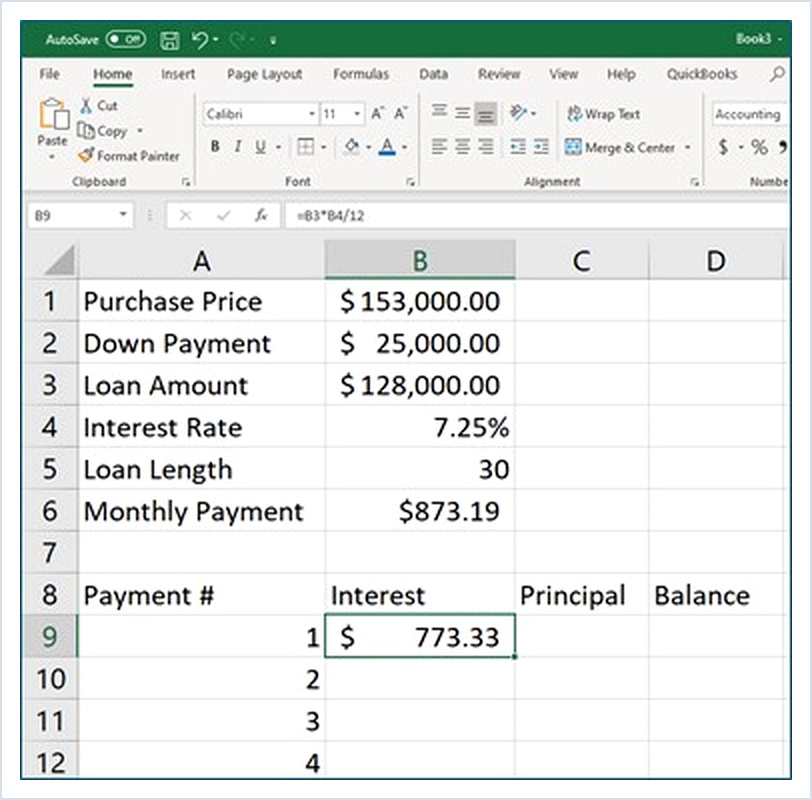
13. In cell B9, create a formula that computes the dollar amount of one month’s interest for the original loan amount: =B3*B4/12

You can manually type the formula or select the reference cells with the mouse. Once again, you are dividing the result by 12 to compute the monthly interest rate.

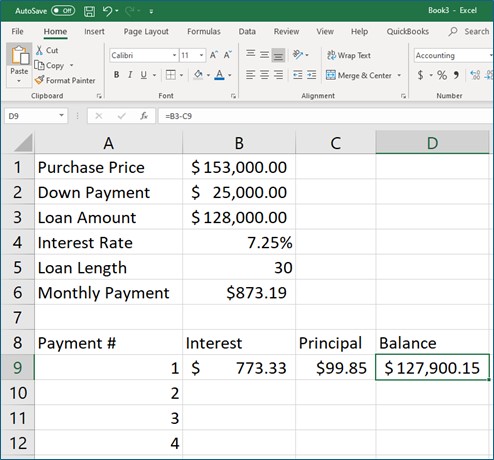
14. In cell C9, create a formula to calculate the amount of the payment which applies to the principal.

This formula is =B6-B9.

15. In cell D9, create a formula which computes the loan balance after making the first payment.

This formula is =B3-C9.
Microsoft Excel lesson screenshot Amort4
The formulas for Payment #1 cannot be copied to the subsequent payments because the relationships are different. In the next three steps, you will create formulas for Payment #2, and use absolute referencing for the interest rate and loan amount, so that the formulas can be copied to do the same calculations for all subsequent payments.

16. In cell B10 enter the formula: =D9*$B$4/12.

This formula refers to the remaining loan balance after making the first payment was made, and uses an absolute (fixed) reference to cell B4, the interest rate.

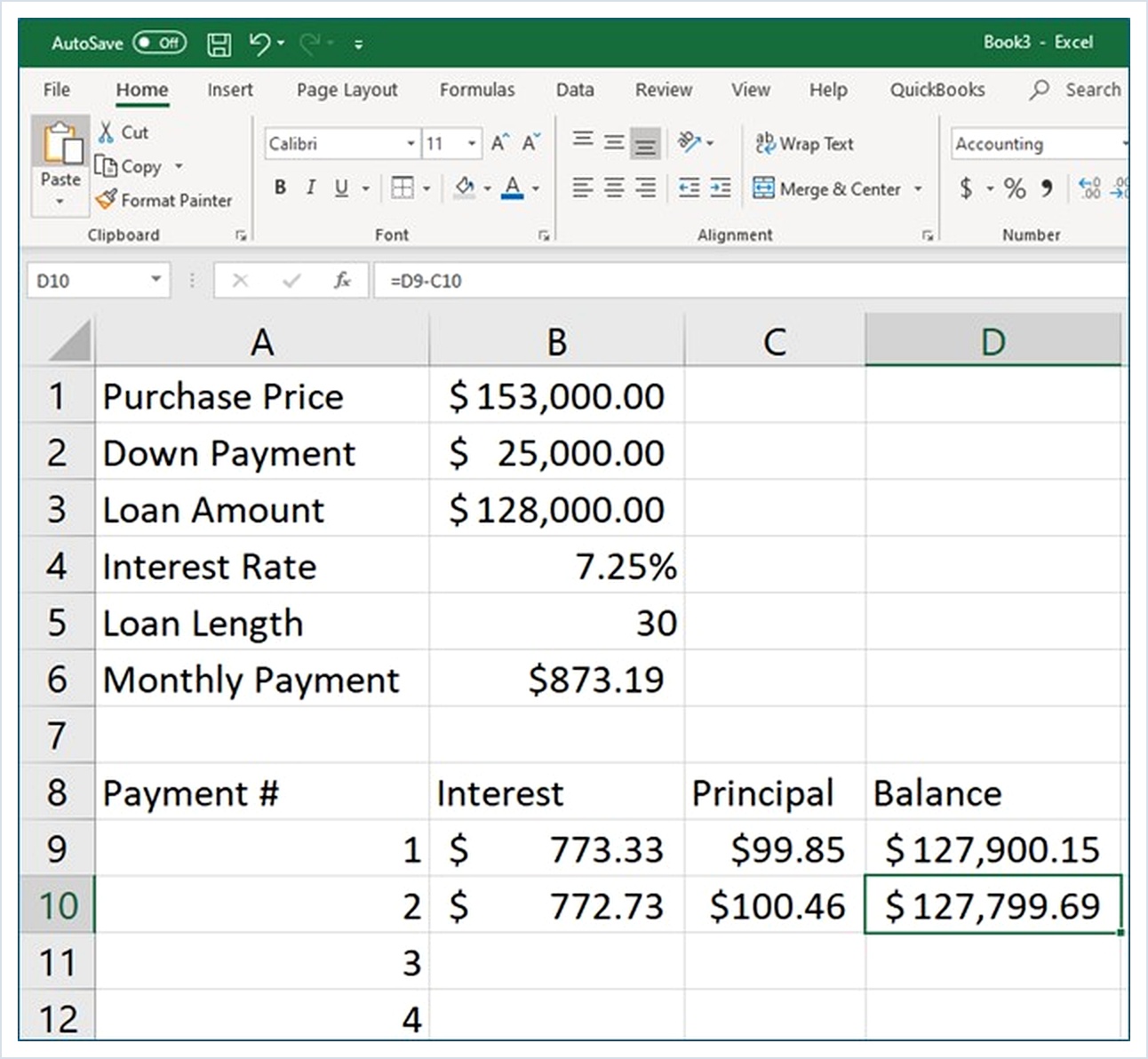
17. In cell C10, enter the formula =$B$6-B10 to compute the dollar amount of Payment #2 applied to the principal.

This formula subtracts the interest paid from the payment amount, which is a constant value (and does not change).

18. In cell D10, enter the formula =D9-C10 to compute the dollar amount of the remaining loan balance after Payment #2 is made.

The loan balance formula now has a relationship you can copy to the other payments. This formula subtracts the principal amount of this payment from the previous balance.
Microsoft Excel lesson screenshot Amort5
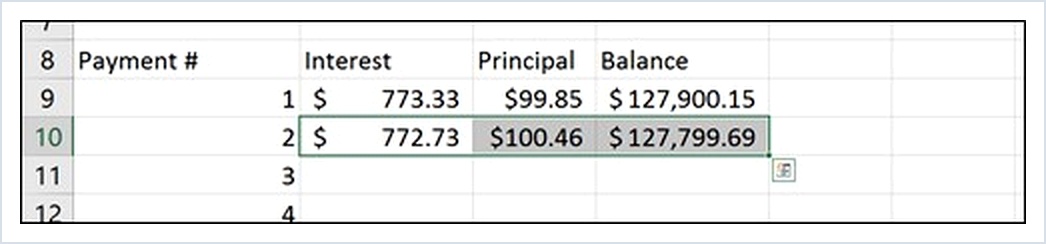
You are now ready to copy the formulas from payment #2 for the additional payments. To do this you will use the fill handle, but you will also be introduced to a shortcut that can save you even more time when copying formulas with the fill handle.
Microsoft Excel lesson screenshot Amort6

19. Select cells B10:D10.

You are selecting the formulas for Payment #2. Remember when selecting cells, the mouse pointer should appear as a thick white plus sign rather than the skinny black plus sign, indicating the fill handle.

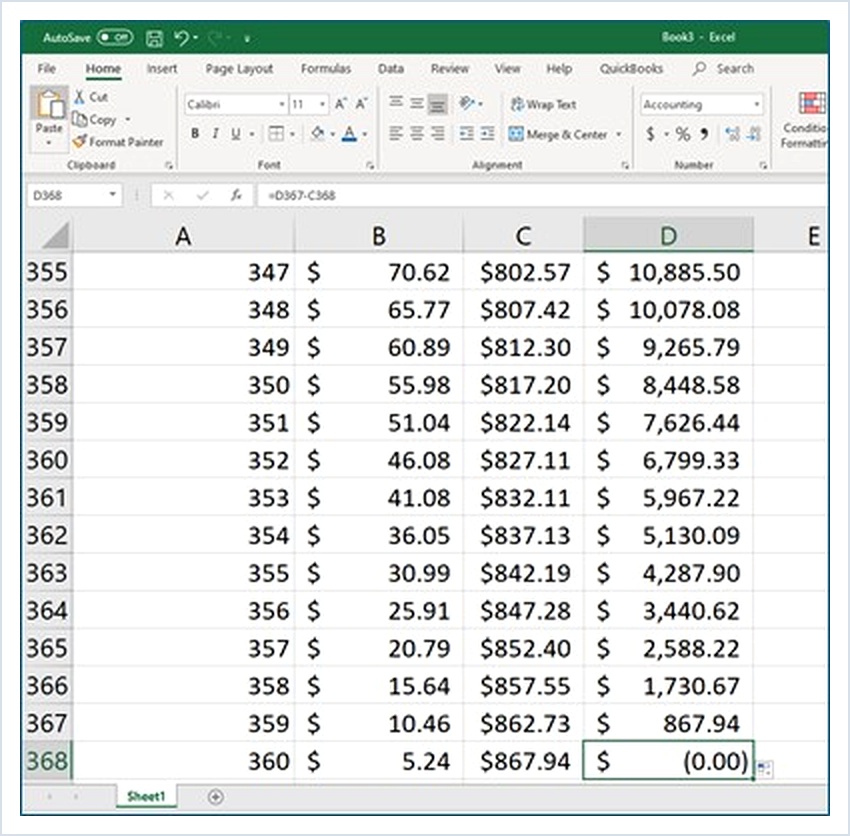
20. Keeping these cells selected, double-click the fill handle in cell D10.

Excel has copied the formulas down through the last payment, Payment #360. When you double-click the fill handle, Excel will copy the contents of the cell until it sees a blank row. This is just one of the great and many reasons that you are learning Excel! You can move to the last cell in this worksheet with Control+End.
Microsoft Excel lesson screenshot Amort7

21. Save this workbook as Loan Amortization and then close it, and then use it anytime you need a loan amortization schedule.

Advertisement

Next step

See the concepts demonstrated.

Continue to Watch for chapter videos and worked examples.

Go to Watch

See it explained

Watch

Choose the explanation or example that best supports your learning.

Next step

Apply what you have learned.

Use the guided questions and interactive calculator activities in Practice.

Go to Practice

Apply what you learned

Practice Create a Loan Amortization Schedule in Excel

Choose either path: build the schedule yourself in Excel or use the companion calculator to calculate and print a schedule immediately.

Launch Interactive Calculator

Guided Practice

  • Identify the cells that contain principal, annual rate, term, and payment frequency.
  • Explain why the annual interest rate is divided by 12 for monthly payments.
  • Calculate the interest and scheduled principal for the first payment.
  • Explain which cell references must be absolute before formulas are copied.

Challenge Yourself

  • Add an Extra Principal column to the Excel workbook and compare the new payoff time.
  • Apply extra principal for only the first 24 payments and compare total interest.
  • Change the payment frequency and explain which formulas must change.

Check Your Understanding

  • Can you explain why the interest portion declines over time?
  • Can you distinguish scheduled principal from extra principal?
  • Can you reproduce the PMT formula without using a completed template?

Next step

Save the materials you may need later.

Open Resources for the study sheet, spreadsheets, and related learning materials.

Go to Resources

Keep learning

Resources

Study sheets, downloadable files, companion tools, and related lessons for this chapter.

For educators

Teaching this chapter?

The Instructor tab contains objectives, teaching ideas, assessments, and a printable guide.

Open Instructor Resources

LutherMaddy.com — Helping Humans Learn

Create a Loan Amortization Schedule in Excel: Instructor Resources

Teach this lesson

Instructor Resources

Classroom-ready objectives, teaching ideas, questions, and assessment materials for this chapter.

Calculator Instructor Resources

Learning Objectives

  • Use Excel’s PMT function to calculate a periodic loan payment.
  • Create an amortization schedule that separates interest, principal, and remaining balance.
  • Use relative and absolute cell references correctly when copying formulas.
  • Explain how extra principal changes total interest and payoff time.
  • Compare an Excel-built schedule with the online loan amortization calculator.

Prerequisite Knowledge

  • Basic worksheet navigation and data entry
  • Creating formulas with cell references
  • Relative and absolute references
  • Basic understanding of principal, interest, and loan terms

Teaching Outline

  • Introduce the parts of an installment loan.
  • Build the loan input area and calculate the financed amount.
  • Use PMT to calculate the scheduled payment.
  • Create formulas for interest, scheduled principal, and balance.
  • Copy formulas through the loan term.
  • Compare the workbook with the online calculator and extra-principal schedule.

Key Concepts

  • All time units in a financial formula must be consistent.
  • Interest is calculated from the outstanding balance.
  • Scheduled principal equals payment minus interest.
  • Extra principal reduces balance without changing the scheduled payment formula.
  • Absolute references keep fixed loan inputs unchanged when formulas are copied.

Classroom Demonstration

  • Build the first two schedule rows live and ask students to predict what changes when the formulas are copied.
  • Use the online calculator to compare no extra principal with a one-year extra-payment period.
  • Show how the interest portion falls and the principal portion rises over time.

Questions to Ask

  • Why does the interest portion decrease over the life of the loan?
  • Why must the annual rate be divided by the number of payments per year?
  • What happens when extra principal is applied only during part of the loan?
  • Why is an amortization schedule useful for financial planning?

Teaching Notes

  • Emphasize that PMT normally returns a negative value because it represents cash outflow.
  • Require students to identify which references must be absolute before copying formulas.
  • Separate scheduled principal from optional extra principal when discussing the calculator.
  • Encourage students to compare total interest under several extra-payment scenarios.

Assessment Ideas

  • Have students build the first five rows without copying a completed template.
  • Ask students to explain each PMT argument in words.
  • Assign a comparison of total interest with and without extra principal.
  • Use the calculator as a check after students finish the Excel workbook.

Grading Rubric

CriterionPoints
Correct loan inputs and financed amount2
Correct PMT formula and time conversions2
Correct interest, principal, and balance formulas3
Correct relative and absolute references2
Interpretation or comparison1
Total10

Exam and Discussion Questions

Basic

  • Write the Excel PMT formula for a 30-year monthly loan using cells that contain annual rate, years, and principal.

Applied

  • Create the first three rows of an amortization schedule and identify the interest and principal portions.
  • Compare a loan with no extra principal to one with extra principal for the first 24 payments.

Conceptual

  • Explain why the interest portion of a fixed payment usually declines over time.
  • Explain why absolute references are needed when copying the schedule formulas.

Keep Exploring

Continue Learning

Explore step-by-step lessons, interactive calculators, downloadable study sheets, and practical educational resources.