
Using Basic Functions in Excel
This lesson explains how to use the SUM, AVERAGE, MAX, and MIN functions and how to move quickly to a cell with the Name Box or Go To command.
The Go to Command
1. Open the No Fault Travel P&L workbook.
You can use the mouse to quickly click and go to any cell you see. However, if you wish to quickly move to a cell you cannot see, even one that is quite far away, you can use the Go to command.
The easiest way to access the Go to command is from the name box. To move to another cell, just type that cell’s address in the name box and press (Enter). Excel will then instantly move you to that cell. You can also access the Go to command with the F5 function key.
2. Click in the Name box, type A23 and then press (Enter).
Be sure that you don’t put a space between the A and the 23.
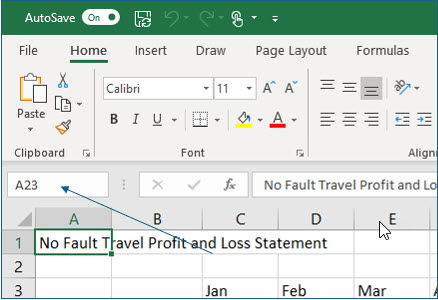
As you pressed (Enter), Excel moved the active cell to A23.
3. In cell A23 type, Total Monthly Income and press the (Right) arrow twice to move to cell C23.
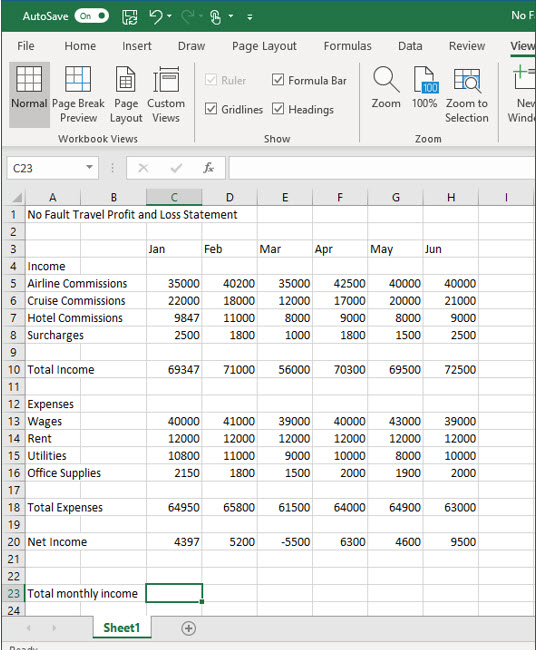
When you used the Sum function earlier, you used the AutoSum tool. This tool simply adds all the values it sees above or to the left of the current cell. In this case, you will use the Sum function but manually inform Excel which cells to add.
4. In cell C23 type =Sum(C20:H20) and press (Enter).
The parentheses () are a necessary component when using functions of any kind.
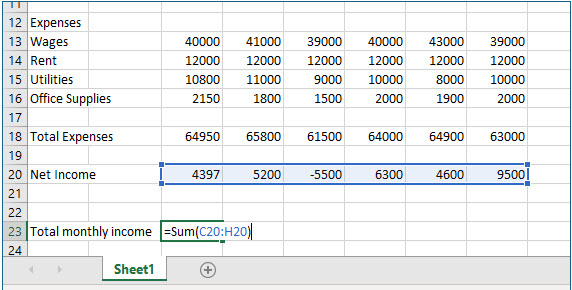
This formula will add all the monthly incomes together.
Using additional functions
There are many additional functions available for you to use in Excel. In this portion of the lesson you will use the Average, Max, and Min functions. These functions are readily available from the drop down list button on the AutoSum tool.
1. Move to cell A24 and type Average Monthly Profit and press (Right) twice to move to cell C24.
You may not be able to see all of the text you just typed. Don’t worry about this, you will learn to increase column widths in the next lesson.
2. Locate and click the arrow just to the right of the AutoSum tool on the toolbar. Then, click Average from the drop down list.
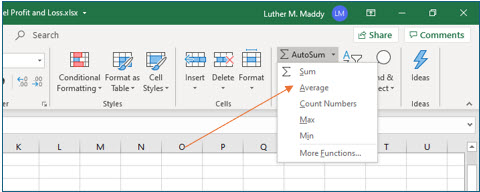
Excel will now place the Average function in cell C24. Excel tries to guess which cells you want to average, which in this case is not correct. The next step is to tell Excel which cells you want to average which, for this worksheet, are cells C20 : H20. You can now either type those cells into the formula within the parenthesis or click and drag to select the cells. For example purposes, you’ll select the cells to be averaged by clicking and dragging.
3. Select cells C20 through H20 by clicking and dragging.
Be sure to select cells using the “fat white plus” in the middle of the cell.
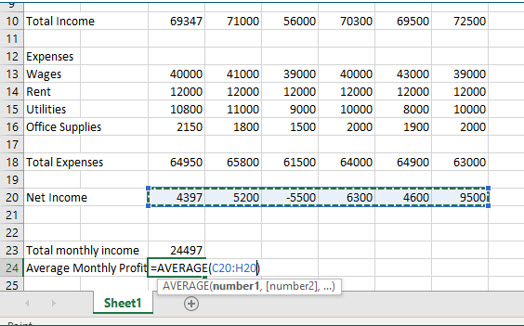
When you release the mouse you will see a marquee around those cells. You will also see C20:H20 has been added to the Average function in cell C24.
4. Press (Enter) to complete the formula.
You should now see the average net income in cell C24. The formula bar will display the formula based on the Average function.
5. Move to cell A25 and type Highest Monthly Profit and then move to cell C25.
You will now use the Max function to display the largest monthly profit value.
6. Click the arrow just to the right of the AutoSum tool on the toolbar and choose Max from the drop down list.
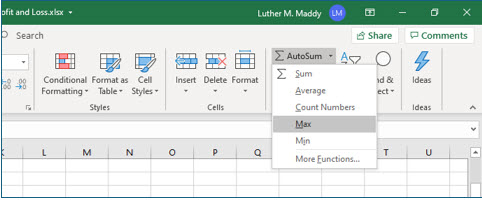
7. Select cells C20 through H20 by clicking and dragging and then press (Enter).
8. In cell A26 type, Lowest Monthly Profit. Then, using the drop down list by the AutoSum tool, insert the Min function. Select cells C20 through H20 and press (Enter).
You should now have formulas that compute the total, average, maximum, and minimum monthly profit values.
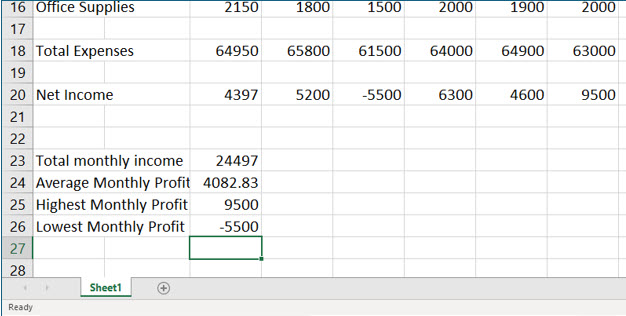
Even though the contents of these cells appear to extend into column B, the entire contents are actually in column A. These are examples of “long labels”.