
Microsoft Excel Training

Using Absolute References in Excel

Learn why copied formulas sometimes fail and how dollar signs or F4 keep a cell, row, or column fixed.

Start here

Overview

This lesson compares relative and absolute references by correcting a copied percentage formula that must always divide by the same total cell.

What You Will Learn

  • Explain how relative references change when formulas are copied.
  • Identify when a formula needs an absolute reference.
  • Use F4 to add dollar signs to a cell reference.
  • Distinguish absolute, row-absolute, and column-absolute references.
  • Copy a corrected formula and verify every reference.

Before You Begin

  • Basic formulas and functions
  • Moving and copying formulas
  • Using the fill handle

Why This Matters

Absolute references make formulas reusable while preserving constants such as tax rates, totals, interest rates, or lookup cells.

Plan Your Study

  • Open the same workbook used in the Basic Functions lesson.
  • Create and copy the original relative percentage formula.
  • Inspect the resulting divide-by-zero errors.
  • Make the denominator absolute with F4.
  • Copy the corrected formula and verify the results.

Next step

Read the complete chapter.

The Learn tab contains the written lesson from Surviving Statistics.

Go to Learn

Written lesson

Learn Using Absolute References in Excel

Learn why copied formulas sometimes fail and how dollar signs or F4 keep a cell, row, or column fixed.

Advertisement

Using Absolute References in Excel

This lesson explains why some formulas cannot be copied correctly with relative references alone and shows how to keep a row, column, or cell fixed with dollar signs and the F4 key.

▶
Watch the video—How and Why to Use Absolute Reference Watch video

⬇
Download Excel Absolute Reference Exercise File Open or download

9. Move to cell A21 and type % of Total Income and then press (Right) twice.

You will now create a formula that computes the percentage January contributed to the total profit for the six-month period. Eventually you will compute the percentages for each of the six months.

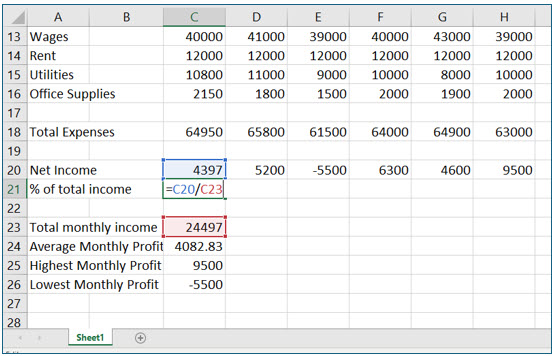
10. In cell C21 enter the following formula: =C20/C23.

This formula divides January’s profit by the total profit for all six months.
Microsoft Excel lesson screenshot Absolute8

11. Press (Enter) to complete this formula.

Excel should display a value close to 0.179. This value is actually 17.9%. You’ll add the percentage formatting in a future lesson.

12. Use the Fill handle and copy this formula into cells D21 through H21.

Remember the Fill handle is the “skinny black plus”.
Microsoft Excel lesson screenshot Absolute9

Using Absolute Reference

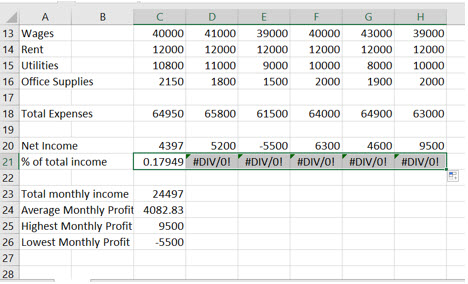
The result of copying the formula into cells D21 through H21 is an error message. You have received this error message because this formula is not a formula that can be correctly copied. You may recall that when you copy a formula, you copy what the formula does in relation to the cell where you copy it to.

In other words, the formula in C21 is C20/C23. Excel actually sees this as: divide the cell immediately above this cell (C20) by the cell two below this cell (C23). If you examine the formula in cell D21 you will see that it became D20/D23 when you copied it. Excel replicated the exact relationship the formula represented and adjusted the cells to the new cell. This is what formulas are supposed to do when you copy them, but this is not the result you are after.

Examining the formulas in E21 through H21 will reveal that each formula refers to two cells in the same column in which the formula is located. The actual error message is telling you that you are trying to divide by zero, a mathematical “no no”. There is no data in cells D23 through H23.

In this situation, you don’t want every part of the formula to change. Instead you’ll need every formula to always refer to the one cell that contains the Total Monthly Profit, cell C23. There are two solutions to this problem. One is to manually change each formula to refer to cell C23. The second, and preferred solution, is to change the way Excel treats C23 when it copies the formula.

Since you want all the other formulas to refer to C23 when you copy the formula to the other cells, you need to tell Excel to keep it constant, or absolute, when the formula is copied. You will not change the way Excel treats C21 because you do want this to change to D21 and so on.

The feature to do this is called absolute reference. In a formula, absolute reference is indicated with ($). For example C21/$C$23 would keep C23 as a constant when you copy that formula.

You can change a cell to an absolutely referenced cell either by typing the dollar signs in manually or by using (F4). In this portion of the lesson you will use absolute reference to make the formula in cell C21 one that can be copied.

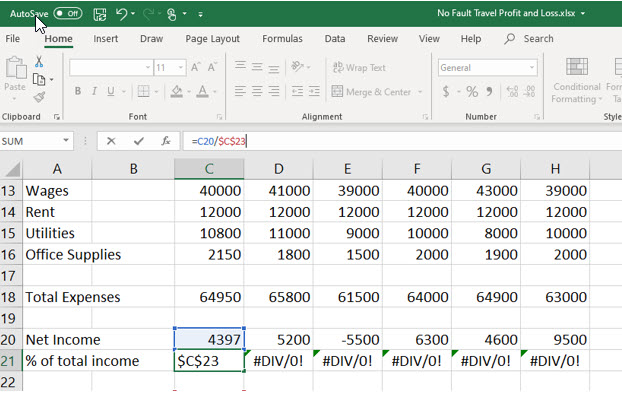
1. Move back into cell C21 and click at the far right end of its formula on the formula bar.

2. With the insertion point blinking at the end of the formula, press (F4).

The F4 key adds dollar signs ($) before the row and the column. This key is a shortcut key for making a cell absolute. You can also simply add the dollar signs yourself by editing the formula. The dollar sign before the row and column tell Excel not to change this portion of the formula at all when you copy it.

There are variations of the absolute reference. For example, $C23 would tell Excel to keep column C constant but change the row when you copy to a new location. Likewise, C$23 would keep the row constant. For this formula, you want all the other places you copy it to refer to the total of all the monthly incomes in cell C23. To do this requires a dollar sign ($) before the column and the row.
Microsoft Excel lesson screenshot Absolute10

Making cell C23 absolute in the formulas in cells D21 through H21 will cause Excel to display the correct percentage. You can now correctly copy the revised formula.

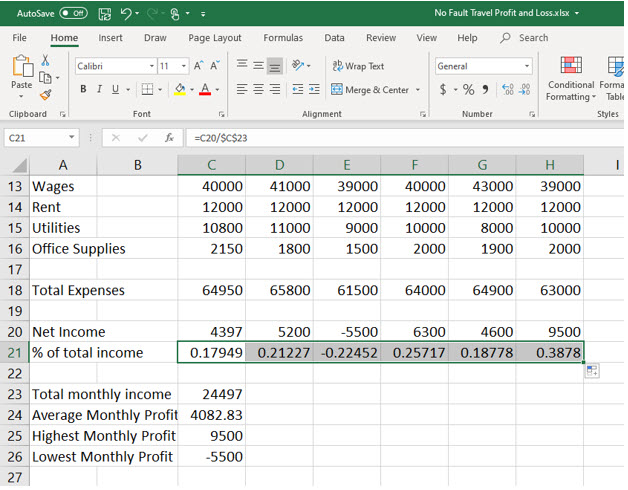
3. Use the fill handle to copy the corrected formula from C21 to D21 through H21.
Microsoft Excel lesson screenshot Absolute11

This time you are able to copy the formula with correct results because you used absolute reference. You will add percentage formatting, (%), in an upcoming lesson.

4. Examine the formulas in cell D21 through H21.

Notice that each of these formulas now refers to cell C23. C23 did not change this time when you copied the formula because it was absolutely referenced.

5. Save and close the No Fault Travel P&L workbook.

Advertisement

Next step

See the concepts demonstrated.

Continue to Watch for chapter videos and worked examples.

Go to Watch

See it explained

Watch

Choose the explanation or example that best supports your learning.

Next step

Apply what you have learned.

Use the guided questions and activities in Practice.

Go to Practice

Apply what you learned

Practice Using Absolute References in Excel

Correct the percentage formula so every copied version uses the same total cell.

Guided Practice

  • Enter =C20/C23 and copy it across the row.
  • Inspect the copied formulas and identify why the errors occur.
  • Change C23 to $C$23 with F4.
  • Copy the corrected formula and verify that every formula refers to C23.

Challenge Yourself

  • Create one mixed reference that locks only the row.
  • Create one mixed reference that locks only the column.
  • Build a small tax or commission table that uses one fixed rate cell.

Check Your Understanding

  • Can you explain the difference between C23, $C$23, $C23, and C$23?
  • Can you predict which parts of a mixed reference will change when copied?
  • Can you recognize when manually editing every copied formula is unnecessary?

Next step

Save the materials you may need later.

Open Resources for the study sheet, spreadsheets, and related learning materials.

Go to Resources

Keep learning

Resources

Study sheets, downloadable files, companion tools, and related lessons for this chapter.

For educators

Teaching this chapter?

The Instructor tab contains objectives, teaching ideas, assessments, and a printable guide.

Open Instructor Resources

LutherMaddy.com — Helping Humans Learn

Using Absolute References in Excel: Instructor Resources

Teach this lesson

Instructor Resources

Classroom-ready objectives, teaching ideas, questions, and assessment materials for this chapter.

Learning Objectives

  • Explain how relative references change when copied.
  • Use F4 to create an absolute reference.
  • Distinguish absolute and mixed references.
  • Copy and verify a formula containing a fixed denominator.

Prerequisite Knowledge

  • Basic formulas
  • Copying formulas
  • Using the fill handle

Teaching Outline

  • Copy a relative formula and inspect the incorrect results.
  • Explain why both references changed.
  • Introduce dollar signs and the F4 shortcut.
  • Compare absolute and mixed references.
  • Copy the corrected formula and verify each result.

Key Concepts

  • Relative references adjust when formulas are copied.
  • An absolute reference locks both row and column.
  • A mixed reference locks either the row or the column.
  • F4 cycles through reference types while editing a formula.

Classroom Demonstration

  • Copy one relative formula across columns and inspect each changed reference.
  • Press F4 repeatedly to show all four reference forms.

Questions to Ask

  • Why should the numerator change while the total cell remains fixed?
  • When would locking only a row be useful?
  • What kinds of business worksheets commonly use fixed rate cells?

Teaching Notes

  • Ask students to predict the copied formula before they use the fill handle.
  • Use color or highlighting to distinguish changing and fixed references.
  • Emphasize that dollar signs control copying behavior rather than currency formatting.

Assessment Ideas

  • Require students to repair a formula that produces divide-by-zero errors.
  • Ask for examples of relative, absolute, row-absolute, and column-absolute references.
  • Have students build a small table using one fixed tax or commission rate.

Grading Rubric

CriterionPoints
Relative-reference problem identified2
Correct absolute reference created2
Formula copied accurately2
Mixed references distinguished2
Explanation and verification2
Total10

Exam and Discussion Questions

Basic

  • State the difference between C23 and $C$23.
  • What does F4 do while editing a reference?

Applied

  • Correct a copied formula so every row uses the tax rate in B2.

Conceptual

  • Explain why an absolute reference is preferable to manually repairing every copied formula.

Keep Exploring

Continue Learning

Explore step-by-step lessons, interactive calculators, downloadable study sheets, and practical educational resources.