
Microsoft Excel Training

Formatting Cells and Worksheets in Excel

Improve worksheet appearance and readability with number formats, fonts, alignment, borders, fills, and size adjustments.

Start here

Overview

This lesson teaches practical formatting techniques that make an Excel worksheet easier to read and more professional without changing the underlying data or formulas.

What You Will Learn

  • Apply font, emphasis, alignment, border, and fill formatting.
  • Use appropriate number formats for currency, percentages, dates, and values.
  • Adjust column widths and row heights to display content clearly.
  • Distinguish worksheet formatting from the actual values stored in cells.
  • Use formatting consistently to communicate structure and meaning.

Before You Begin

  • Getting Started with Excel
  • Entering and selecting worksheet data
  • Opening and saving a workbook

Why This Matters

Clear formatting helps readers understand headings, totals, dates, percentages, and financial values. Good formatting turns raw data into an effective business document.

Plan Your Study

  • Download and open the formatting exercise workbook.
  • Review the written explanation of each formatting tool.
  • Watch the worksheet-enhancement video.
  • Apply the formatting changes in the guided exercise.
  • Compare your choices for consistency and readability.

Next step

Read the complete chapter.

The Learn tab contains the written lesson from Surviving Statistics.

Go to Learn

Written lesson

Learn Formatting Cells and Worksheets in Excel

Improve worksheet appearance and readability with number formats, fonts, alignment, borders, fills, and size adjustments.

Advertisement

Formatting Worksheets

This lesson includes step by step instructions to format cells and worksheets including inserting and deleteing rows and columns, changing column width and rotating text within calls. It also includes adding numeric formatting to cells.

▶
Watch the video-Enhancing Cells and Worksheets Watch video

⬇
Download Excel Formmating Excercise File Open or download

Formatting Worksheets

Inserting and Deleting Rows and Columns

If, after nearly completing your worksheet you realize you need additional rows or columns you can easily add them. However, realize that adding a row does so for the entire worksheet. As you add columns or rows Excel will automatically adjust the formulas that need to change. You can also delete columns you may no longer need. In deleting rows or columns you are just shifting your worksheet data up or to the left. The column letter or row number does not disappear, just the information in that row or column. In this lesson you will insert an additional income category in the No Fault Travel spreadsheet.

1. Open the No Fault Travel Profit and Loss workbook.

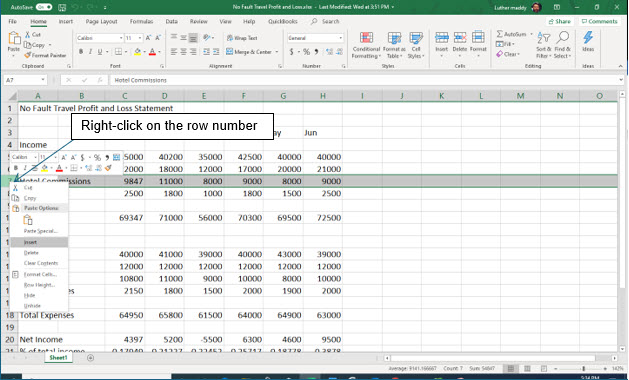
2. Move to the row heading for row 7 and right-click.
Microsoft Excel lesson screenshot Formatting1

You should now see a shortcut menu. This menu allows you to insert additional rows or to delete this row.

3. From the shortcut menu click Insert.

Excel should have added a new blank row and moved all data below row 7. All formulas affected by the addition of this row have been updated automatically by Excel.

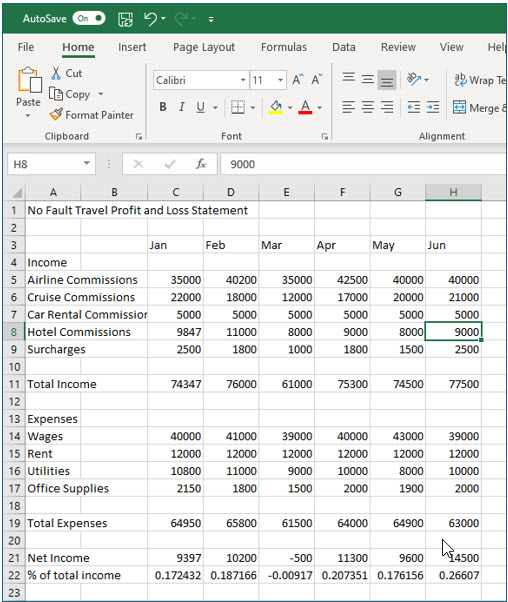
4. In the new row 7, type Car Rental Commissions in A7.

Once again you have entered a long label. You will correct this shortly.

5. Enter 5000 for each month for this new income category.

You should notice that the 5000 amount for car rental commissions is also included in the total income. This would not have happened if you had not changed this formula to use the Sum() function. The formula in C11, the total for the month, adjusted automatically to include the car rental commissions.
Microsoft Excel lesson screenshot Formatting2

Changing Cell Alignment

By default, Excel left aligns all labels. You can easily change the alignment of a cell with the formatting tools on the ribbon. For some alignment options you will need to use the Format dialog box. In this portion of the exercise you will change cell alignment.

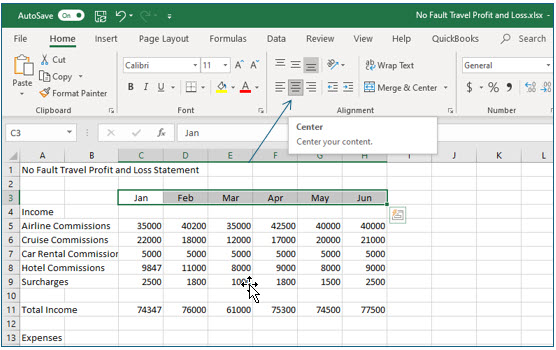
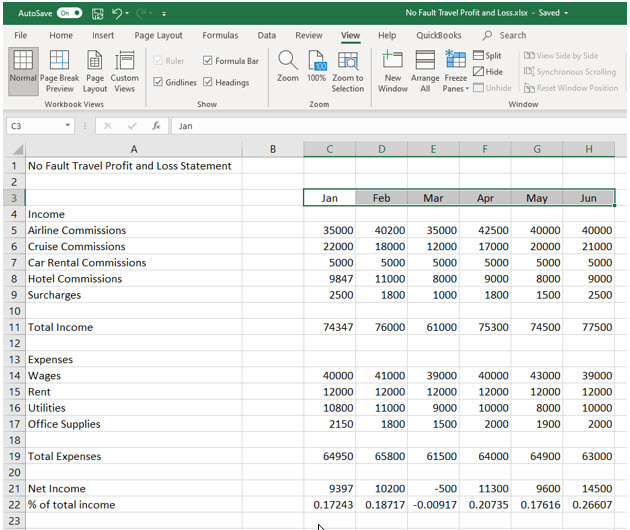
1. Select cells C3 through H3 by clicking and dragging.

2. With these cells selected, locate and click the Center tool on the Home tab of the ribbon.
Microsoft Excel lesson screenshot Formatting3

The labels for each month are now centered in their cells.

Changing Column Width

Rather than having long labels move into neighboring cells, you may want to simply increase the width of the column. Excel provides two basic ways to adjust column width, best fit and manual. With the best fit method, Excel will automatically adjust the column to fit the largest label or value it finds in the column. With the manual method, you decide how wide the column should be by dragging.

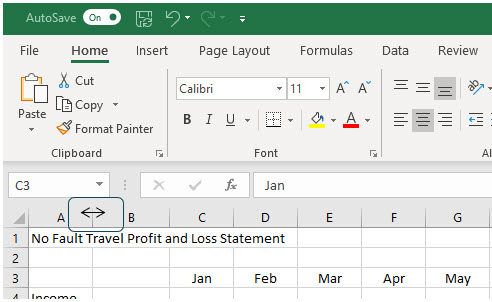
1. Move the mouse between the headings for columns A and B.
Microsoft Excel lesson screenshot Formatting4

When you are in the correct location, the mouse pointer will appear as a black plus with arrows pointing left and right.

2. Double-click between the column headings.
Microsoft Excel lesson screenshot Formatting5

Excel will automatically adjust column A so that the longest label in the column fits. However, adjusting to the longest label in this case makes the column too wide. You will now use the manual method to reduce the size of this column.

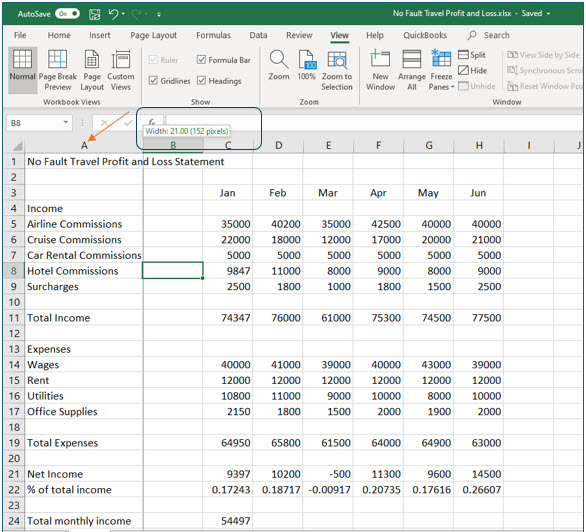
3. Move to the border between the headings for columns A and B. When you see the black plus |, click and drag to the left. Adjust the column to a width of 21.00 characters.
Microsoft Excel lesson screenshot Formatting6

As you drag the column border, you will see the column width appear in a box near the top of the column heading.

Using Merge & Center

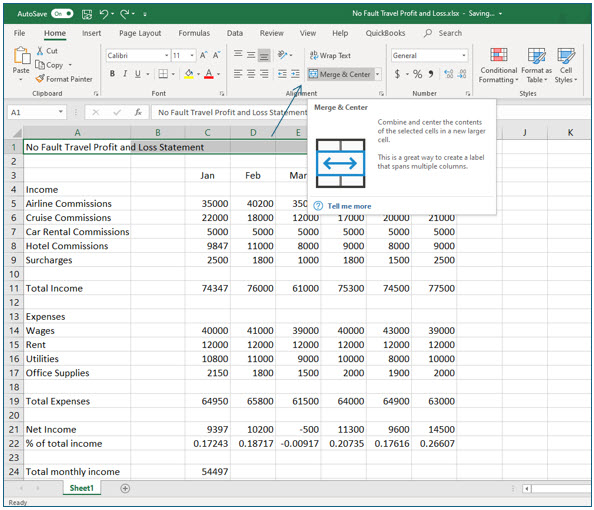
The Center command you just used centers cell contents within the cell. This command would have little or undesirable results when used with labels that exceed the boundaries of their cell. If you wish to center a long label within several cells Excel provides the Merge & Center command.

1. Select cells A1 through H1.

To use the Merge & Center command, first select the cells you want the text to be centered within. Remember to use the “white plus” to select cells.
Microsoft Excel lesson screenshot Formatting7

2. After selecting these cells, locate and click the Merge and Center tool on the Home ribbon.

The cells you selected have now become one large cell. The heading is now centered in the new larger cell.

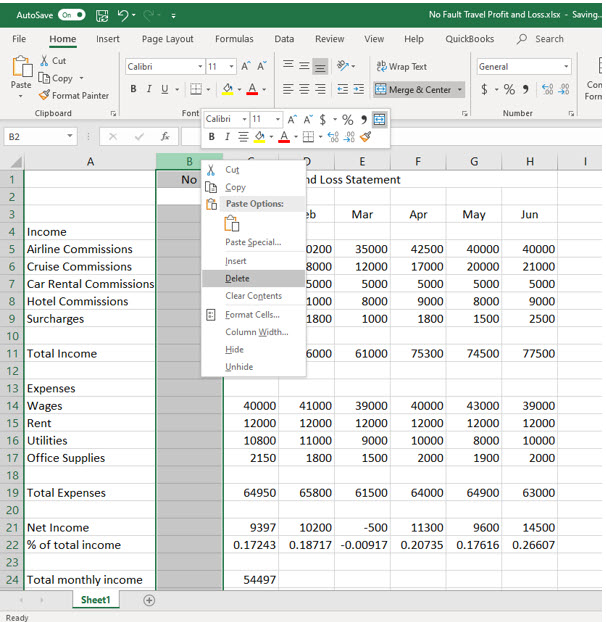
Column B is now an “extra” column. You’ll now delete this column and, as you do this, Excel will automatically adjust all the formulas so they will still work.

3. Right-click column B’s heading and choose Delete from the shortcut menu.
Microsoft Excel lesson screenshot Formatting8

After you clicked Delete, Excel essentially moved all the other data over one column. You should notice all the formulas still compute correctly.

Rotating Text

Excel provides a very easy way to rotate text. This makes it very easy to create impressive spreadsheets.

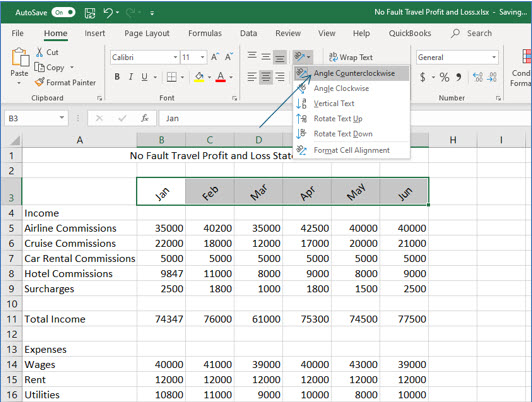
1. Select cells B3 through G3.

You will rotate the month names in this worksheet.

2. Click the Orientation tool in the Alignment group.

3. Select Angle Counterclockwise.
Microsoft Excel lesson screenshot Formatting9

The month names should now be rotated 45 degrees.

Numeric Formatting

Excel has several numeric formatting options that you can easily add to values. You can access accounting (currency), percentage, and comma formatting from the ribbon. Several other numeric and date formatting options are available from the Format Cells dialog box.

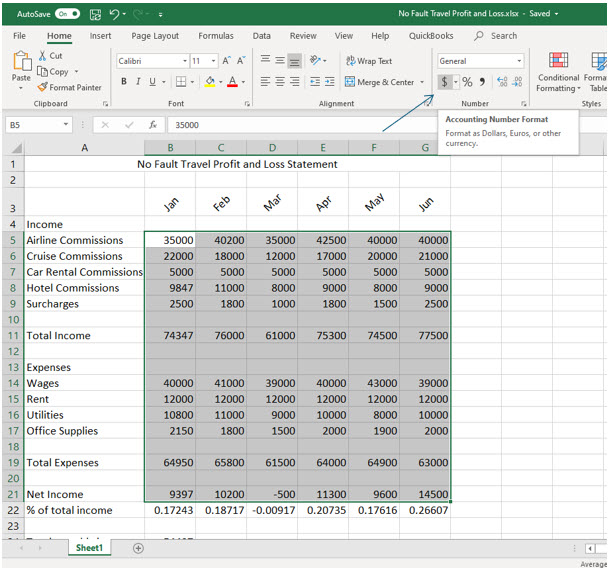
1. Select cells B5 through G21 and then click the Accounting style tool ($) in the Number group in the Home tab on the ribbon.

The values in the cells you selected should now appear with currency formatting.
Microsoft Excel lesson screenshot Formatting10

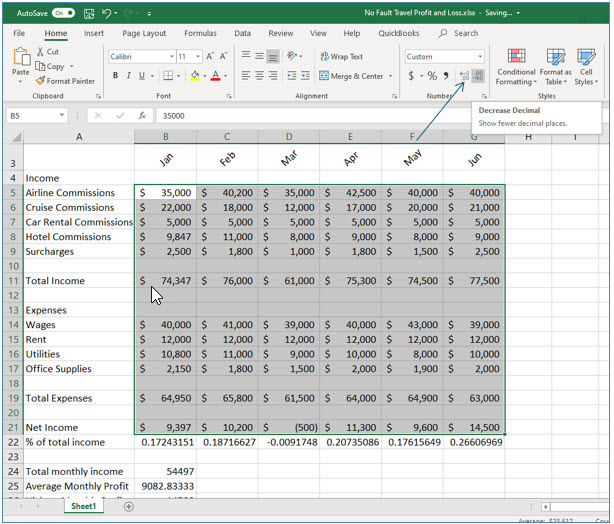
The default accounting style adds both dollars and cents. In this case an even dollar amount is all you need to see. You will now change the formatting to display no values to the right of the decimal point.

2. Leaving the cells selected, locate and click the Decrease Decimal tool in the Number group twice.
Microsoft Excel lesson screenshot Formatting11

You should now see the numbers displayed in even dollar amounts.

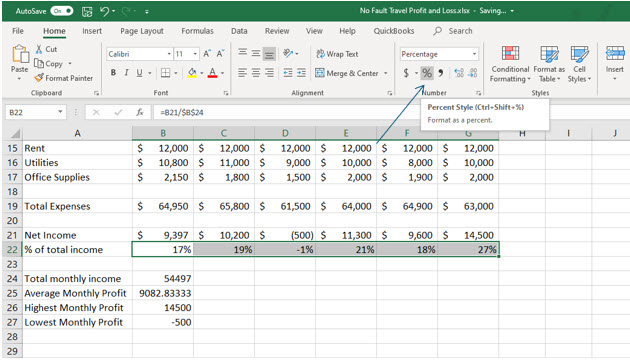
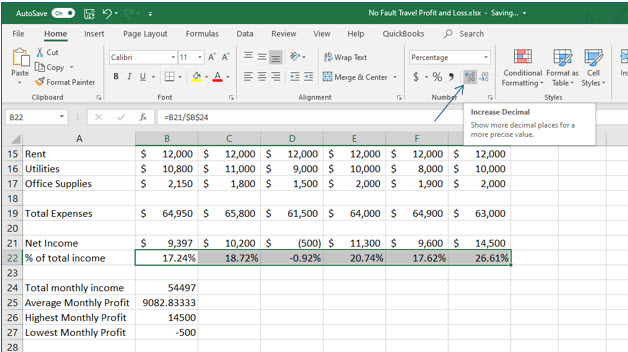
Now you’ll add percentage formatting to the percentages you computed using the absolute reference feature.

3. Select cells B22 through G22.
Microsoft Excel lesson screenshot Formatting12

4. Click the Percent style tool in the Number group on the Home tab of the ribbon.

You have now added percentage formatting to these cells. You’ll now add two decimal places to increase the accuracy of the percentages.

5. Leaving these cells selected, locate and click the Increase Decimal tool in the numbering group of the Home tab on the ribbon twice.
Microsoft Excel lesson screenshot Formatting13

The percentages now display more accurately with two decimal places.

6. Add Accounting ($) formatting to cells B24 and B27.

This time you’ll leave the display at two decimal places for accuracy to the penny.

7. Save and close the workbook.

Advertisement

Next step

See the concepts demonstrated.

Continue to Watch for chapter videos and worked examples.

Go to Watch

See it explained

Watch

Choose the explanation or example that best supports your learning.

Next step

Apply what you have learned.

Use the guided questions and activities in Practice.

Go to Practice

Apply what you learned

Practice Formatting Cells and Worksheets in Excel

Download the exercise workbook and apply formatting that improves readability while preserving the existing worksheet values and formulas.

Guided Practice

  • Format a title so it is visually distinct from the worksheet data.
  • Apply currency, percentage, and date formats to appropriate cells.
  • Adjust column widths so labels and values display completely.
  • Use borders or fills to identify headings and totals.

Challenge Yourself

  • Create two different professional formatting designs for the same worksheet and compare them.
  • Use consistent number formatting throughout the workbook.
  • Improve readability without using excessive colors, borders, or font styles.

Check Your Understanding

  • Can you explain why number formatting does not change the underlying value?
  • Can you distinguish useful emphasis from distracting formatting?
  • Can you choose an appropriate format for money, percentages, and dates?

Next step

Save the materials you may need later.

Open Resources for the study sheet, spreadsheets, and related learning materials.

Go to Resources

Keep learning

Resources

Study sheets, downloadable files, companion tools, and related lessons for this chapter.

For educators

Teaching this chapter?

The Instructor tab contains objectives, teaching ideas, assessments, and a printable guide.

Open Instructor Resources

LutherMaddy.com — Helping Humans Learn

Formatting Cells and Worksheets in Excel: Instructor Resources

Teach this lesson

Instructor Resources

Classroom-ready objectives, teaching ideas, questions, and assessment materials for this chapter.

Learning Objectives

  • Apply number, font, alignment, border, and fill formats.
  • Adjust row heights and column widths.
  • Use formatting to communicate worksheet structure.
  • Explain why formatting does not change the stored value.

Prerequisite Knowledge

  • Basic Excel data entry
  • Selecting cells and ranges
  • Opening and saving workbooks

Teaching Outline

  • Discuss the purpose of worksheet formatting.
  • Demonstrate font and alignment changes.
  • Apply currency, percentage, and date formats.
  • Adjust columns and rows for readability.
  • Use borders and fills sparingly to organize the worksheet.

Key Concepts

  • Formatting changes appearance, not the underlying value.
  • Number formats should match the meaning of the data.
  • Consistent formatting improves readability.
  • Excessive formatting can make a worksheet harder to use.

Classroom Demonstration

  • Show the same numeric value with General, Currency, Percentage, and Date formats.
  • Display a poorly formatted worksheet and improve it with student suggestions.

Questions to Ask

  • How can formatting help a reader locate totals quickly?
  • Why might too many colors reduce readability?
  • What is the difference between changing a value and changing its number format?

Teaching Notes

  • Encourage students to format after entering and verifying data.
  • Demonstrate AutoFit as well as manual column sizing.
  • Emphasize consistency across related cells.

Assessment Ideas

  • Provide an unformatted worksheet and require a professional redesign.
  • Ask students to justify their number-format choices.
  • Include one task that requires AutoFit and one that requires manual sizing.

Grading Rubric

CriterionPoints
Appropriate number formats3
Readable headings and totals2
Consistent alignment and emphasis2
Correct row and column sizing2
Professional overall appearance1
Total10

Exam and Discussion Questions

Basic

  • Name the appropriate number format for a tax rate.
  • Explain what AutoFit does.

Applied

  • Format a profit-and-loss worksheet so headings, currency values, and totals are clear.

Conceptual

  • Explain why changing a number format does not change the value used in a formula.

Keep Exploring

Continue Learning

Explore step-by-step lessons, interactive calculators, downloadable study sheets, and practical educational resources.