
Microsoft Word Training

Editing Text in Microsoft Word

Learn to open saved documents, move the insertion point, delete and replace text, use spelling and grammar tools, adjust proofing settings, and save changes.

Start here

Overview

This lesson introduces the essential editing tools used to revise Word documents. Students open an existing file, navigate with the mouse and keyboard, replace text, correct spelling, adjust grammar settings, save changes, and close the document.

What You Will Learn

  • Open a recently used or previously saved Word document.
  • Move the insertion point with the mouse and keyboard.
  • Use Control-key shortcuts to move by words and paragraphs.
  • Delete characters and words with Delete, Backspace, Control+Delete, and Control+Backspace.
  • Replace deleted text accurately.
  • Use Word's automatic spelling suggestions.
  • Adjust grammar and proofing settings.
  • Save changes with Save and Control+S.
  • Close an open document.

Before You Begin

  • Creating and saving a Word document
  • Basic keyboard and mouse skills
  • Understanding the insertion point

Why This Matters

Efficient editing makes document revision faster and more accurate. Keyboard navigation, proofing tools, and frequent saving are useful in every Word project.

Plan Your Study

  • Open the Practice Document created in Lesson 1.
  • Move through the document with Control-key shortcuts.
  • Delete and replace selected words.
  • Create and correct a spelling error.
  • Adjust Word's grammar settings.
  • Correct the flagged contraction.
  • Save the edited document and close it.

Next step

Read the complete chapter.

The Learn tab contains the written lesson from Surviving Statistics.

Go to Learn

Written lesson

Learn Editing Text in Microsoft Word

Learn to open saved documents, move the insertion point, delete and replace text, use spelling and grammar tools, adjust proofing settings, and save changes.

Advertisement

Basic Editing

Word has many features that enable you to do a wide range of things to any document. This lesson will cover basic editing of a document.

Basic Editing

Opening Files

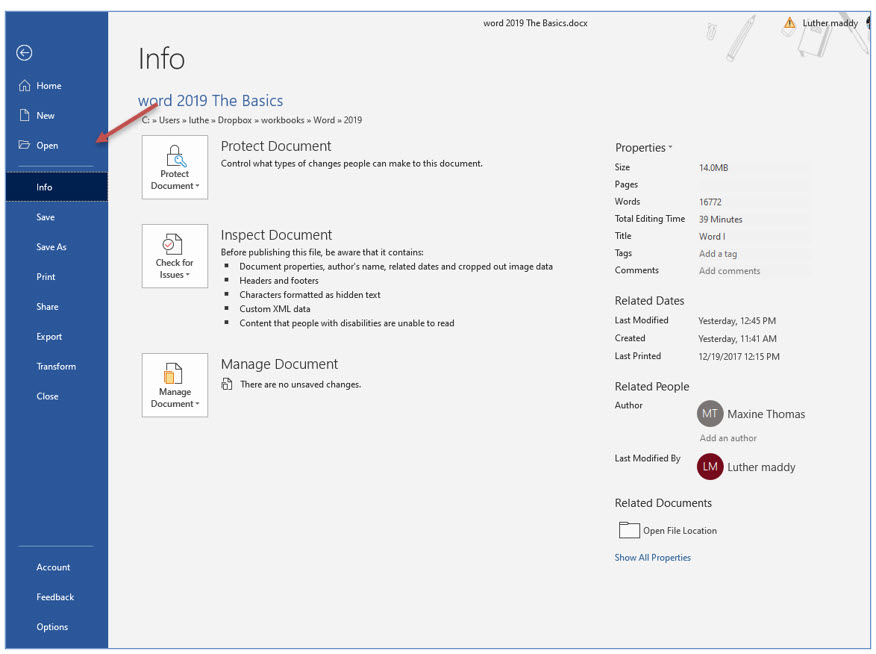
Once you have closed a document, you will need to open it before you can continue working with the file. To open a previously saved document you will use the Open command on the File menu.
Microsoft Word lesson screenshot 2ndLesson1

1. Open the File menu and choose Open.

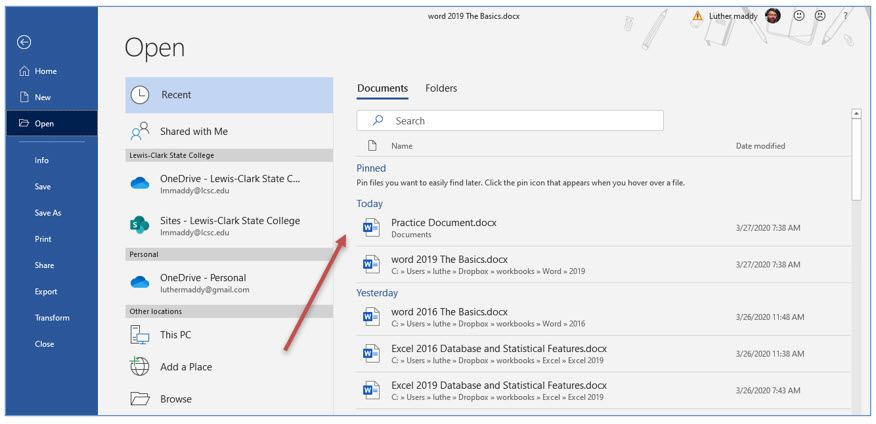
The Open screen provides a list of files you have most recently worked with. The Practice Document should appear near the top of this list. To open this file you can simply click on it. To open a file that is not one you have accessed recently, you will need to access the drive or other storage location you stored the file in earlier. After selecting the storage location, then navigate to the folder where you saved the file to locate it.
Microsoft Word lesson screenshot 2ndLesson2

2. In the list of recently accessed files, click once on Practice Document to select and open the file.

Moving the Insertion Point

The insertion point, sometimes called the cursor, shows you precisely where you are in the text. When you begin typing, the new text will appear at the insertion point’s location. The insertion point’s location is also very important when editing, adding or deleting text.

You can move the insertion point with the mouse by simply clicking where you want the insertion point. You can also move the insertion point using the keyboard. When moving around in a large document, the keyboard is often faster than attempting to use the mouse.

The power of the Control (Ctrl) key

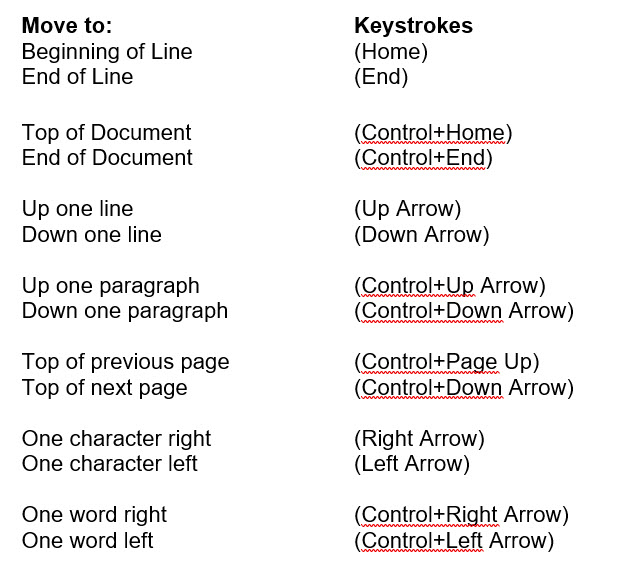
As you examine the abridged list of keyboard shortcuts to move the insertion point and delete text you should notice there are two combinations. First is the single key, such as the (End) key. Pressing the single key will move the insertion point or delete some text. However, when you press and hold the (Control) key before pressing the single more or deletion key, Word will either move farther or delete more. It’s a simple concept that is used with many movement and deletion keyboard shortcut keystrokes. 

Here are some of the keyboard commands that you can use to move the insertion point within your document:
Microsoft Word lesson screenshot 2ndLesson3

Delete Existing Text with the Keyboard

Erase character right of Insertion point (Delete) Erase character left of Insertion point (Backspace) Erase word left of insertion point (Control+Backspace)* Erase word right of insertion point (Control+Delete)* *Insertion point should be at the beginning of a word

In this portion of Lesson #2 you will use the keyboard to move the insertion point and then edit the text in the Practice document.

1. After opening the Practice Document, press (Control+Down Arrow) until you are at the beginning of the second paragraph.

When opening a document, Word automatically places the insertion point at the top of the document. (Control+Down Arrow) moves the insertion point down one paragraph each time you press it. If you created a blank line between these two paragraphs by pressing the (Enter) key, Word considers the blank line a paragraph.

Whenever you use the Control, Shift or Alt keys, you must keep that key held down while you press the other key to use keyboard shortcuts.

2. Press (Control+Right Arrow) twice to move to the beginning of the word learn.

3. Press (Control+Delete) to delete this word.

This deletes the word to the right of the insertion point.

4. Type the word gain and press (space) to replace the deleted word.

5. Press (Control+Right Arrow) twice again to move to the beginning of MS Word in this sentence.

6. Press (Control+Backspace) to delete the word about, the word left of the insertion point.

7. Type experience with and press (space).

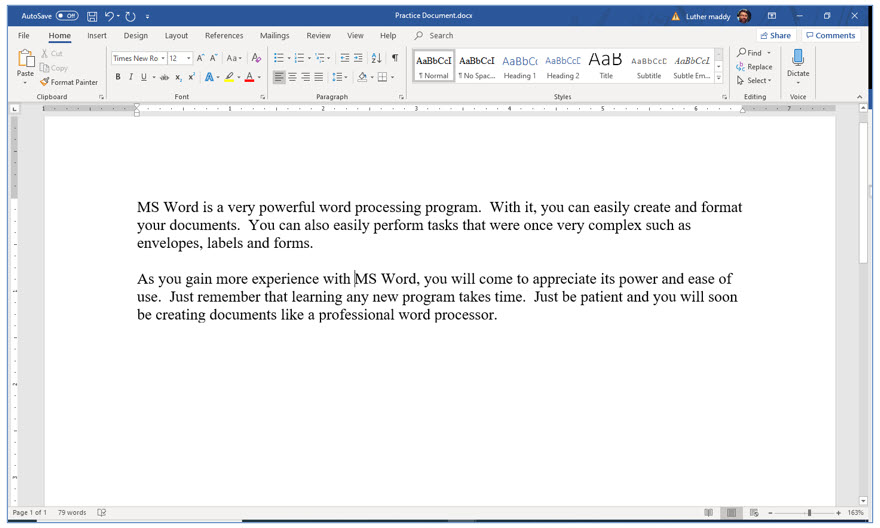
You have replaced the deleted word and your text should appear as that below.
Microsoft Word lesson screenshot 2ndLesson4

Auto Spell Check

Word automatically checks your spelling and grammar as you type. Word will underline in red misspelled words or words not in its dictionary. When it finds a possible grammatical or typographical error, Word will underline the possible error in blue.

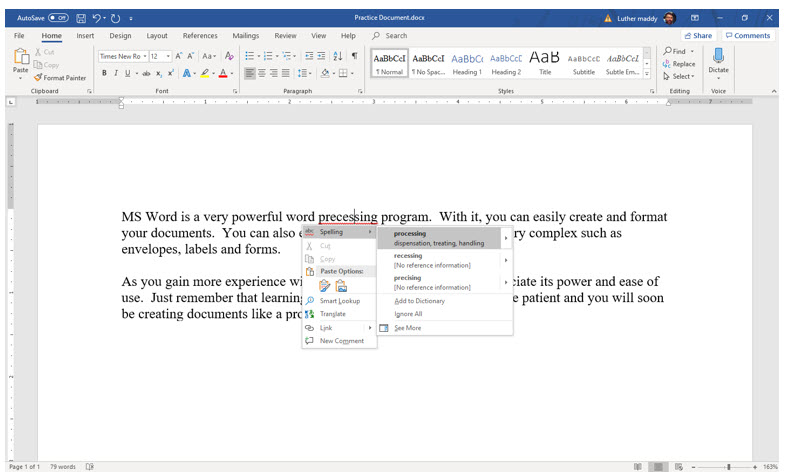
To quickly correct a word that is underlined in red, move the mouse pointer into that word and right-click. When you do, you will see a list of possible spelling suggestions. If the correct spelling is there, just click it and Word will make the correction for you. If Word underlines words that are spelled correctly, you can select Add from the Spelling shortcut menu to permanently add the word to the spell check dictionary.

You can also use the mouse to move the insertion point.

1. Use the mouse and click inside the word processing in the first line of the first paragraph.

2. Now, delete the letter “o” in this word and replace it with the letter “e”.

3. Move outside this word and you will see that Word has underlined the word precessing in red.

4. Move the mouse pointer into this word and right-click.
Microsoft Word lesson screenshot 2ndLesson5

5. From the list of suggestions, click processing to correct this error.

Adjusting the Grammar Check Settings

When Word is first installed the default (automatic) grammar check settings are very basic. If you know you have a specific recurring problem with grammar, you may find that Word does not flag those errors. Leaving critical grammar errors in your document is not very desirable, and could be very embarrassing. To help prevent that, Word will let you adjust the errors it looks for and flags in your documents.

In this portion of this lesson you will adjust the grammar check settings to look for errors Word currently ignores in your documents. You can adjust the grammar check settings and many other default settings in the Word Options dialog box. You access the Word Options dialog box from the File menu.

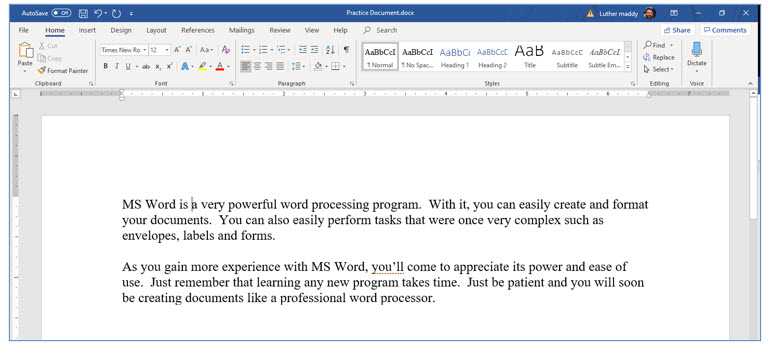
1. In the first line of the second paragraph, use the (Delete) or (Backspace) keys to change you will to you’ll

2. Move the insertion point into another line.

Microsoft Word lesson screenshot 2ndLesson6

Notice that Word does not alert you that there are any concerns in this document. Contractions are fine for informal writing, but if you are creating a formal document or report, then you would want to avoid contractions. We will assume that you are creating a formal document and want MS Word to alert you when you use a contraction.

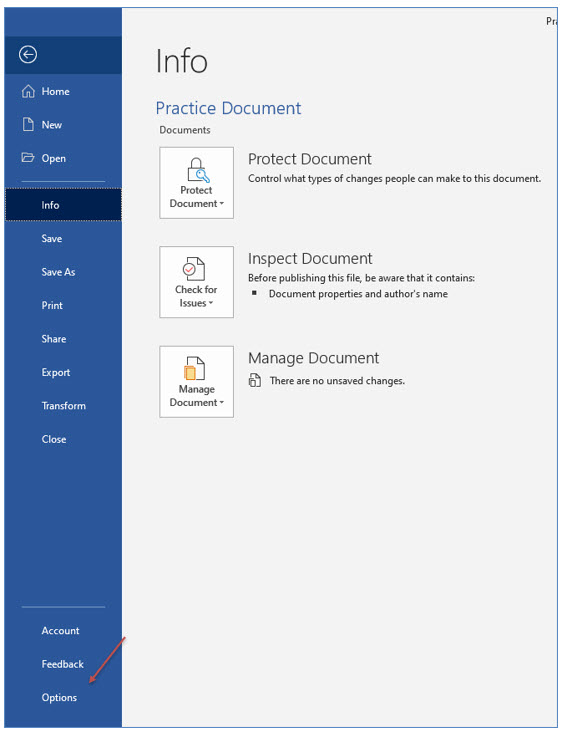
You will now adjust Word’s grammar settings so that it will inform you when you use contractions in your documents.
Microsoft Word lesson screenshot 2ndLesson7

3. Click File to open the File menu and then choose Options.
Microsoft Word lesson screenshot 2ndLesson8

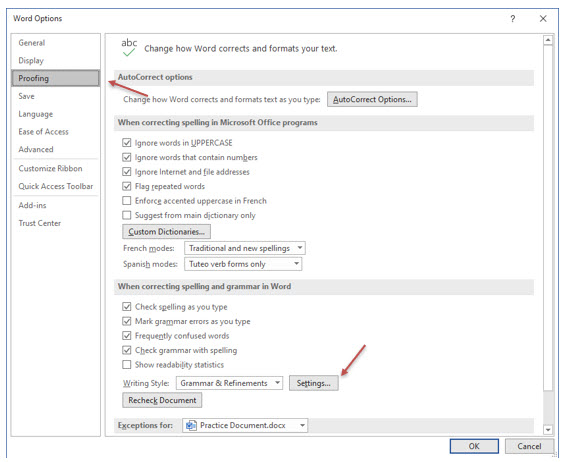
You should now see the Word Options dialog box. Here you can adjust many of Word’s default settings.

4. In the Word Options dialog box, select Proofing and then click the Settings… button in the “When correcting spelling and grammar in Word” section.
Microsoft Word lesson screenshot 2ndLesson9

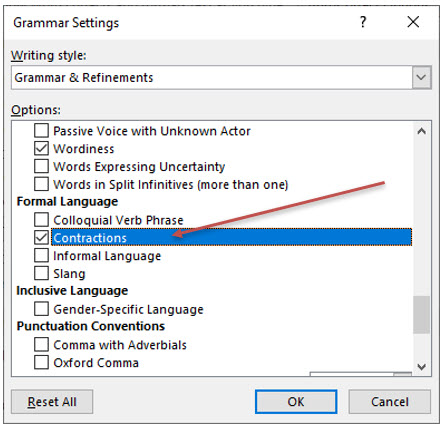
You should now see the Grammar Settings dialog box. Here you can specify what grammar errors you want Word to check. For this exercise, you will turn on Subject-verb agreement checking.

5. In the Grammar Settings dialog box, scroll down until you find the Contractions in the Formal Language section. Turn this option on and click OK.

6. Click OK again to leave the Word Options dialog box and return to the document.
Microsoft Word lesson screenshot 2ndLesson10

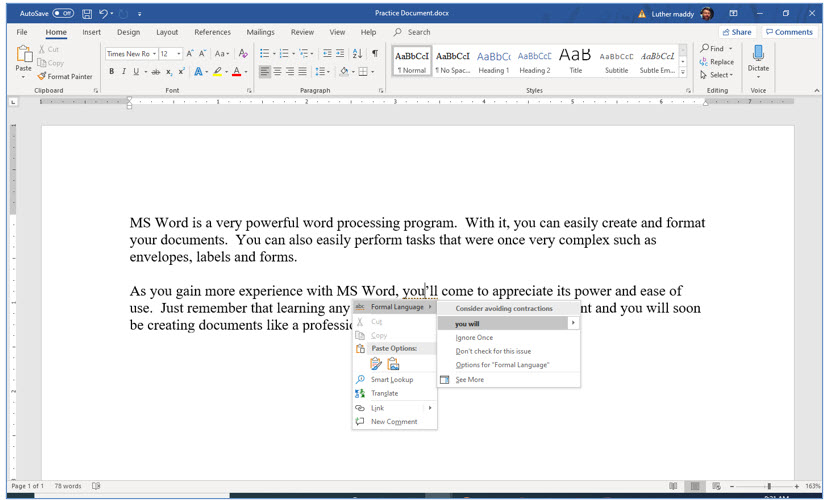
You should notice that Word has alerted you to this “error”.

7. Right-click in the underlined contraction, and then select you will in the correction options to correct this error.
Microsoft Word lesson screenshot 2ndLesson11

Saving an Existing Document

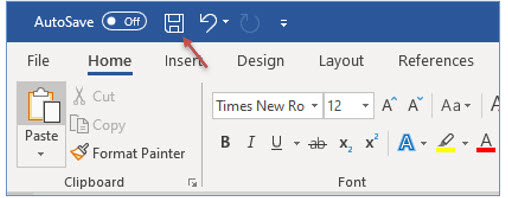
When you save a document that you have already saved, you can choose the Save rather than the Save As command. When you choose Save, Word will save the document with the name it already has. This makes the process of saving frequently very easy.

8. Click the File menu and choose Save.
Microsoft Word lesson screenshot 2ndLesson12

You can also try the keyboard shortcut (Control+S) to save the open document.

When you execute the Save command, Word saved the file as it is right now. The changes you made are saved, and you will not lose them. You will want to develop the habit of regularly saving your document as you work on it. This will ensure that you do not lose any important work.

9. Click the File menu and choose Close

The document is now closed. Now you must either create a new document or open an existing document.

Advertisement

Next step

See the concepts demonstrated.

Continue to Watch for chapter videos and worked examples.

Go to Watch

See it explained

Watch

Choose the explanation or example that best supports your learning.

Next step

Apply what you have learned.

Use the guided questions and activities in Practice.

Go to Practice

Apply what you learned

Practice Editing Text in Microsoft Word

Open the Practice Document from Lesson 1 and use Word's movement, deletion, proofing, and saving tools to revise it.

Guided Practice

  • Open Practice Document from the Recent files list or its saved folder.
  • Use Control+Down Arrow and Control+Right Arrow to move through the text.
  • Delete a word with Control+Delete and replace it.
  • Delete a word to the left with Control+Backspace and enter new text.
  • Create a spelling error and correct it from the right-click suggestions.
  • Open Word Options and enable contraction checking.
  • Correct the contraction flagged by Word.
  • Save the document with Control+S and close it.

Challenge Yourself

  • Practice moving to the beginning and end of lines and documents with keyboard shortcuts.
  • Compare Delete with Backspace and explain the direction each removes text.
  • Add a correctly spelled name to the custom dictionary, then explain when this is appropriate.
  • Review another proofing setting and decide whether it would help your writing.

Check Your Understanding

  • Can you explain where new text appears when you type?
  • Can you distinguish Control+Delete from Control+Backspace?
  • Can you explain how Word marks possible spelling and grammar issues?
  • Can you identify where proofing settings are changed?
  • Can you explain why Control+S should be used frequently?

Next step

Save the materials you may need later.

Open Resources for the study sheet, spreadsheets, and related learning materials.

Go to Resources

Keep learning

Resources

Study sheets, downloadable files, companion tools, and related lessons for this chapter.

For educators

Teaching this chapter?

The Instructor tab contains objectives, teaching ideas, assessments, and a printable guide.

Open Instructor Resources

LutherMaddy.com — Helping Humans Learn

Editing Text in Microsoft Word: Instructor Resources

Teach this lesson

Instructor Resources

Classroom-ready objectives, teaching ideas, questions, and assessment materials for this chapter.

Learning Objectives

  • Open a previously saved Word document.
  • Move the insertion point with mouse and keyboard commands.
  • Delete and replace characters and words efficiently.
  • Use Word spelling suggestions.
  • Configure selected grammar and proofing options.
  • Save changes and close a document.

Prerequisite Knowledge

  • Creating and saving documents
  • Basic mouse and keyboard use
  • Understanding the insertion point

Teaching Outline

  • Open the Practice Document.
  • Demonstrate insertion-point movement.
  • Compare Delete, Backspace, Control+Delete, and Control+Backspace.
  • Edit the supplied practice text.
  • Create and correct a spelling error.
  • Open Word Options and adjust proofing settings.
  • Correct the flagged contraction.
  • Save and close the document.

Key Concepts

  • The insertion point determines where text is added or deleted.
  • Control-key combinations move farther or delete entire words.
  • Delete removes to the right; Backspace removes to the left.
  • Word marks possible spelling and grammar problems.
  • Proofing settings can be customized for writing needs.
  • Save updates the existing document without changing its name or location.

Classroom Demonstration

  • Move through one paragraph using only keyboard shortcuts.
  • Delete the same word once with Control+Delete and once with Control+Backspace.
  • Create a misspelling and compare the correction options.
  • Enable one grammar rule and show how the document changes.

Questions to Ask

  • When is keyboard navigation faster than using the mouse?
  • Why might a correctly spelled word still be underlined?
  • Which proofing settings are most useful for formal writing?
  • Why should users save after completing a group of edits?

Teaching Notes

  • Remind students to hold Control while pressing the second key.
  • Explain that proofing suggestions should be reviewed rather than accepted automatically.
  • Word Options may look slightly different among versions.
  • The source lesson contains one unrelated sentence about a spreadsheet formula; it remains in the preserved written content and may be removed later if desired.

Assessment Ideas

  • Open and revise the Practice Document using specified shortcuts.
  • Correct a spelling error with the shortcut menu.
  • Change one proofing setting and demonstrate its effect.
  • Save and close the revised file.

Grading Rubric

CriterionPoints
Document opened correctly1
Keyboard movement used correctly2
Text deleted and replaced accurately3
Spelling and grammar tools used correctly2
Document saved and closed correctly2
Total10

Exam and Discussion Questions

Basic

  • State what Delete, Backspace, Control+Delete, and Control+Backspace do.
  • Identify where Word proofing settings are changed.

Applied

  • Open a saved document and replace two words using keyboard shortcuts.
  • Enable and test a selected grammar rule.

Conceptual

  • Explain why proofing suggestions should not be accepted without review.
  • Explain how the insertion point controls editing.

Keep Exploring

Continue Learning

Explore step-by-step lessons, interactive calculators, downloadable study sheets, and practical educational resources.