
Creating QR Codes Directly in Microsoft Word
About QR Codes in Word
A QR (Quick Response) code can give readers a fast way to open a website or other encoded information with a phone or tablet. Microsoft Word for Windows includes the DISPLAYBARCODE field, which can create a QR code directly in the document. This is useful for flyers, handouts, invitations, business cards, marketing materials, and other documents that connect printed information to online content.
The important idea in this lesson is that the QR code is a Word field. You create the field, enter the information you want encoded, and then tell Word to display the field result as a QR code.
Creating a QR Code
1. Place the insertion point where you want the QR code.
Open the Word document that will contain the QR code. Click at the location where you want the code to appear.
2. Press Ctrl + F9 to create a field.
Word will insert a pair of special field braces. Do not type the braces yourself. The braces created by Ctrl + F9 are field-code braces and are different from ordinary keyboard characters.
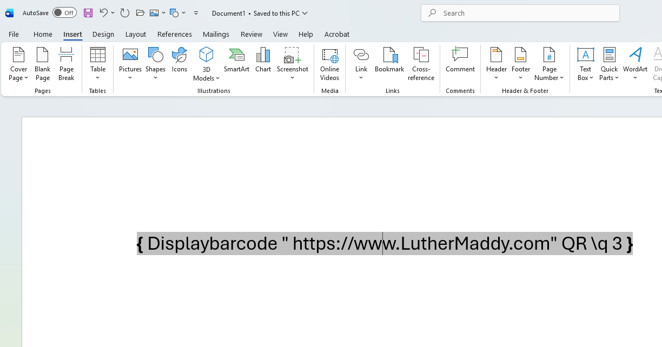
3. Type the DISPLAYBARCODE instruction inside the field braces.
Inside the braces, type the field instruction. A typical QR-code field follows this pattern:
DISPLAYBARCODE "website-address" QR \q 3
4. Replace the sample address with the destination you want the QR code to open.
For example, a field that points to the LutherMaddy.com website would contain:
DISPLAYBARCODE "https://www.luthermaddy.com" QR \q 3
Keep the website address inside quotation marks. QR tells Word to generate a QR code, and the \q switch specifies the QR-code error-correction level.
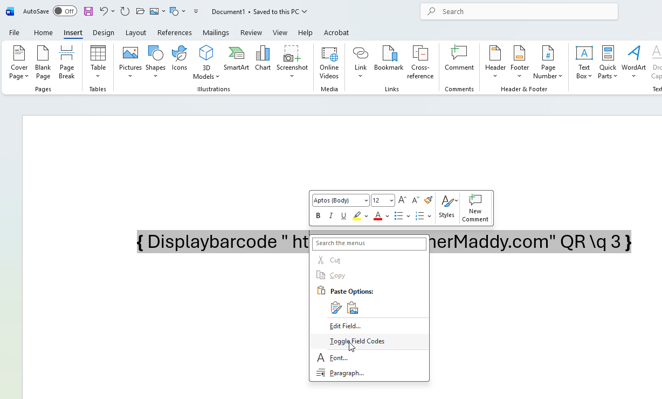
5. Display the QR code instead of the field instruction.
Right-click the field and choose Toggle Field Codes. Word should replace the field-code text with the generated QR-code image. You can toggle the field again whenever you need to see or edit the underlying instruction.
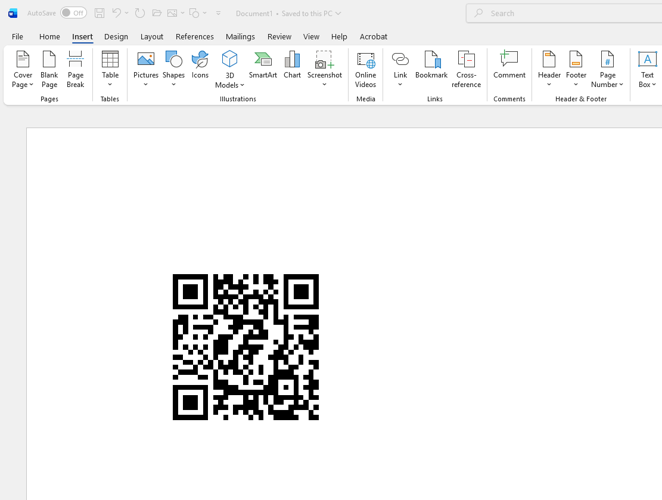
6. Resize or position the QR code if necessary.
After Word displays the QR code, position it appropriately in the document. Keep enough white space around it and avoid making it so small that a phone has difficulty scanning it.
7. Test the QR code.
Before printing, exporting, or distributing the document, scan the QR code with a phone or tablet. Confirm that it opens the exact website or information you intended.
Editing an Existing QR Code
Because the QR code is generated from a field, you can return to the field instruction when you need to change the destination. Right-click the QR code and choose Toggle Field Codes. Edit the information inside the quotation marks, then toggle the field back to display the QR code. If the displayed result does not refresh immediately, update the field and test the QR code again.
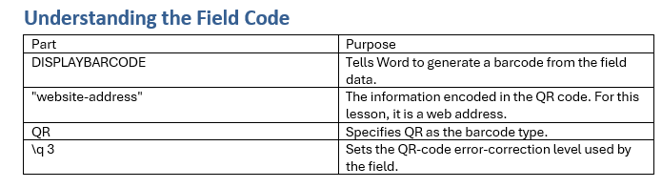
Understanding the Field Code
| Part | Purpose |
|---|---|
| DISPLAYBARCODE | Tells Word to generate a barcode from the field data. |
| "website-address" | The information encoded in the QR code. For this lesson, it is a web address. |
| QR | Specifies QR as the barcode type. |
| \q 3 | Sets the QR-code error-correction level used by the field. |
Common Mistakes to Avoid
- Typing ordinary { } braces instead of pressing Ctrl + F9.
- Leaving the website address outside the quotation marks.
- Deleting part of the DISPLAYBARCODE instruction when editing the URL.
- Making the QR code too small or crowding it with nearby text or graphics.
- Assuming the QR code works without scanning and testing it.
- Forgetting that DISPLAYBARCODE is supported in the Windows desktop version of Word; availability can differ in other Word environments.
Suggested Practice
Create a one-page flyer for an imaginary business or organization. Add a QR code that points to a website of your choice. Place a short instruction beside the code, such as “Scan to learn more.” Resize and position the QR code so it fits the page, then scan it with a phone to verify that it works.
See it explained
Watch
Choose the explanation or example that best supports your learning.
Easily Add QR Codes to Your Microsoft Word Documents
Watch the complete demonstration of creating a QR code in Word without an external QR-code tool.
Watch VideoApply what you learned
Practice Creating QR Codes Directly in Microsoft Word
Create and test a QR code of your own, then demonstrate that you can edit the underlying field.
Guided Practice
- Create a blank Word document and place the insertion point where the QR code should appear.
- Press Ctrl + F9 and confirm that Word creates special field braces.
- Enter a DISPLAYBARCODE field that points to a website of your choice.
- Toggle the field code so the QR-code image appears.
- Resize or position the QR code while preserving enough white space around it.
- Scan the code with a phone or tablet and verify the destination.
- Toggle the field code again, change the destination, update the result, and test it again.
Challenge Yourself
- Create a one-page flyer for an imaginary business or organization and add a QR code with the instruction “Scan to learn more.”
- Explain why typing ordinary braces with the keyboard does not create the same field as Ctrl + F9.
- Create two QR codes that point to different destinations and label each one clearly.
- Explain why every QR code should be tested before a document is printed or distributed.
Check Your Understanding
- What keyboard command creates Word’s special field-code braces?
- What does DISPLAYBARCODE tell Word to do?
- Where should the website address appear in the field instruction?
- How do you switch between the field instruction and the QR-code image?
- Why should you leave adequate white space around a QR code?
- What should you always do before distributing a document containing a QR code?
Keep learning
Resources
Study sheets, downloadable files, companion tools, and related lessons for this chapter.
Printable Instructions — Creating QR Codes
Download the illustrated PDF handout for this lesson.
Download PDF HandoutAll Microsoft Word Lessons
Return to the complete Microsoft Word learning path.
View Word LessonsLutherMaddy.com — Helping Humans Learn
Creating QR Codes Directly in Microsoft Word: Instructor Resources
Teach this lesson
Instructor Resources
Classroom-ready objectives, teaching ideas, questions, and assessment materials for this chapter.
Learning Objectives
- Create a QR code directly in Microsoft Word with DISPLAYBARCODE.
- Create field-code braces correctly with Ctrl + F9.
- Encode and edit a website address in the field.
- Toggle between field code and QR-code result.
- Position and test a QR code before distribution.
Prerequisite Knowledge
- Basic Microsoft Word navigation
- Entering and editing text
- Using shortcut menus
Teaching Outline
- Introduce QR codes and practical uses in Word documents.
- Create special field braces with Ctrl + F9.
- Build the DISPLAYBARCODE field instruction.
- Toggle the field to display the QR code.
- Resize and position the result.
- Edit an existing QR-code field.
- Test the finished QR code.
Key Concepts
- A Word QR code created this way is the result of a field.
- Field braces must be created with Ctrl + F9 rather than typed manually.
- The destination is placed inside quotation marks in the DISPLAYBARCODE instruction.
- Toggle Field Codes switches between the instruction and displayed result.
- Every finished QR code should be scanned and tested before distribution.
Classroom Demonstration
- Create a QR code that opens LutherMaddy.com.
- Toggle between the DISPLAYBARCODE field and the QR-code image.
- Change the destination address and update the field.
- Scan the finished code with a phone or tablet.
Questions to Ask
- Where could QR codes be useful in business or academic Word documents?
- Why must Ctrl + F9 be used instead of typing braces?
- Why is testing especially important before printing many copies?
- What layout choices can make a QR code difficult to scan?
Teaching Notes
- The lesson is written for the Windows desktop version of Microsoft Word.
- Emphasize that students should not type ordinary braces.
- Have students use a harmless website for practice and verify the destination before scanning.
- Remind students to preserve white space around the code and avoid excessive reduction in size.
Assessment Ideas
- Create a working QR code from a supplied URL.
- Edit an existing QR code to point to a new destination.
- Explain each major part of the DISPLAYBARCODE field.
- Demonstrate successful scanning and destination verification.
Grading Rubric
| Criterion | Points |
|---|---|
| Field braces created correctly | 2 |
| DISPLAYBARCODE instruction entered correctly | 2 |
| QR code displayed and positioned appropriately | 2 |
| Destination edited successfully | 2 |
| Finished QR code tested successfully | 2 |
| Total | 10 |
Exam and Discussion Questions
Basic
- What keyboard command creates the special field braces used in this lesson?
- What does QR specify in the DISPLAYBARCODE field?
Applied
- Create a QR code in Word that opens a supplied website, then change it to a second supplied website.
Conceptual
- Explain why a QR code should be tested before a document is printed or distributed.