
What You Will Learn
- Copy Excel data into Word as a regular Word table.
- Paste Excel data into Word as a bitmap picture.
- Embed the copied data as a Microsoft Excel Worksheet Object.
- Paste an Excel Worksheet Object as a link to the original Excel workbook.
- Compare the advantages and disadvantages of each method.
- Choose a method based on whether you need Word editing, appearance, Excel editing, or automatic updates.
The Scenario
Suppose you are preparing a sales forecast report in Microsoft Word. The first-quarter sales data already exists in an Excel worksheet, and your supervisor wants you to bring that information into the Word report rather than recreate it. Word provides several ways to do this. Each method behaves differently, so the best choice depends on what you need to do with the data afterward.
Begin in Excel
Open the Excel worksheet containing the information you want to place in Word.
- Select the cells you want to bring into the Word document.
- Choose Copy to place the selected cells on the Clipboard.
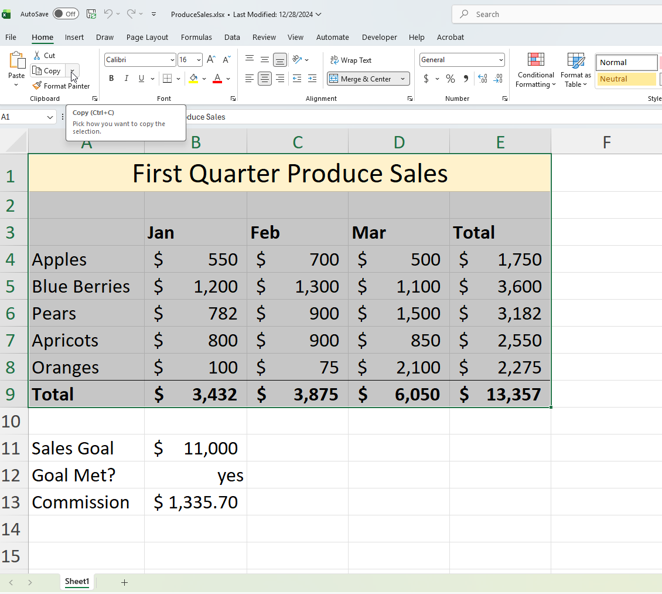
- Return to Word and position the insertion point where the Excel information should appear.
Method 1: Use Regular Copy and Paste
- The simplest method is to use Word's normal Paste command.
- After copying the cells in Excel, return to Word.
- Click where the data should appear.
- Choose Paste.
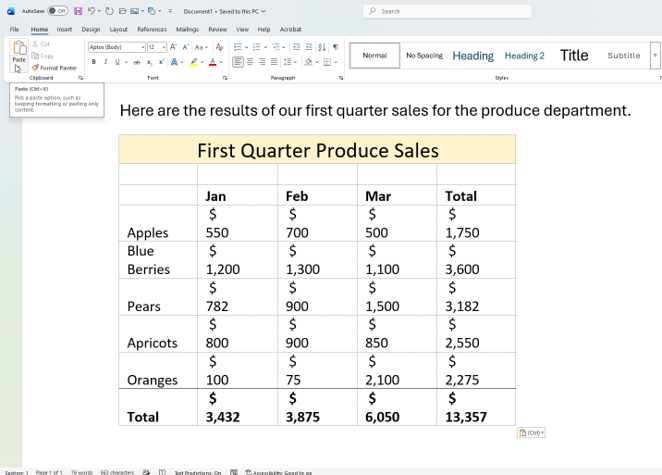
With this method, Word converts the copied information into a Word table. The appearance may not be exactly the same as it was in Excel, but the data can now be edited and formatted with Word's table tools.
Advantages
- The information becomes part of the Word document.
- You can edit the values in Word.
- You can use Word's Table Design and Layout tools, change column widths, insert rows or columns, and apply Word table formatting.
Disadvantages
- The pasted data may not retain the exact appearance it had in Excel.
- You may need to spend time reformatting the Word table.
- There is no link to the original Excel workbook.
Method 2: Paste the Excel Data as a Bitmap Picture
If preserving the appearance is more important than editing the numbers, you can paste the copied cells as a picture.
- Copy the desired cells in Excel.
- In Word, click where the data should appear.
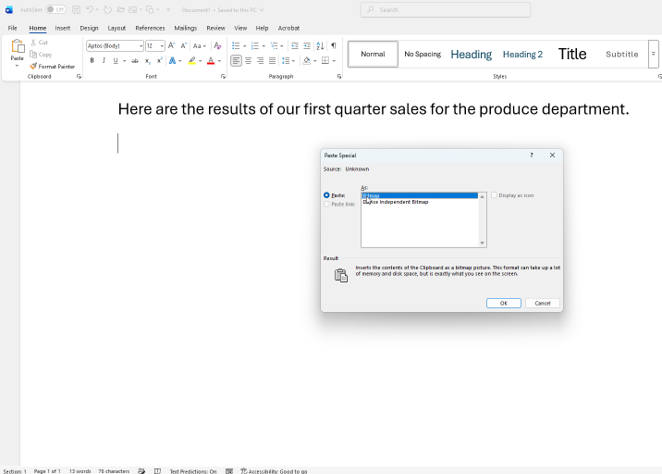
- Open the Paste menu and choose Paste Special.
- In the Paste Special dialog box, select Bitmap.
- Click OK.
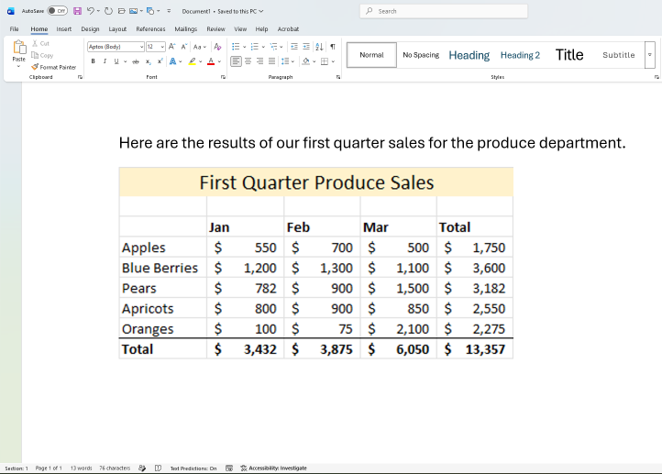
The Excel information is now an image. You can resize it easily, and you can use picture wrapping options such as Square to position it with surrounding text.
Advantages
- The pasted data retains a picture-like appearance.
- It is easy to resize.
- Picture wrapping options can make positioning easier.
Disadvantages
- The numbers and cells cannot be edited as spreadsheet data.
- The information is static.
- There is no link to the original Excel workbook.
Method 3: Embed a Microsoft Excel Worksheet Object
A third option keeps the copied information as an Excel object inside the Word document. This is useful when you want the Excel editing environment to remain available.
- Copy the desired cells in Excel.
- Return to Word and choose Paste > Paste Special.
- Select Microsoft Excel Worksheet Object.
- Leave Paste selected.
- Click OK.
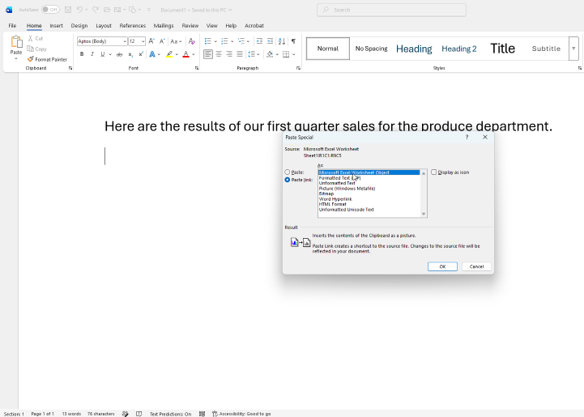
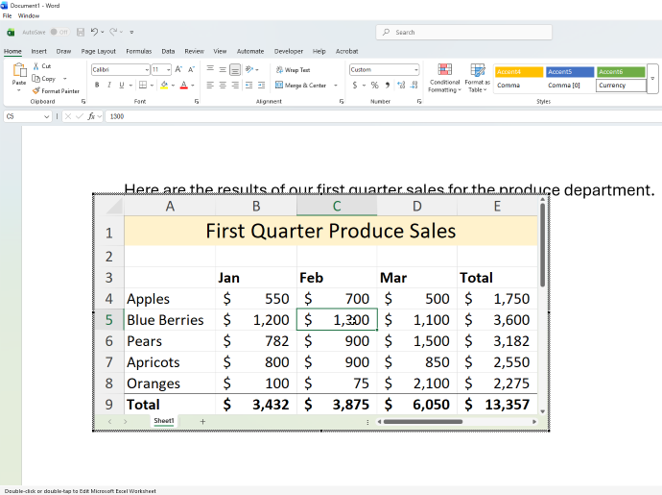
The embedded worksheet may initially look somewhat like a picture, and you can resize it. The important difference is that you can double-click the object to work with it using Excel's rows, columns, formatting, and commands.
When you finish editing, click outside the object to return to the Word document. The embedded worksheet displays the changes you made.
Advantages
- Excel editing tools remain available.
- You can change values and Excel formatting after embedding the object.
- The Excel information is stored with the Word document.
Disadvantages
- The embedded object is not linked to the original Excel workbook.
- Changes made later to the original workbook do not automatically update this embedded copy.
- Its positioning options differ from those of a normal picture.
Method 4: Paste and Link the Excel Worksheet Object
If you want the Word report to reflect later changes made in the original Excel workbook, use Paste Link. This creates a connection between the Word document and the source Excel file.
- Copy the desired cells in Excel.
- Return to Word and choose Paste > Paste Special.
- Select Microsoft Excel Worksheet Object.
- Choose Paste Link instead of Paste.
- Click OK.
- Save the Word document.
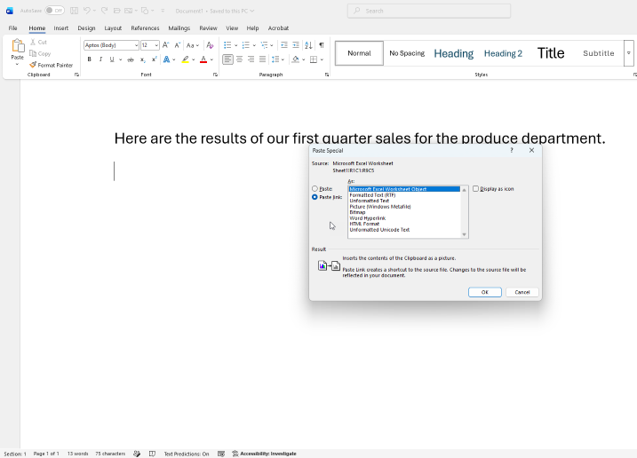
Now the Word object is linked to the source workbook. In the video's demonstration, the Excel value is changed and the workbook is saved. When the Word document is opened again, Word reports that the document contains links to another file and asks whether the linked data should be updated. Choosing Yes updates the displayed information.

Double-clicking the linked object can also take you to the corresponding Excel workbook. Because the files are linked, saved changes in the source can be reflected in the Word document when the link is updated.
Advantages
- The Word document can reflect changes made to the original Excel workbook.
- You retain access to Excel for editing the source data.
- This is useful for reports that should stay synchronized with changing spreadsheet data.
Disadvantages and Cautions
- The Word document depends on access to the linked Excel file.
- Word may display a security warning before updating linked data.
- In the video, linking produced problems when the files were stored in OneDrive or another cloud-storage location on the systems being tested. Storing both files locally resolved the problem in those demonstrations. Treat this as a practical caution rather than a universal rule.
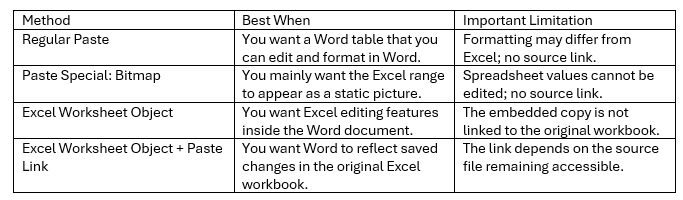
Which Method Should You Use?
Common Mistakes to Avoid
- Using regular Paste and expecting the Excel formatting to remain exactly the same.
- Pasting as a bitmap when you will later need to edit the spreadsheet values.
- Embedding an Excel object and assuming it remains connected to the original workbook.
- Using Paste Link and then moving, renaming, or making the source workbook unavailable.
- Ignoring Word's linked-data update prompt when you expect the report to show the latest Excel values.
- Failing to save changes to the Excel source before expecting the linked Word document to reflect them.
Suggested Practice
Create a short Word sales report and an Excel worksheet containing a small sales table. Copy the same Excel range into Word four times: first with regular Paste, then as a Bitmap, then as a Microsoft Excel Worksheet Object, and finally as a linked Microsoft Excel Worksheet Object. Change one value in the original Excel workbook and determine which version in Word can reflect the change. Write one or two sentences explaining which method you would choose for a recurring business report and why.