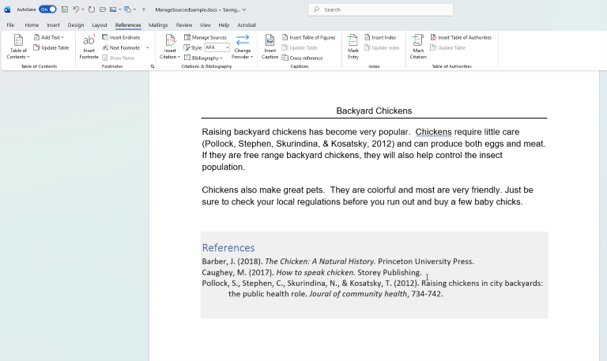
Microsoft Word Training

Creating Citations & Bibliographies in Microsoft Word

Use Word's Manage Sources tools to store source information, insert in-text citations, and create and update a bibliography or reference list.

Start here

Overview

This lesson shows how Microsoft Word can manage research sources, insert in-text citations, and automatically create and update a References, Bibliography, or Works Cited list.

What You Will Learn

  • Select a citation style such as APA, MLA, or Chicago.
  • Create a new source with Word's Manage Sources tool.
  • Enter one or more authors correctly.
  • Explain the difference between the Master List and Current List.
  • Insert an in-text citation from a saved source.
  • Create a References, Bibliography, or Works Cited list.
  • Update the source list after adding new sources.

Before You Begin

  • Basic Microsoft Word navigation.
  • Basic understanding of research sources and citation requirements.
  • Know which citation style your instructor or organization requires.

Why This Matters

Accurate citations are essential in academic and professional writing. Word's source-management tools can save time, reduce repeated typing, and help keep citations and reference lists consistent throughout a document.

Plan Your Study

  • Review the citation workflow and required style.
  • Read the complete written lesson in Learn.
  • Watch the Manage Sources demonstration.
  • Practice by entering sources and inserting citations.
  • Use the printable instructions in Resources as a reference.

Next step

Read the complete chapter.

The Learn tab contains the written lesson from Surviving Statistics.

Go to Learn

Written lesson

Learn Creating Citations & Bibliographies in Microsoft Word

Use Word's Manage Sources tools to store source information, insert in-text citations, and create and update a bibliography or reference list.

Advertisement

What You Will Learn

  • Select a citation style such as APA, MLA, or Chicago.
  • Add a source to Word using Manage Sources.
  • Enter one or more authors correctly.
  • Understand the Master List and Current List in Source Manager.
  • Insert an in-text citation from a saved source.
  • Create a References, Bibliography, or Works Cited list.
  • Update the reference list after adding additional sources.

Why Use Word's Citation Tools?

When you are writing a college paper, report, or other research document, you may need to cite the sources you use and create a bibliography or reference list. Microsoft Word can store source information, insert in-text citations, and build the final source list for you. This saves time and helps keep the citation information consistent throughout the document.

Choose the Citation Style

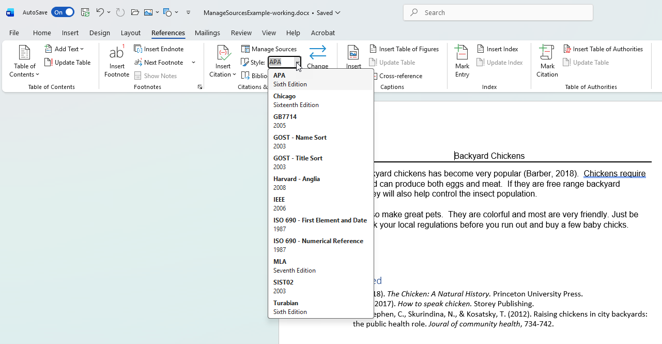
Before entering sources, determine which citation style your instructor or organization requires. In the video, APA is used. Word also provides other styles, including MLA and Chicago.

  1. Click the References tab.
  2. Locate the Citations & Bibliography group.
  3. Use the Style list to select the required citation style.
References tab showing citation styles
Figure 1. References tab showing the Citations & Bibliography group and the Style setting.

Add a New Source

In the demonstration, the report is about backyard chickens and a book will be used as a source. Before Word can cite the book, its information must be added to the source list.

  1. Click the References tab.
  2. In the Citations & Bibliography group, click Manage Sources.
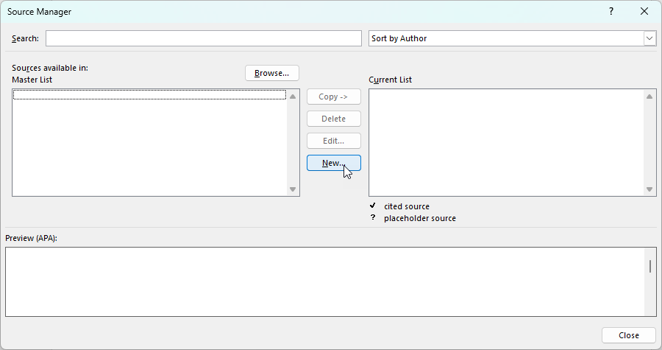
  3. In Source Manager, click New.
  4. In the Create Source dialog box, choose the Type of Source. The demonstration uses Book.
Source Manager with New button
Figure 2. Source Manager with the New button available for adding a source.

Enter the Author Information

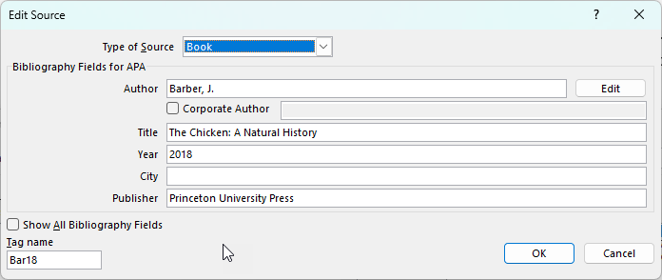
You can enter an author directly, but the Edit button is especially useful when a source has multiple authors because it provides separate fields for last name, first name, and middle name or initial.

  1. Beside the Author field, click Edit.
  2. Enter the first author's last name, first name, and middle name or initial as appropriate.
  3. If the source has another author, click Add and enter the second author's information.
  4. Continue adding authors as needed.
  5. Click OK when the author list is complete.
Source author information
Figure 3. Edit Source/Name area used to enter author and source information.

Complete the Source Information

After entering the author or authors, complete the remaining fields for the source. The exact fields depend on the source type you selected.

For the book example in the video, Word asks for information such as:

  • Title
  • Year
  • City
  • Publisher

When the source information is complete, click OK.

Understand the Master List and Current List

Source Manager contains a Master List and a Current List. The Current List contains sources available to the document you are working on. The Master List can make sources available for use in other Word documents.

This can be helpful when a large project is divided among several documents. For example, a student working on different sections of a dissertation can reuse source information rather than entering the same sources again.

Within Source Manager, you can also:

  • Copy sources between the Master List and Current List.
  • Delete a source from a list when it is no longer needed.
  • Edit a source to correct a typo or change its information.
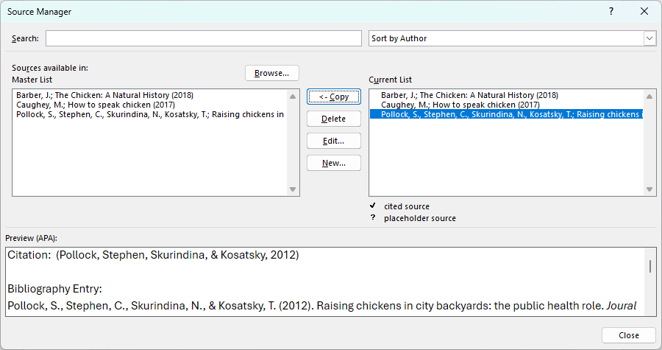
Master List and Current List
Figure 4. Source Manager showing the Master List and Current List.

Insert an In-Text Citation

After a source has been entered, you can insert a citation at the appropriate location in your report.

  1. Place the insertion point at the location where the citation should appear.
  2. Click the References tab.
  3. Confirm that the correct citation Style is selected.
  4. Click Insert Citation.
  5. Select the appropriate source from the list.

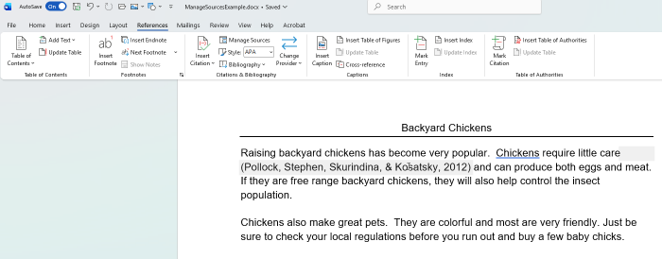
Word inserts the citation using the selected style. In the video, APA formatting is used. You can repeat this process anywhere in the document that requires a citation.
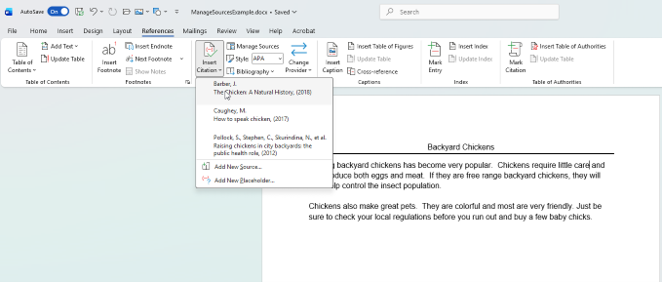
Insert Citation menu
Figure 5. Insert Citation menu displaying the sources available in the current document.
APA in-text citation
Figure 6. APA-style in-text citation inserted in the report.

Create the Bibliography or Reference List

After inserting citations, Word can build the source list automatically from the sources used in the document.

  1. Move to the location where the source list should appear. In the demonstration, a new page is created.
  2. Click the References tab.
  3. Click Bibliography.
  4. Choose the type of list required, such as References, Bibliography, or Works Cited.
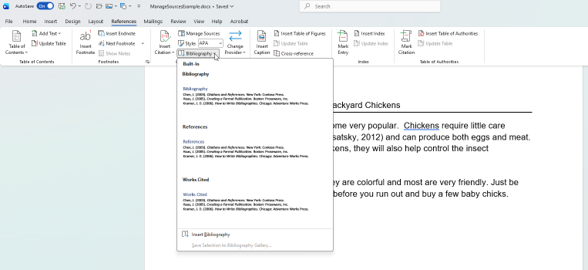
Bibliography menu
Figure 7. Bibliography menu showing the available source-list choices.
Automatically generated References list
Figure 8. Automatically generated References list.

Update the Reference List

If you add another source or citation after creating the reference list, you do not have to rebuild the list manually.

  1. Return to the existing bibliography or reference list.
  2. Right-click the bibliography field.
  3. Choose Update Field.

Word updates the list to reflect the additional source information.
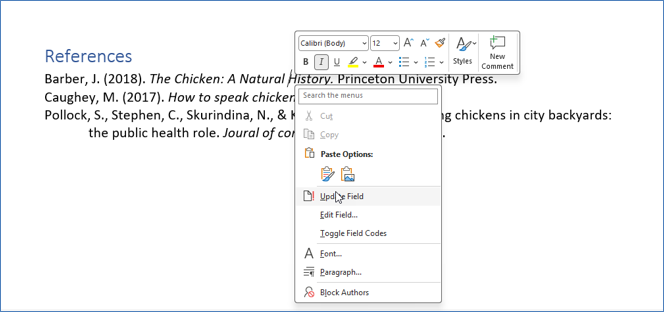
Update Field command
Figure 9. Update Field command for refreshing the bibliography or reference list.

A Simple Workflow to Remember

StepWhat to Do
1Select the required citation style.
2Use Manage Sources to enter your source information.
3Insert citations where information from those sources is used.
4Insert the bibliography, References list, or Works Cited list.
5Update the field if sources are added later.

Common Mistakes to Avoid

  • Entering a source before confirming the citation style required by your instructor.
  • Choosing the wrong source type, which can cause Word to request the wrong bibliographic fields.
  • Typing multiple authors into one unstructured author field when the Edit option can separate their names.
  • Failing to correct typos in Source Manager before generating citations and the reference list.
  • Manually typing citations or a reference list when the source has already been entered in Word.
  • Forgetting to update the bibliography after adding new source information.
  • Assuming Word's generated output removes the need to follow your instructor's specific assignment requirements.

Suggested Practice

Create a short research document on a topic of your choice. Select a citation style, then use Manage Sources to enter at least two sources. Include one source with two authors if possible. Insert at least two in-text citations in the document. Create a new page and insert the appropriate bibliography or reference list. Finally, add another source and use Update Field to refresh the list.

Advertisement

Next step

See the concepts demonstrated.

Continue to Watch for chapter videos and worked examples.

Go to Watch

See it explained

Watch

Choose the explanation or example that best supports your learning.

Next step

Apply what you have learned.

Use the guided questions and activities in Practice.

Go to Practice

Apply what you learned

Practice Creating Citations & Bibliographies in Microsoft Word

Use the companion calculator and activities below to reinforce the chapter concepts.

Guided Practice

  • Select a citation style, then use Manage Sources to enter at least two sources.
  • Include one source with two authors if possible and use Edit to enter the author names separately.
  • Insert at least two in-text citations from your saved sources.
  • Create a new page and insert the appropriate References, Bibliography, or Works Cited list.
  • Add another source and use Update Field to refresh the source list.

Challenge Yourself

Resources will be added as this lesson grows.

Check Your Understanding

Resources will be added as this lesson grows.

Next step

Save the materials you may need later.

Open Resources for the study sheet, spreadsheets, and related learning materials.

Go to Resources

Keep learning

Resources

Study sheets, downloadable files, companion tools, and related lessons for this chapter.

For educators

Teaching this chapter?

The Instructor tab contains objectives, teaching ideas, assessments, and a printable guide.

Open Instructor Resources

LutherMaddy.com — Helping Humans Learn

Creating Citations & Bibliographies in Microsoft Word: Instructor Resources

Teach this lesson

Instructor Resources

Classroom-ready objectives, teaching ideas, questions, and assessment materials for this chapter.

Learning Objectives

  • Select an appropriate citation style in Microsoft Word.
  • Create and edit sources with Manage Sources.
  • Explain the difference between the Master List and Current List.
  • Insert in-text citations from saved sources.
  • Create and update a References, Bibliography, or Works Cited list.

Prerequisite Knowledge

  • Basic Microsoft Word navigation
  • Opening and editing a Word document
  • Basic understanding of research sources and citation requirements

Teaching Outline

  • Introduce Word citation tools and select a citation style.
  • Open Manage Sources and create a new source.
  • Demonstrate entering multiple authors.
  • Explain the Master List and Current List.
  • Insert an in-text citation.
  • Create a References, Bibliography, or Works Cited list.
  • Add a source and demonstrate Update Field.

Key Concepts

  • Citation style should be selected before building citations and the source list.
  • Source type determines which bibliographic fields Word requests.
  • The Current List contains sources available to the active document.
  • The Master List can make saved source information available for reuse in other Word documents.
  • Word can generate in-text citations and source lists from stored source information.
  • An existing bibliography can be refreshed with Update Field.

Classroom Demonstration

  • Create a book source and show how fields vary by source type.
  • Use Edit to enter a source with two authors.
  • Copy a source between the Master List and Current List.
  • Insert two citations in a sample report.
  • Generate a References list, add another source, and update the field.

Questions to Ask

  • Why should the required citation style be selected before entering sources?
  • How can the Master List save time when working on several related documents?
  • What advantage does Word provide over manually typing each citation and reference?
  • Why should students still check an instructor's assignment requirements even when Word generates the citations?

Teaching Notes

  • The lesson uses APA as its demonstration style, but the same overall workflow applies to other styles available in Word.
  • Emphasize accurate source entry because errors can carry into citations and reference lists.
  • Have students distinguish between the Master List and Current List.
  • Remind students to update the bibliography after adding additional source information.

Assessment Ideas

  • Have students enter two sources, including one with multiple authors.
  • Require at least two correctly inserted in-text citations.
  • Have students generate the required source list for the selected style.
  • Add a third source and require students to refresh the source list with Update Field.

Grading Rubric

CriterionPoints
Correct citation style selected2
Sources entered accurately in Manage Sources2
In-text citations inserted from saved sources2
Reference/Bibliography/Works Cited list created correctly2
Source list successfully updated after a change2
Total10

Exam and Discussion Questions

Basic

  • On which Word tab are Manage Sources and Insert Citation located?
  • What is the purpose of the Current List in Source Manager?

Applied

  • Describe the steps for adding a book with two authors to Manage Sources.
  • Describe how to insert a saved source as an in-text citation and then create a References list.

Conceptual

  • Explain the difference between the Master List and Current List.
  • Why is Update Field useful after a bibliography has already been created?

Keep Exploring

Continue Learning

Explore step-by-step lessons, interactive calculators, downloadable study sheets, and practical educational resources.