Basic Paragraph and Page Formatting
Word has many features that enable you to do a wide range of things to any document. This lesson will cover formatting the page and paragraph.
Basic Paragraph and Page Formatting
In the previous lesson you changed the appearance of the text (words) within the document. In this lesson you will focus on changing the layout of entire pages and paragraphs in the document. Layout changes include the top, bottom, left and right margins and features like line spacing and paragraph indentation. In addition to these features, this lesson will also have you explore tab setting, which is a feature that lets you quickly put information in single spaced columns.
Page Layout
In Word, many formatting options are available in the Page Layout tab. Here you can change document margins, paper size, orientation and other document options. In this exercise you'll select a few of these options to become familiar with their use.
1. Use the File menu to create a New Blank Document.
You can also use the keyboard shortcut of (Control+N) to create a new document. You do not need to memorize the entire list of keyboard shortcuts. However, as you become more comfortable with Word you will find that you can be more productive by learning a few shortcuts for the commands you use often.
2. Right-click the Status bar and turn on Vertical Page Position if it is not already on. Click in the text area to close this menu when done.
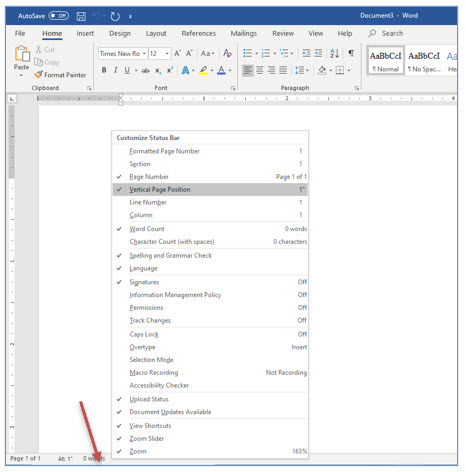
When you examine the status bar now you should see At: 1”. This shows you that the insertion point is 1” below the top edge of the printed paper. This represents the current top margin setting. You can also see this setting with the vertical ruler along the left side of the screen.
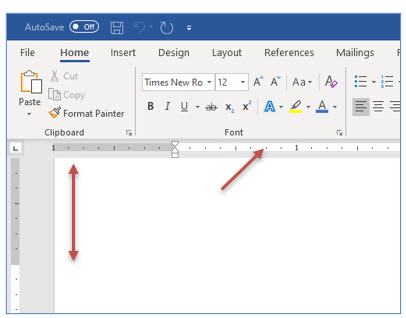
You will now going change the page margins for this document. With a smaller top margin, text will be positioned closer to the top of the printed page. The next document you create will include a letterhead which is usually closer than 1” to the top edge of the page.
In cases where you are using preprinted letterhead, you will likely want to make the top margin larger. Otherwise the text you type be printed over the letterhead instead of below it. To find out what your margin settings should be, grab a ruler and measure from the top edge of the page to the place below the letterhead where you want your text to begin.
3. Click the Layout tab on the Ribbon.

4. Click the Margins tool and choose Custom Margins.
While there are many pre-set margin options you can choose from, the Custom Margins dialog box lets you set exactly the margins you want. When you are using Word for your own documents, you may often be table to use one of the pre-set margin settings. By default, Word 2019’s margins are 1” all around the edges of the page.
You should now see the Page Setup dialog box which allows you to specify the exact margin settings you want.
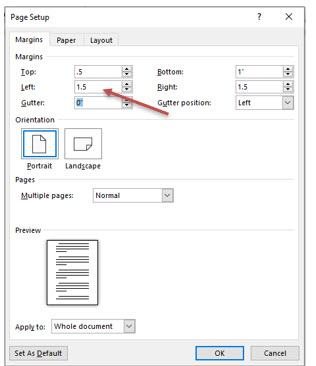
5. Change the Top margin to .5”.
You can press (Tab) to move from field to field withinthis dialog box. When you are in the correct field, just type the value you want.
6. Change the Left and Right margins to 1.5” each.
Leave the bottom margin set at 1”.
7. When done, click OK.
Since you are, or should be, in Print Layout view, you will see the margin changes reflected on both ruler bars. If the horizontal ruler is not visible in the Print Layout view, click the View tab and turn on the Ruler option on the ribbon. After making this change, the Status bar displays the vertical position as At 0.5”, reflecting the new margin setting.
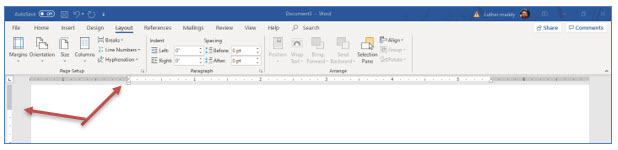
8. Click the Home tab and change the alignment to Center (use the Center tool on the Ribbon) and type:
No Fault Travel Agency 143 San Andreas Fault Line Hollister, CA 93992
9. On the line below the zip code, change the alignment back to Left and then press (Enter) one more time.
If the line with the city, state and zip code changed to left alignment instead of centering, make sure you are on the line below before changing the alignment back to Left. Pressing (Enter) twice creates two blank lines between the letterhead and the text you are about to create.
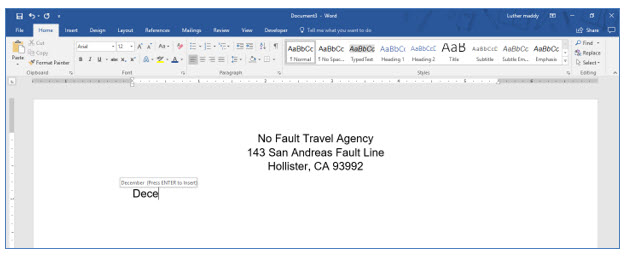
10. Type the first four letters of the current month such as Dece for December or Janu for January.
You should now see a box displaying the current month’s entire name above the letters you just typed. If the current month has fewer than five letters, just type the entire month name and skip to step #12.
11. Press (Enter) to accept the AutoComplete entry of the current month.
The AutoComplete feature will only work for months that have more than five letters.
12. After the current month is complete, press (Space). You should now see another AutoComplete box with the current date displayed above the text you are typing, press (Enter) to insert the entire date.
The date you see on the examples in this workbook will be different than the current date. Use the current date rather than the date in the following example pages.
13. Press (Enter) to accept this date. Press (Enter) again to move one line down the page.
14. Two lines below the date, type the following:
Mr. and Mrs. Martin Johnson 343 Overland Dr. Boise, ID 83709 Dear Mr. and Mrs. Johnson,
15. Create two new blank lines below the salutation by pressing (Enter).
Paragraph Formatting
As with text enhancements, after you turn on a paragraph formatting feature, the text you type after turning that feature on will appear with that formatting option. To change existing paragraphs, you must first select the paragraphs you want to change. Then, with the text selected, choose the Paragraph formatting options you want.
For this portion of the lesson you will use the Paragraph dialog box. You will use this to change paragraph indentation and line spacing.
1. Open the Paragraph dialog box by clicking the dialog box launcher (square with diagonal arrow) at the bottom right of Paragraph group on the Home tab.
You should now see the Paragraph dialog box. You will use this dialog box to change the line spacing to double. You could have also used the Line Spacing tool on the Ribbon. The Paragraph dialog box allows you to change many additional settings.
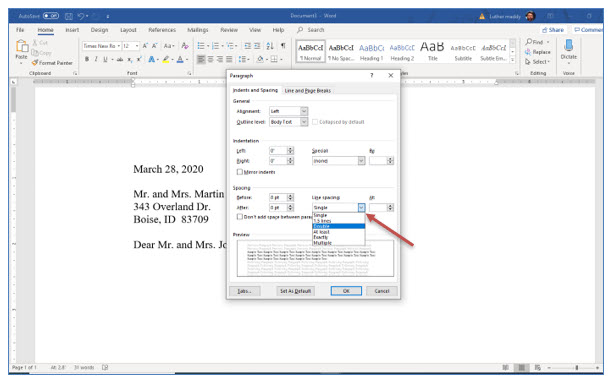
2. In the Paragraph dialog box, click the Line spacing drop down list button and choose Double as the line spacing.
Leave the Paragraph dialog box, open for now.
Spacing Between Paragraphs
You have been adding blank lines between paragraphs by pressing the (Enter) key. Word can do this for you automatically. It does this with the Paragraph Spacing option. If you examine the Paragraph dialog box you’ll see the Spacing section here. You should also notice there is a setting for Before and After a paragraph. There may already be a default (automatic) setting here. For example, Word may already be inserting 10 points after each paragraph. Setting automatic spacing after a paragraph is helpful and eliminates you having to press (Enter) between each paragraph. However, while you’re learning Word, we’re going to have you ensure this setting to 0 points so that each blank line only occurs when you press enter.
3. In the Paragraph spacing section, ensure that both the Before and After are set to 0.
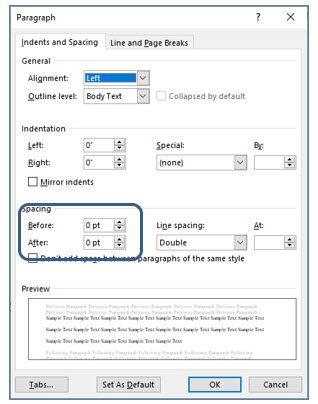
You should also notice the Set As Default button at the bottom of the Paragraph dialog box. If you click this button, any changes you have made here will be applied automatically when you create new documents. We won’t have you do this until you learn a little more about Word and the options you want to make automatic.
4. Click OK to close the Paragraph dialog box.
From this point on, all text you type will be double spaced until you change this setting back to Single line spacing. And, if you thought this was the only way to change line spacing you should know better by now. You can also change the line spacing very easily with the Ribbon on the Paragraph group of the Home tab and you’ll use that method as well later.
5. Type the following paragraph, and press (Enter) when done:
We just wanted to let you know that your trip to Bangkok, Thailand is coming together nicely. We have scheduled several trips and tours that will enable you to see much of this beautiful country. In the following paragraphs you'll find some important information about your trip.
This paragraph should be double spaced. Now, you will use another method to change the line spacing back to single.
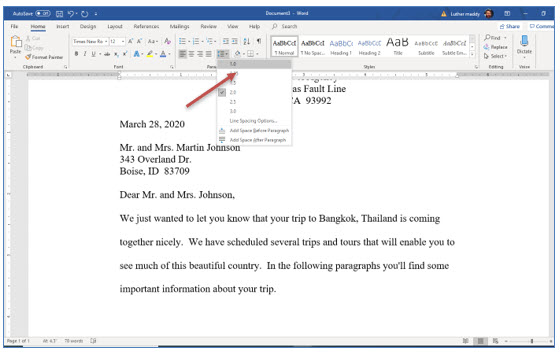
6. Make sure the insertion point is below the last paragraph, then click the Line Spacing tool on the Ribbon and change the line spacing back to Single (1.0).
Indenting Paragraphs
If you wish to offset one or more paragraphs from the text around it, you can indent that text. The Indent command will cause the entire paragraph to move to the right, rather than just the first line, as it would if you pressed the (Tab) key before typing the paragraph.
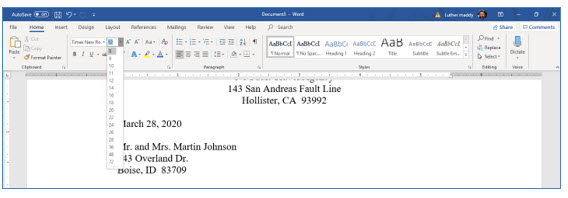
7. With the insertion point at the bottom of the document, use the Ribbon and change the Font Size to 8 points.
Depending on the font you are currently using, your lines may not break exactly as shown in this example.
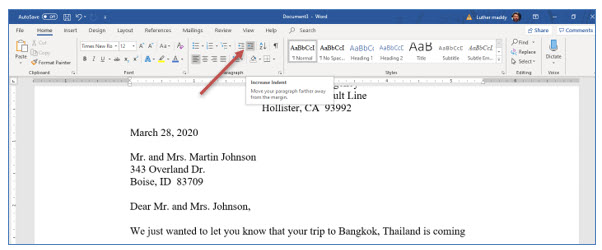
8. Locate and click the Increase Indent tool on the Ribbon one time to indent the next paragraph.
Each time you click the Increase Indent tool it indents 0.5” to the right. If you wanted to indent this paragraph 1”, you would click this tool twice.
9. Now, type the following paragraph and press (Enter) when done:
Remember that any problems you have on your trip will not be our fault. We will not be held responsible for any loss of life, limb or luggage. You assume all risks yourself.
Notice that the entire paragraph is indented, in 8 point type, and single spaced. If you wanted to indent a paragraph after you already typed it, just select the text and click the Increase Indent tool.
10. After typing this paragraph, change the Font size back to 12 points and press (Enter) key to create a blank line after this paragraph.
Just like many other commands that affect the appearance of text, the Indent command stays “on” until you turn it off. If you do not change the indent level back to the original setting, all additional text will be indented.
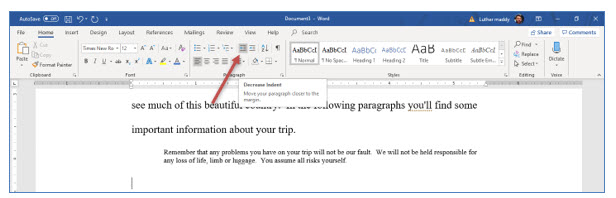
11. Click the Decrease Indent tool to end paragraph indentation.
You will find the Decrease Indent tool just to the left of the Increase Indent tool. This tool also decreases the indentation in increments of 0.5” each time you click it.
12. Turn on Underlining and type: Your Itinerary:
13. Turn off Underlining and then press (Enter) twice.
This is the only text you want underlined. Remember formatting changes, once turned on, stay on until you turn them off.
Hanging Indents
Word has different indentation styles. Hanging indents are useful for bulleted or numbered paragraphs or when manually creating a bibliography. There is no tool for the hanging indent command on the ribbon. You can create hanging indents from the Paragraph dialog box or even using the ruler. However, the easiest way to turn this feature on is with the keyboard shortcut (Control+T).
1. Press (Control+T) twice.
Like the left indent command, the hanging indent uses increments of 0.5”. Each time you pressed Control+T, the left indent marker on the ruler moved 0.5”.

2. Now, type 5/1/21 and press (Tab).
When you press (Tab) the insertion point will move to the bottom indentation mark. All lines of text within the paragraph you are typing will now indent at this mark.
3. Type the following paragraph and notice that it "hangs" off the date.
Arrive in Bangkok at 11:45 p.m. Next, you'll travel to your hotel and check in. After checking in you will begin your tour of the countryside.
Notice that when you pressed enter after this paragraph, the insertion point returned to the left margin. You should also see that the paragraph “hung” off the date.
4. Type the following two paragraphs by typing the date first, then pressing (Tab ) before typing the text. Use the (Enter) key to insert blank lines between these paragraphs.
5/2/21 Recover from jetlag. Do nothing. 5/3/21 Leave Bangkok and return home.
Notice that you did not need to execute the hanging indent command for each hanging paragraph. Once you turned this feature "on", it stays until you turn it "off".
5. With the insertion point below the last date line, press (Control+Shift+T) twice, until you see the paragraph indent marks both return to the Left margin on the horizontal ruler.

This keyboard shortcut turns "off" the hanging indent feature.
6. Now two lines below the last itinerary entry, type the following text:
Thank you for choosing No Fault Travel. Please call if you have any questions. Cynthia Anderson Booking Agent
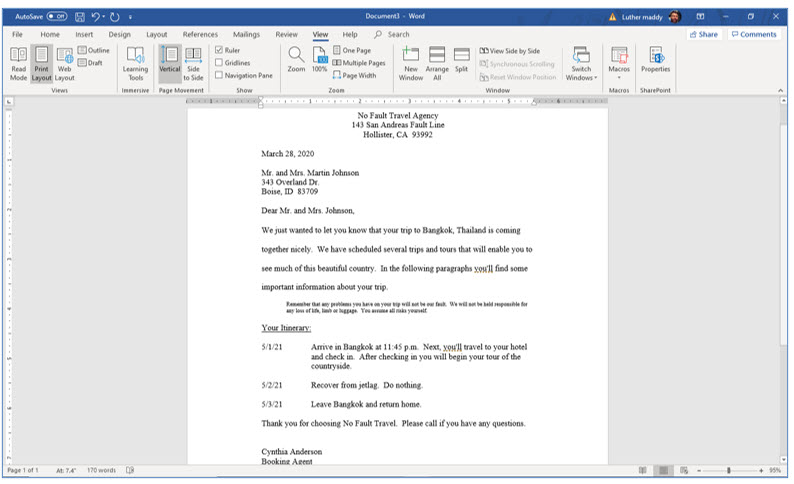
Your document should now appear similar to the one shown: