
Setting Tabs
Tab setting is very easy in Word. You use tab stops to place portions of your text in single spaced columns. You can also place text in columns using Word’s Table feature. You’ll learn about tables later in this course, but using tab stops, as you are about to see is easy and even has some advantages over using Tables.
You can use the Ruler bar if you only need basic tab settings. You will also learn to add dots or other characters between the tabular columns in this lesson.
Setting tab stops is more efficient than pressing the (Space) bar numerous times after completing the text in one column and moving to the next column, which is extremely more productive. When you set a tab stop, you move the next column with only one keystroke, the Tab key. Setting tabs also ensures the columns will be perfectly aligned, which is difficult if not impossible when you just use the (Space) bar to create columned text.
Word allows several different types of tabs to be set, depending on the alignment you would like.
1. Use the File menu to create a New Blank Document.

2. Click the Center tool on the Ribbon and type: Table of Contents
3. Press (Enter) to move one line down the page and change the alignment back to left alignment.
Using the horizontal Ruler to Set Tabs
To set tabs on the horizontal Ruler, you simply click you want the tab stops to be set. By default, Word sets a tab stop every .5”. You saw this when you used the Indent and Hanging indent commands. You do not need to worry about deleting the existing tab stops because Word automatically erases the default tab stops as soon as you place your own tab on the Ruler.
Word allows you to set left, right, center, and decimal table which control the alignment of the text at that tab stop. You can use the Tab button at the very left edge of the horizontal ruler to change the tab type. You will experiment with some of these tab alignments in this portion of the lesson.
Before you set tabs, we will have you check some paragraph settings to make sure they do not interfere with this portion of the lesson.
1. Click the paragraph dialog box launcher to display the paragraph dialog box.
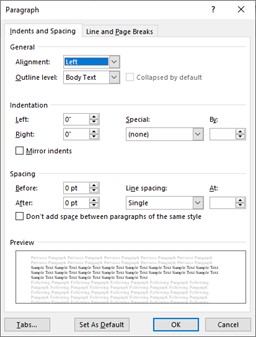
It is possible to set tabs within this dialog box, but for this portion of the exercise you will use the Ruler. For tab stops to work properly, you must ensure that you have all other indentation options turned off.
2. In the Paragraph dialog box, ensure both the Left and Right indentations are set at 0”. Also, ensure the Special option displays “none”.
3. Click OK to leave the paragraph dialog box.
You are now ready to set tab stops using the Ruler.
4. Make sure the Horizontal ruler is displayed. Click on tab button at the far left edge of the Ruler until it displays a Left Tab indicator as shown in the example.
Release the mouse button after clicking on the tab button.
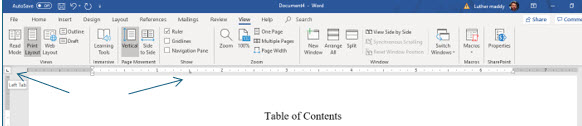
When you point to the tab stop type button on the ruler bar you should notice the tool tip informing you that this button represents a left tab. If it says something other than left, click this button until the symbol changes to appear as an "L", representing a Left Tab. Setting a left tab means the text you type using this tab stop will begin (be left aligned) at the tab stop. You will see some other tab stops in action as you continue with this lesson.
5. Now, carefully click at the 1.5” mark on the horizontal Ruler.
You have now set a tab stop at this location. This is verified with the "L" mark on the ruler at this position. If you do not set the tab exactly where it should be, you can move it by carefully dragging it to the correct location.
If you attempt to move a tab marker to another location, make sure you click precisely on the tab stop marker on the ruler. If not, you may find that you have set an additional, incorrectly placed tab stops. In that case you can click on the extra tab and drag it down, off the ruler to remove it. You are setting a Left tab, not because it is on the left of the page, but because you want the information in this column to be left aligned at the tab stop.
6. Move the mouse pointer back to the tab selector button at the left edge of the Ruler bar.
7. Click on the tab stop type twice, until it shows that you will be setting a Right Tab.
The right tab displays as a backwards “L”.
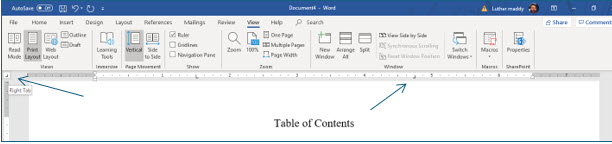
8. After selecting the Right tab stop, click at 4.75” on the Ruler bar to set a right tab at this location.
You selected a Right tab because the information in this column is to be right aligned at the tab stop.
You are now ready to type information using the two tab stops you just created.
9. Press (Tab) and then type Getting Started.
As you pressed (Tab), the insertion point should have jumped to the first tab stop, 1.5” from the left margin.
10. Next, press (Tab) again and type 1.
You should notice the insertion point jumped to the tab stop each time you pressed (Tab).
11. Press (Enter) and then type the following text, pressing (tab) before each topic and then again before typing the page number.
(Tab) Basic Editing (Tab) 5
(Tab) Formatting (Tab) 10
(Tab) Moving & Copying (Tab) 22
(Tab) Auto Text (Tab) 30
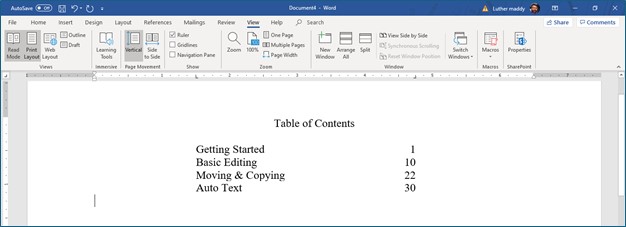
Your document should now appear like the illustration below. Notice the difference in the alignment of the text columns due to the tab type set for each.
Using Tab Leaders
Word allows you to select a variety of leaders between tabbed columns. You can choose from dots, dashes or solid lines. To set leaders, you will enter the Tabs dialog box from the Paragraph dialog box. To add leaders to existing text, as you will do here, you will need to select the text you want to change first.
1. Use the keyboard to move to the beginning of "Getting Started" in the tabbed information.
Be careful not to select the blank line above or below the tabbed information.
2. Press and hold the Shift key. Then move to the end of the last page number with the (Down) arrow.
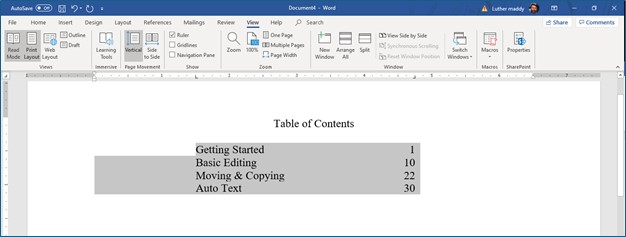
You have used the keyboard to select this text for accuracy.
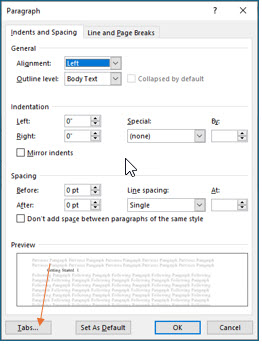
3. Display the Home tab and then launch the Paragraph dialog box and click the Tabs … button at the bottom left of this dialog box.
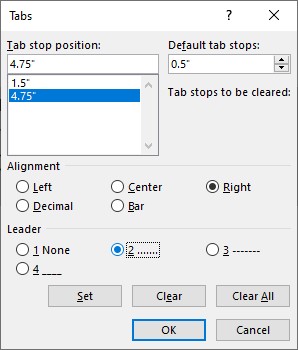
4. In the Tabs dialog box, click on 4.75” in the Tab stop positions section of this dialog box.
If you did not set your tab exactly at 4.75” you will see a different value here but that will not matter. Simply select the second tab in the list. If you have more than two tabs set here, you can click on the one you do not want and click the Clear button to remove it.
5. Next, click Leader option #2.
You have chosen to place dots between the columns. If you are making more than one change you would need to click Set after each change. This is not necessary this time because you have made only one change.
6. Click OK when done.
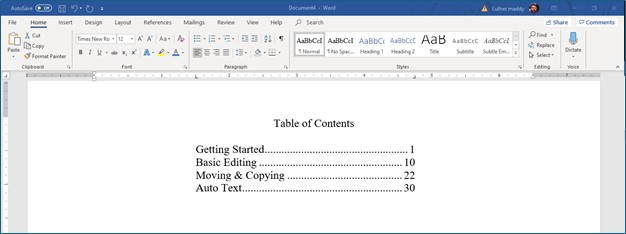
You should now see leaders between the columns you just created. Tab leaders come before the tab stop you apply them to. This is why you selected the second, 4.75” tab location before selecting the leaders. If you had selected the first tab, the leaders would have appeared before the first column of text.
Adjusting Tabs with the Ruler
To move a tab, just drag it to the desired location on the Ruler bar. If you want to change existing text, make sure you select that text first. To remove a Tab, drag it off the ruler bar and into the document window.
1. Move to the end of the document. Make sure you are below the last line in the tabbed columns.
2. Carefully click the tab marker at 1.5” and drag it into the text to remove it. Do the same with the tab at 4.75”.
The two tab stops you set should now be removed and Word defaulted back to a left tab every 0.5”.
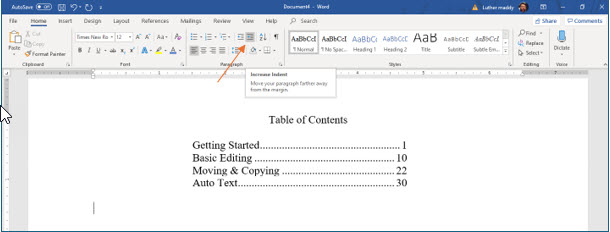
3. With the insertion point two lines below the last line in the tabbed columns, click the Increase Indent tool on the Ribbon once. Next type:
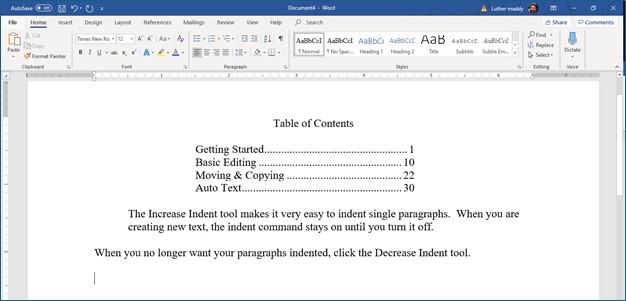
The Increase Indent tool makes it very easy to indent single paragraphs. When you are creating new text, the indent command stays on until you turn it off.
Since you removed the tab stop at 1.5”, the Increase Indent command indented the paragraph only .5”.
4. Two lines below this paragraph. Click the Decrease Indent tool in the Paragraph group. Next, type the following paragraph:
When you no longer want your paragraphs indented, click the Decrease Indent tool.
Your document should appear similar to the one below. Your lines may break differently depending on the font you are using.
You can save this document if you like, but now you know how to set and use tabe.