
Microsoft Word Training

Find, Replace, and Thesaurus

Learn to find and replace text throughout a Microsoft Word document, choose replacements carefully, use synonyms, and navigate with the Go To command.

Start here

Overview

This lesson revises the Johnson Travel Confirmation Letter by replacing a company name throughout the document, selecting a synonym with Word's thesaurus, and using Go To to restore page-by-page navigation.

What You Will Learn

  • Explain the purpose of Find and Replace.
  • Open the Replace dialog box from the Home tab.
  • Enter Find what and Replace with text.
  • Distinguish Replace from Replace All.
  • Verify replacements throughout a document.
  • Use the right-click Synonyms command.
  • Replace a word with an appropriate synonym.
  • Open and use the Go To tab.
  • Restore page-by-page navigation after a search.
  • Save and close the revised document.

Before You Begin

  • Opening and saving Word documents
  • Selecting and editing text
  • Using the Johnson Travel Confirmation Letter

Why This Matters

Find and Replace can revise repeated text quickly and consistently, while the thesaurus and Go To tools improve word choice and navigation in longer documents.

Plan Your Study

  • Open the Johnson Travel Confirmation Letter.
  • Move to the letter page.
  • Replace No Fault Travel with Faultless Travel.
  • Review the replacement count and verify the changes.
  • Replace beautiful with stunning using Synonyms.
  • Test Control+PageUp after the search.
  • Use Go To to restore page navigation.
  • Save and close the document.

Next step

Read the complete chapter.

The Learn tab contains the written lesson from Surviving Statistics.

Go to Learn

Written lesson

Learn Find, Replace, and Thesaurus

Learn to find and replace text throughout a Microsoft Word document, choose replacements carefully, use synonyms, and navigate with the Go To command.

Advertisement

Find, Replace and Thesaurus

Word has many features that enable you to do a wide range of things to any document. This lesson will cover using the Find and Replace tool as well as using MSWord's built in thesaurus.

Find and Replace

Finding Text

The Find command does what the term implies. It finds text. You can use it as a "go to" command to find a particular heading or phrase quickly in your document.

Replacing Text

The Replace command finds text and lets you change it to something else. This command is useful when you have, for example, consistently misspelled a name throughout the document.

The Replace command provides you the option of replacing every occurrence of the text automatically or choosing which occurrences you want to change and which you do not.

In this exercise you will use the replace command to change the travel agency's name from No Fault Travel to Faultless Travel.

1. Open the file named Johnson Travel Confirmation letter.

The first page of this document is now the envelope you created in the last lesson. You will now move down to the second page, the beginning of the letter itself to being the Find operation.

2. Move to the top of page 2 (the letter) by pressing (Control+Page Down).

You may recall when you open a document in Word, it always places the insertion point at the beginning of the document. If this shortcut does not take you to the second page, just move there yourself. You will rest this command shortly.
Microsoft Word lesson screenshot 6thLesson1

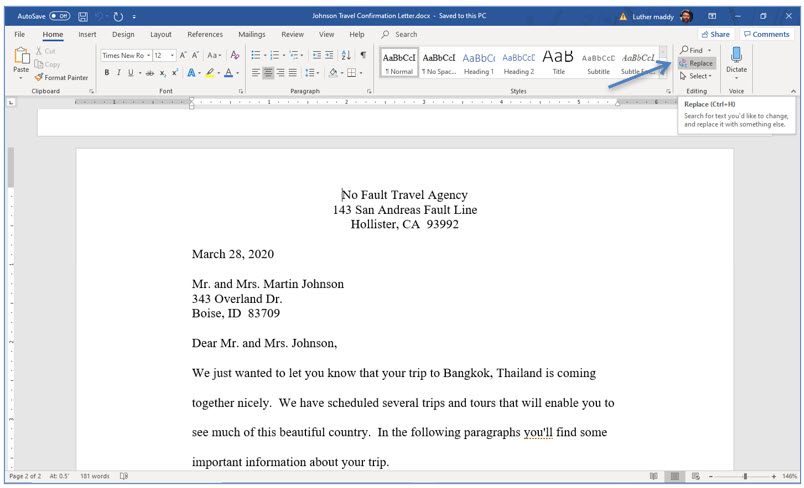
3. Click the Home tab and then click the Replace tool (far right) on the Ribbon.
Microsoft Word lesson screenshot 6thLesson2

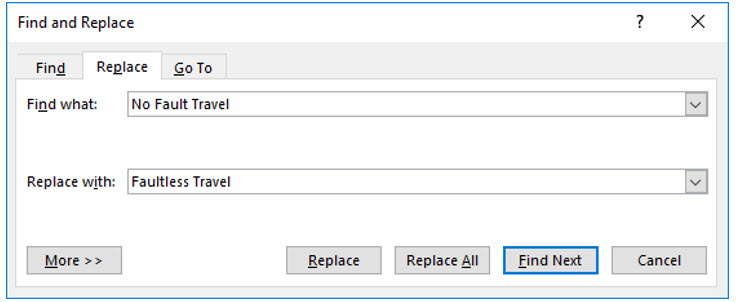
4. In the Find what section of this dialog box type No Fault Travel and press (Tab).

5. In the Replace with section of this dialog box, type Faultless Travel.

After specifying the text to find and the replacement text, you then must decide to replace all occurrences, or just the ones you choose. Clicking Replace All will replace every occurrence of No Fault with Faultless.

If you are unsure you want to change every single occurrence, then you would click Find Next. After finding the next occurrence of No Fault Travel in the document you could then choose to replace that one instance by clicking the Replace button. If you do not want to replace that specific occurrence, you would click Find Next to find the next time that text appears in the document.

6. Click Replace All.
Microsoft Word lesson screenshot 6thLesson3

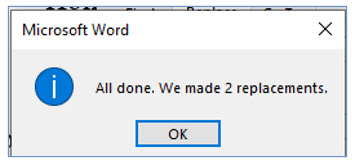
7. Click OK when Word informs you how many replacements it made. After this, close the Find and Replace dialog box.

You have now effectively changed the name of this company with one command. Scroll through the document to verify that all occurrences of this text have changed.

Using the Thesaurus

The Thesaurus allows you to find synonyms for words appearing in your document. To use the Thesaurus, move the insertion point into the word for which you want to find a synonym. Then, display the Review tab and choose Thesaurus in the Proofing group. You can also quickly display synonyms by right clicking the word.

The Thesaurus will then display synonyms for that word. You then have the option of replacing that word with one of the listed synonyms, or you can lookup synonyms for any of the suggestions.

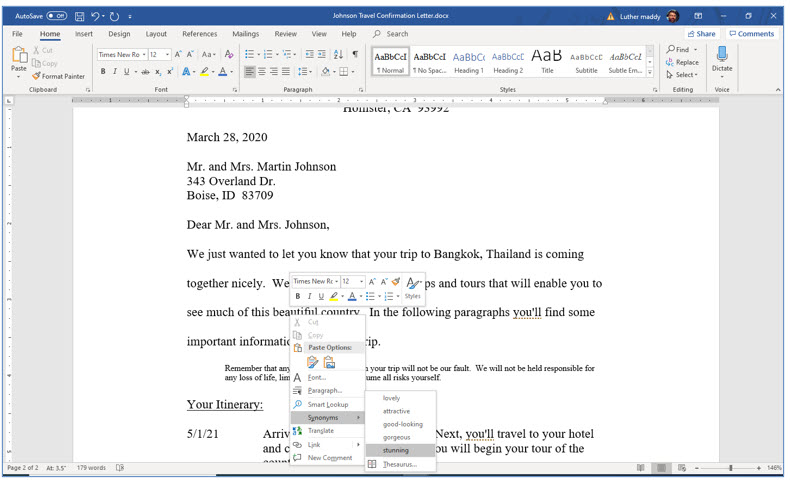
8. Move the insertion point into the word beautiful near the end of the first paragraph and Right-click.
Microsoft Word lesson screenshot 6thLesson4

9. From the sub-menu that appears, choose Synonyms.

You will now choose one of these synonyms.

10. In the list of Synonyms click on stunning to replace the word beautiful with stunning.

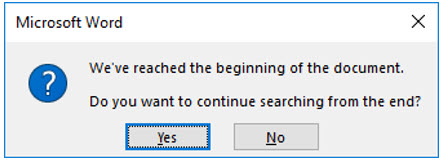
After using the find or replace feature, Word changes some shortcut keys. If you try to move from page to page with Control+Pagedown, Word will instead try to execute another find. You can change the browsing keystrokes back to moving page by page rather than repeating the find command by using the Go To… command.

11. With the insertion point anywhere in the letter press (Control+PageUp).
Microsoft Word lesson screenshot 6thLesson5

Rather than moving to the top of the previous page, the envelope in this case, Word informed you it repeated the last find command. In this case, this is not what you wanted Word to do with those keystrokes.

12. Click No in the dialog box to inform Word you do not want to perform a search.

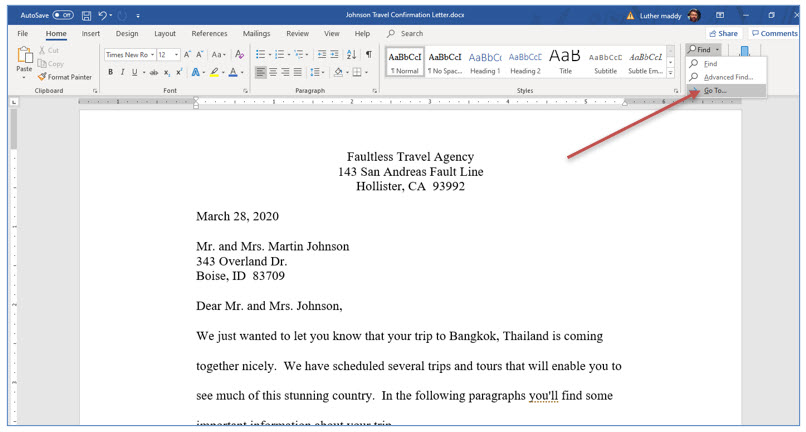
Word will now close this dialog box. You will now inform Word that you want to once again use (Control+PageUp) as a command to move page by page through the document, now preform the Find command.
Microsoft Word lesson screenshot 6thLesson6

13. Click the drop down list button on the find command and choose Go To… the Goto command.

You could also use the shortcut keys (Control+G) to select the Go To... command.
Microsoft Word lesson screenshot 6thLesson7

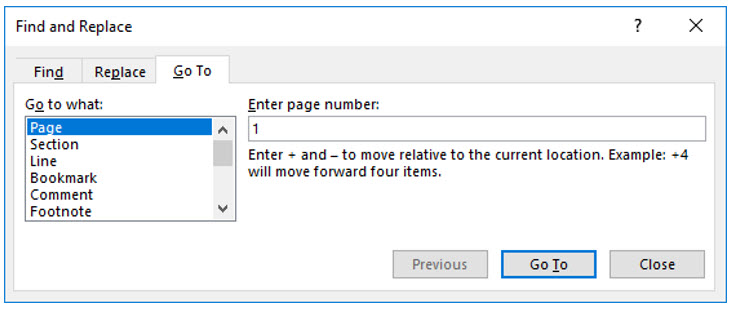
You should see the Find and Replace dialog again, but notice this time the Go To tab is selected. Here you simply enter the page number you wish to move to and then click the Go To button. This is a very quick way to move to a specific page within the document. In this case, you are using this command to change the Control+Pageup and Control+Page Down shortcut keys to page by page rather than repeat the Find command.

14. Type 1 in the Enter page number text box and click the Go To button.

15. Click Close to close the Find and Replace dialog box.

You may find that the insertion point stayed on the letter and did not move to the envelope at the top of the document. This is because Word actually numbered the envelope as page 0 rather than page 1. You will learn more about page number in future trainings. For now, check to see if the Control+Pageup and Control+Pagedown commands returned to browsing page by page.

16. Press (Control+Pageup).

Now, because you changed the function of these keystrokes back to their original setting, you moved up one page. The function of these keystrokes changes every time you use the Find or Replace commands.

17. Save and close this document.

Advertisement

Next step

See the concepts demonstrated.

Continue to Watch for chapter videos and worked examples.

Go to Watch

See it explained

Watch

Choose the explanation or example that best supports your learning.

Next step

Apply what you have learned.

Use the guided questions and activities in Practice.

Go to Practice

Apply what you learned

Practice Find, Replace, and Thesaurus

Use the Johnson Travel Confirmation Letter to practice global replacement, selective replacement, synonyms, and document navigation.

Guided Practice

  • Open Johnson Travel Confirmation Letter.
  • Open Replace from the Home tab.
  • Find No Fault Travel and replace it with Faultless Travel.
  • Use Replace All and review the reported number of changes.
  • Scroll through the document and verify the replacements.
  • Use Synonyms to replace beautiful with stunning.
  • Open Go To and move to page 1.
  • Test Control+PageUp and Control+PageDown.
  • Save and close the revised document.

Challenge Yourself

  • Use Find Next and Replace to change only selected occurrences of another word.
  • Use Find to locate a heading in a longer document.
  • Compare two synonyms and explain which one fits the sentence better.
  • Use Go To to move to a specific page, section, or other available item.
  • Explain a situation where Replace All could create incorrect changes.

Check Your Understanding

  • Can you distinguish Find, Replace, and Replace All?
  • Can you explain why replacements should be verified?
  • Can you identify how to open synonyms quickly?
  • Can you explain what Go To does?
  • Can you describe why Control+PageUp or Control+PageDown may behave differently after a search?

Next step

Save the materials you may need later.

Open Resources for the study sheet, spreadsheets, and related learning materials.

Go to Resources

Keep learning

Resources

Study sheets, downloadable files, companion tools, and related lessons for this chapter.

For educators

Teaching this chapter?

The Instructor tab contains objectives, teaching ideas, assessments, and a printable guide.

Open Instructor Resources

LutherMaddy.com — Helping Humans Learn

Find, Replace, and Thesaurus: Instructor Resources

Teach this lesson

Instructor Resources

Classroom-ready objectives, teaching ideas, questions, and assessment materials for this chapter.

Learning Objectives

  • Use Find to locate text efficiently.
  • Use Replace and Replace All appropriately.
  • Verify changes made throughout a document.
  • Use Word synonyms to improve word choice.
  • Use Go To for document navigation.
  • Restore page browsing after a search.
  • Save the revised document.

Prerequisite Knowledge

  • Opening and saving documents
  • Editing and selecting text
  • Using the Johnson Travel Confirmation Letter

Teaching Outline

  • Introduce Find, Replace, and Replace All.
  • Open the letter and move to page 2.
  • Replace the company name throughout the document.
  • Verify the changes.
  • Use Synonyms to replace a word.
  • Demonstrate changed browse-key behavior.
  • Use Go To to restore page navigation.
  • Save and close the document.

Key Concepts

  • Find locates matching text without changing it.
  • Replace changes one selected occurrence.
  • Replace All changes every matching occurrence.
  • Replacement results should be reviewed.
  • Synonyms must fit the meaning and tone of the sentence.
  • Go To moves directly to a page or other document location.
  • Search activity can change the behavior of browsing shortcuts in some Word versions.

Classroom Demonstration

  • Compare Replace with Replace All on a short sample.
  • Show how an overly broad search can replace unintended text.
  • Review several synonyms and select the best contextual choice.
  • Use Ctrl+G to move to a specified page.

Questions to Ask

  • When is Replace All safe to use?
  • Why should users verify automatic replacements?
  • Why is the first synonym suggested not always the best choice?
  • When is Go To faster than scrolling?

Teaching Notes

  • The source lesson describes Control+PageUp and Control+PageDown behavior after Find or Replace. This behavior may vary by Word version and navigation settings.
  • Encourage students to save a copy before performing large replacements in important documents.
  • The supplied source did not include a verified video URL, so the Watch tab remains empty.
  • The shared lesson-v4 configuration automatically adds Learn-tab advertisements.

Assessment Ideas

  • Replace a repeated company name throughout a document.
  • Perform a selective replacement using Find Next and Replace.
  • Choose an appropriate synonym for a selected word.
  • Use Go To to navigate to a specified page.

Grading Rubric

CriterionPoints
Find and Replace entries correct2
Appropriate replacement method selected2
Changes verified accurately2
Synonym selected appropriately2
Go To and saving completed correctly2
Total10

Exam and Discussion Questions

Basic

  • Explain the difference between Replace and Replace All.
  • State the shortcut for the Go To command.

Applied

  • Replace a repeated phrase throughout a supplied document.
  • Use a synonym to improve a selected sentence.

Conceptual

  • Explain why Replace All can be risky.
  • Explain why synonym choice requires attention to context.

Keep Exploring

Continue Learning

Explore step-by-step lessons, interactive calculators, downloadable study sheets, and practical educational resources.