
Microsoft Word Training

Creating Envelopes and Labels

Learn to create envelopes from an existing Word letter, add an envelope to a document, change address case, select label products, and create a full sheet of return-address labels.

Start here

Overview

This lesson uses the Johnson Travel Confirmation Letter to create a matching envelope and then builds a full sheet of No Fault Travel return-address labels.

What You Will Learn

  • Create an envelope from an existing Word letter.
  • Use the Mailings tab and Envelopes tool.
  • Add an envelope to the current document.
  • Select and change an address to uppercase with Shift+F3.
  • Create labels from selected address text.
  • Choose a label vendor and product number.
  • Create a full page of identical labels.
  • Save and close the completed label document.

Before You Begin

  • Creating and saving Word documents
  • Selecting and formatting text
  • Page and paragraph formatting

Why This Matters

Word can reuse address information already entered in a letter, reducing repeated typing and making it easier to create coordinated envelopes and mailing labels.

Plan Your Study

  • Open the Johnson Travel Confirmation Letter.
  • Create and add an envelope to the document.
  • Change the delivery address to uppercase.
  • Select the company return address.
  • Open the Labels dialog box.
  • Choose Avery US Letter 5160.
  • Create a full page of identical labels.
  • Save the labels as No Fault Return Addresses.

Next step

Read the complete chapter.

The Learn tab contains the written lesson from Surviving Statistics.

Go to Learn

Written lesson

Learn Creating Envelopes and Labels

Learn to create envelopes from an existing Word letter, add an envelope to a document, change address case, select label products, and create a full sheet of return-address labels.

Advertisement

Envelopes and Labels

Word has many features that enable you to do a wide range of things to any document. This lesson will cover working with envelopes and labels.

▶
Easily create an entire sheet of return address labels Watch video
▶
Create custom personalized envelopes with Mail Merge Watch video

Envelopes and Labels

It is very easy to create either envelopes or labels from letters you have written. In this exercise, you will open a previously created letter and create an envelope to use for mailing that letter. After creating the envelope, you will create an entire sheet of labels with No Fault Travel’s return address.

Creating Envelopes

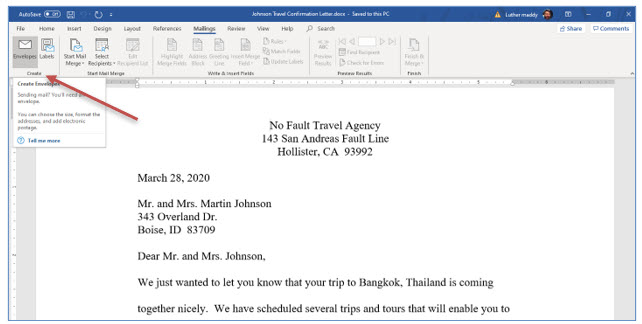
To create an envelope, first write the letter. Then, open the Mailings tab and select Labels in the Create Group. Word will then automatically pull the mailing address from the letter and place it on the envelope.

1. Open Johnson Travel Confirmation Letter.
Microsoft Word lesson screenshot 5thLesson1

2. Click the Envelopes tool from the Mailings tab.

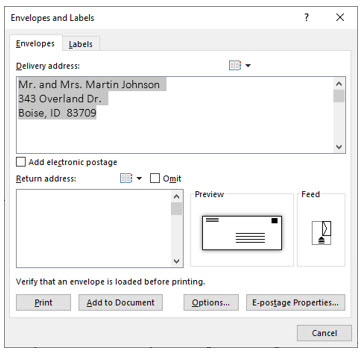
You should now see the Envelopes and Labels dialog box.
Microsoft Word lesson screenshot 5thLesson2

Word automatically copies the mailing address for this letter into the Envelopes and Labels dialog box. Rather than printing, you will add the envelope to your letter so you can change the case of the address. After adding it to the document, you could also change fonts, add graphic images, or add other enhancements to the envelope.

3. In the Envelope dialog box, click Add to Document.

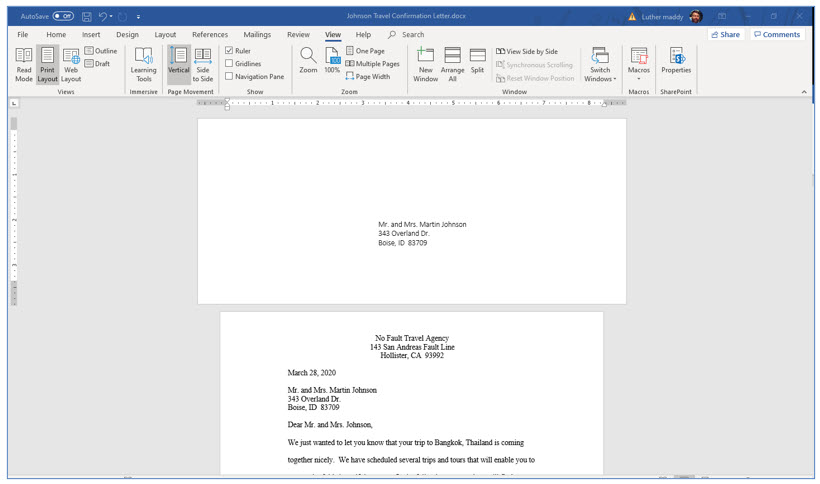
You should now see that Word has added the envelope to the top of the letter. You will now capitalize the address using (Shift+F3), the shortcut for this. Placing the address in uppercase lettering will help this envelope meet US Post Office requirements for bulk mailing discounts.
Microsoft Word lesson screenshot 5thLesson3

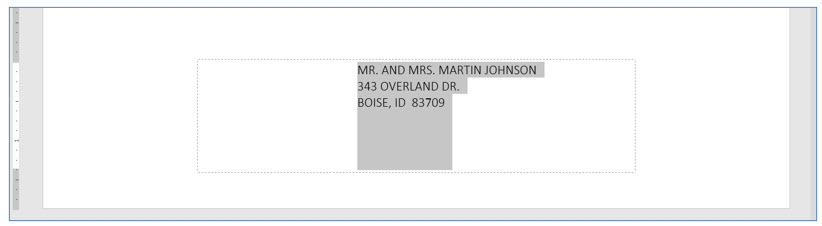
4. Click and drag to select the mailing address in the envelope. With the address selected, press (Shift+F3) to change the mailing address to uppercase.
Microsoft Word lesson screenshot 5thLesson4

Any punctuation in the address in the letter will be duplicated on the envelope. If you are receiving bulk mailing discounts, remove the commas and other punctuation. If you do not want to remove punctuation each time you create an envelope, consider omitting the punctuation in the address when you type it in the letter. If you are not planning on using this for bulk mailing, then punctuation and capital letters are not anything you need to worry about.

Creating Labels

Now you will create an entire sheet of labels with No Fault Travel’s return address. You can also create a single label for the delivery address. If you prefer to print labels instead of envelopes, you can tell Word which label to start printing on. This lets you run label sheets through the printer more than once. However, if you do this, use caution and examine the label sheet for loose labels before you do. You may find printing an entire sheet of the same label is practical for mailing addresses if you use them repeatedly.

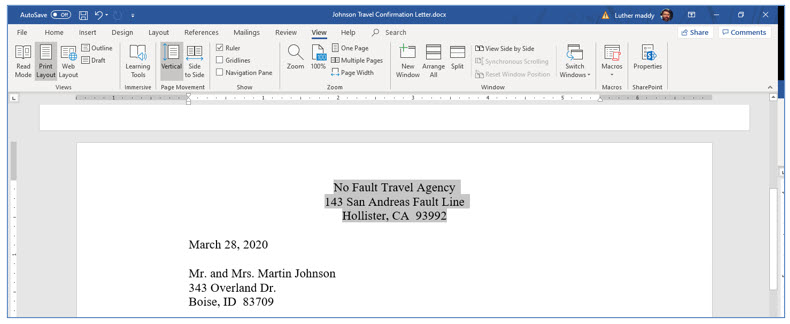
1. Move to the top of the letter with (Control+Pagedown). Select the return address at the top i.e. (No Fault Travel).

If Control+Pagedown does not take you to the next page, just move there on your own. A setting may have changed in Word to cause this keystroke shortcut not to work. You will learn to change this setting in a later lesson. Select this text by clicking and dragging, but do so carefully to make sure you do not select portions of the envelope or include the letter’s date.
Microsoft Word lesson screenshot 5thLesson5

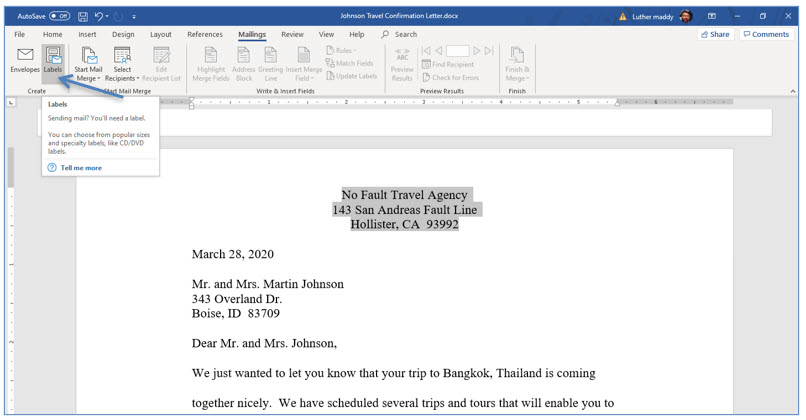
2. After selecting the return address, click the Labels tool in the Mailings tab.
Microsoft Word lesson screenshot 5thLesson6

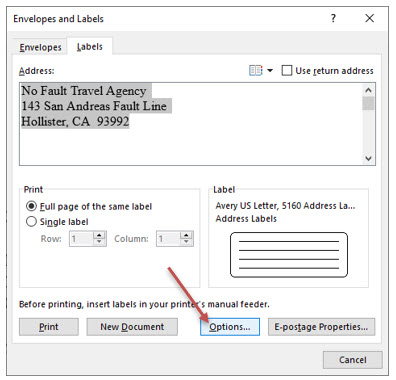
You should now see the labels dialog box. The next step will be to tell Word what kind of labels you are using and whether you want a single label or an entire sheet of the same label.
Microsoft Word lesson screenshot 5thLesson7

3. Click the Options button in the Labels dialog box.

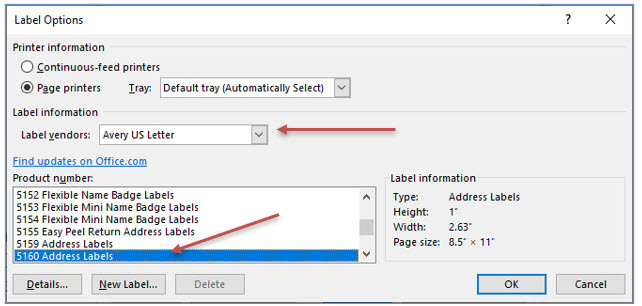
You will now need to tell Word what size of label you are using. You can usually do this by specifying the brand of label and that vendor’s label number.
Microsoft Word lesson screenshot 5thLesson8

4. Click the Label vendors drop down box and select Avery US Letter as the vendor. Next, scroll down and select 5160 in the Product number section.

The label vendor, size, and number you choose when actually using Word may be different, but the labels you have selected represent the “standard” mailing label size. When choosing the label option, if you are not using Avery or some other vendor listed, you can use the size of the label to select the correct label option. Sometimes other vendors will state on the packaging that their label is compatible with “Avery 5160” or some other label number.

5. After choosing the label type and size, click OK.

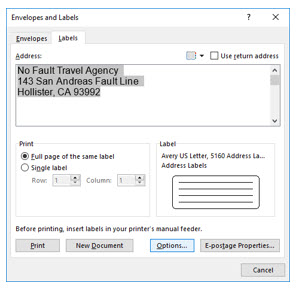
You have now returned to the labels dialog box. Now you need to tell Word if you want to print just one label or an entire sheet of the same label. Since we are printing labels for the company name, select an entire sheet of the same label.
Microsoft Word lesson screenshot 5thLesson9

6. Make sure the Full page of the same label radio button is selected and then click New Document.
Microsoft Word lesson screenshot 5thLesson10

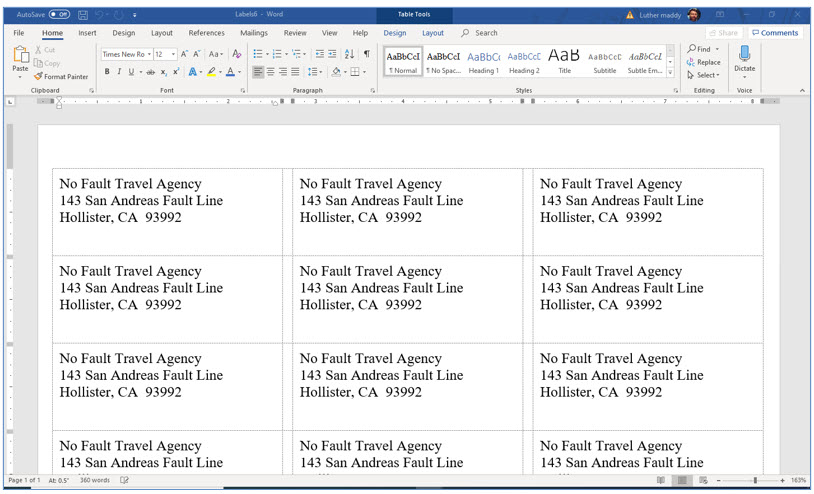
You should now see that Word has created an entire sheet filled with the return address of No Fault Travel. Now that you have this entire sheet of labels, you could easily change the font face or size by first selecting the entire sheet (Control+A) and then choosing the font change.

7. Save the labels as No Fault Return Addresses and close both files saving changes.

Advertisement

Next step

See the concepts demonstrated.

Continue to Watch for chapter videos and worked examples.

Go to Watch

See it explained

Watch

Choose the explanation or example that best supports your learning.

Next step

Apply what you have learned.

Use the guided questions and activities in Practice.

Go to Practice

Apply what you learned

Practice Creating Envelopes and Labels

Use the Johnson Travel Confirmation Letter to create a matching envelope and a full page of return-address labels.

Guided Practice

  • Open the Johnson Travel Confirmation Letter.
  • Use the Envelopes command to create an envelope from the letter's delivery address.
  • Add the envelope to the document.
  • Select the delivery address and use Shift+F3 to change it to uppercase.
  • Select the No Fault Travel return address in the letter.
  • Open Labels and choose Avery US Letter product 5160.
  • Create a full page of the same label in a new document.
  • Save the label document as No Fault Return Addresses.

Challenge Yourself

  • Create one individual delivery-address label rather than a full sheet.
  • Change the font and size on the full sheet of labels.
  • Choose another compatible label product and compare the layout.
  • Create an envelope with a different return address.
  • Explain when Mail Merge would be better than creating one envelope manually.

Check Your Understanding

  • Can you explain how Word obtains the delivery address for an envelope?
  • Can you distinguish adding an envelope to a document from printing it immediately?
  • Can you identify where the label vendor and product number are selected?
  • Can you explain the difference between a single label and a full page of identical labels?
  • Can you explain what Shift+F3 does?

Next step

Save the materials you may need later.

Open Resources for the study sheet, spreadsheets, and related learning materials.

Go to Resources

Keep learning

Resources

Study sheets, downloadable files, companion tools, and related lessons for this chapter.

For educators

Teaching this chapter?

The Instructor tab contains objectives, teaching ideas, assessments, and a printable guide.

Open Instructor Resources

LutherMaddy.com — Helping Humans Learn

Creating Envelopes and Labels: Instructor Resources

Teach this lesson

Instructor Resources

Classroom-ready objectives, teaching ideas, questions, and assessment materials for this chapter.

Learning Objectives

  • Create an envelope from an existing Word letter.
  • Add an envelope to the current document.
  • Change delivery-address capitalization.
  • Create labels from selected text.
  • Choose a label vendor and product number.
  • Create and format a full sheet of identical labels.
  • Save the finished label document.

Prerequisite Knowledge

  • Creating and saving documents
  • Selecting and formatting text
  • Page and paragraph formatting

Teaching Outline

  • Open the Johnson Travel Confirmation Letter.
  • Create and add the envelope.
  • Change the delivery address to uppercase.
  • Select the return address.
  • Open the Labels dialog box.
  • Select Avery US Letter 5160.
  • Create the full label sheet.
  • Save and close the files.

Key Concepts

  • Word can extract an address from an existing letter.
  • Adding an envelope creates an editable envelope page in the document.
  • Shift+F3 changes the capitalization of selected text.
  • Label vendor and product number determine the label layout.
  • A full page of the same label is useful for repeated return addresses.
  • Label documents can be reformatted after Word creates them.

Classroom Demonstration

  • Create an envelope from the letter and compare Add to Document with Print.
  • Cycle selected address text through capitalization choices with Shift+F3.
  • Create one label and then a full page of labels.
  • Change the font across an entire label sheet with Ctrl+A.

Questions to Ask

  • When is an envelope preferable to a mailing label?
  • Why should the label product number match the physical label sheet?
  • When is a full sheet of identical labels useful?
  • When would Mail Merge be more efficient than creating one envelope?

Teaching Notes

  • The source lesson states that the Envelopes command automatically pulls the address from the letter; results can depend on how the address is formatted and selected.
  • Students do not need to print physical envelopes or labels to complete the lesson.
  • Printer feed direction and envelope settings vary by printer.
  • The shared lesson-v4 configuration automatically adds the Learn-tab advertisements.

Assessment Ideas

  • Create and add an envelope to a supplied letter.
  • Apply the required capitalization to the delivery address.
  • Create a full page of Avery 5160 return-address labels.
  • Save the label document with the required name.

Grading Rubric

CriterionPoints
Envelope created from the correct address2
Envelope added and address formatted correctly2
Correct label vendor and product selected2
Full label sheet created correctly2
Files saved and organized correctly2
Total10

Exam and Discussion Questions

Basic

  • Identify the Word tab and commands used to create envelopes and labels.
  • State what Shift+F3 does.

Applied

  • Create an envelope from a supplied business letter.
  • Create a full sheet of return-address labels using a specified label product.

Conceptual

  • Explain why the correct label product number is important.
  • Compare creating one envelope with using Mail Merge for many recipients.

Keep Exploring

Continue Learning

Explore step-by-step lessons, interactive calculators, downloadable study sheets, and practical educational resources.